Most people want a YouTube video offline for a simple reason. The train has no signal, the lecture is needed for revision, or your own upload has to go into an editing app. Desktop programs can do the job, but installing software for one video feels like too much, especially on a phone or a work laptop.
A browser-based converter handles this with one pasted link. Here is how it works, which format to pick and what to do when something goes wrong.
What happens when you paste a link
YouTube stores most videos as separate streams: one for the picture and one for the sound. Lower resolutions sometimes come as a single combined file, but 1080p almost never does. A converter reads the streams available for that video, then joins the picture and sound into one MP4 on its server. That extra step is why a 1080p file can take longer to start than a 480p one.
Audio is simpler. The picture is ignored, and the sound is either encoded to MP3 or saved in its original container.
Saving a video as MP4
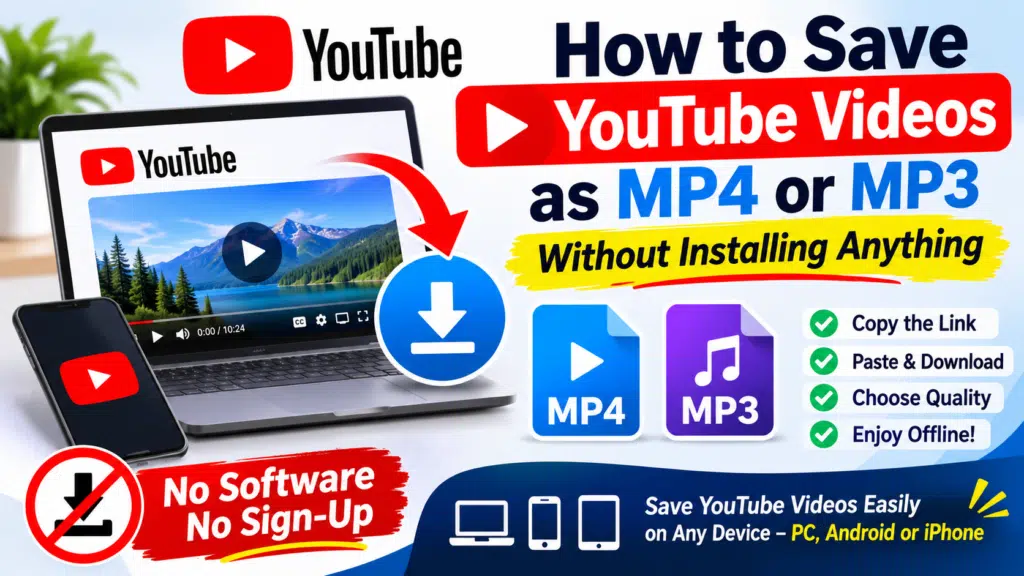
YTMP4 is one free option that runs in the browser, with no app or sign-up. The steps are the same on iPhone, Android and PC:
- Copy the video link from the YouTube app or the address bar.
- Paste it into the box on the page.
- Pick a resolution and start the download.
Resolution decides most of the file size, so match it to the screen. Use 1080p for a laptop or TV, 720p for a phone or tablet, and 480p when storage or data is tight. For a full walkthrough of the options, see this YouTube to MP4 guide.
You can only get the qualities the uploader provided. A video uploaded in 720p won’t offer a real 1080p version, however it is converted.
Saving only the audio
For podcasts, talks and music you have the rights to, a video file wastes space. Two audio formats cover nearly every need:
- MP3 plays on almost anything, including old car stereos and basic players. 192 kbps is a sensible default, at roughly 1.4 MB per minute.
- M4A keeps the original AAC audio without encoding it again, so it can stay closer to the source. It works well on phones and modern players, but some older devices won’t play it.
A higher MP3 bitrate can’t bring back detail the source has already lost. YouTube audio is compressed before you ever download it, so a bigger number often just means a bigger file. If you want audio only, the YouTube to MP3 page explains the choices and real file sizes.
Common problems and quick fixes
- The link gets rejected. Copy it again from the Share button. Channel, search and playlist pages aren’t links to a single video.
- The video won’t load. Private, removed and age-restricted videos usually can’t be read. Live streams generally need to finish first.
- You can’t find the file on iPhone. Safari normally saves to Files > Downloads, so it won’t appear in the Photos or Music app. To get a video into your gallery, open it in Files and use Share > Save Video.
- The file has no sound or won’t play. Try another player such as VLC, or download it again in a different resolution.
Check the rights first
Being able to download a video doesn’t always mean you’re allowed to. YouTube’s terms restrict downloading, and copyright rules differ by country. Stick to your own uploads, Creative Commons content and videos you have permission to save.
Which option should you pick?
For watching on a big screen, choose MP4 at 1080p. For a phone, 720p saves a lot of space and still looks sharp. For anything you only listen to, take MP3 for compatibility or M4A if your device supports it. Those three choices cover almost every download.