
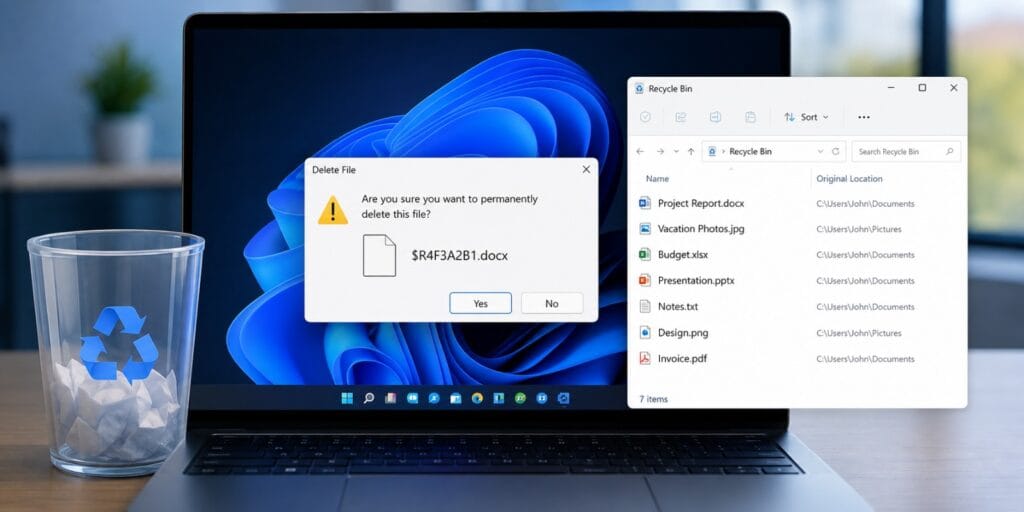
I ran into this exact prompt on my own machine last month and froze for a second before deleting anything. The file name in the confirmation box did not match what I had actually clicked. That single mismatch is enough to make anyone stop and double check before hitting yes.
Recycle Bin shows wrong file names in Windows 11 because of a confirmed Microsoft bug tied to the June 2026 security update. When you permanently delete one item, the confirmation prompt shows an internal system name like $Rxxxxx.ext instead of your real file name. The Recycle Bin list view and the restore function both still show the correct name, and no files are lost or renamed.
Key Takeaways
- The bug started after the June 9, 2026 security update, known as KB5094126 on Windows 11
- Only the delete confirmation prompt is affected, not the Recycle Bin list itself
- Restoring a file always returns it with its correct original name
- Microsoft confirmed the issue on its Windows Release Health page in June 2026
- A full fix shipped in the July 14, 2026 update, KB5099414
Recycle Bin showing wrong file names in Windows 11 is a confirmed display bug, not a sign of file corruption or malware. Microsoft traced it to the June 2026 Patch Tuesday update. The bug only shows up in the popup that asks you to confirm a permanent deletion.
This guide walks through exactly what Microsoft confirmed, why the wrong name appears, and what to do about it right now. You will also see the update history behind the fix and the safest workaround if your device has not installed the patch yet.
What Does Recycle Bin Showing Wrong File Names Actually Mean
When you select a single file inside Recycle Bin and choose to permanently delete it, Windows normally shows a prompt with your file name in it. After the bug appeared, that prompt instead showed a system generated name such as $Rxxxxx.ext. This odd looking name is not random, it comes from how the Recycle Bin stores deleted items internally.
Every file sent to the Recycle Bin gets renamed behind the scenes to a code starting with $R, while a matching $I file stores the original name and deletion date. Under normal conditions Windows translates that code back to your real file name everywhere you see it. The June 2026 bug broke that translation step specifically inside the single item delete confirmation dialog.
Microsoft addressed this directly on its Windows Release Health dashboard. According to Microsoft, the confirmation dialog displays the internal Recycle Bin file name instead of the original file name when permanently deleting a single item. Microsoft also confirmed that the Recycle Bin list itself keeps showing the correct name the entire time.
Why Is Recycle Bin Showing Wrong File Names in Windows 11 After an Update
The root cause traces back to the mandatory Windows security update released on June 9, 2026. On Windows 11, this update carries the identifier KB5094126. The same underlying issue also appeared on Windows 10 and several Windows Server versions, since they share the same Recycle Bin code.
Microsoft has not published the exact technical reason the translation step broke. What the company has confirmed is the scope, the trigger, and the fact that no files are actually renamed or deleted incorrectly. This is purely a case of the wrong label appearing in one dialog box.
If your device shows the correct file name inside the Recycle Bin folder itself but the wrong name in the delete popup, that pattern matches this exact bug. The mismatch is cosmetic. Nothing about the file content, location, or ability to restore it changes.
Is This Bug Dangerous or Does It Affect My Files
No, this bug does not affect your files, your data, or your ability to restore anything correctly. Microsoft has been explicit that the issue is limited to the text shown in one confirmation window. Clicking yes on the confirmation still deletes the file you actually selected, not the file whose name appears on screen.
A short summary block worth remembering. This bug changes only the text inside the single item permanent delete confirmation prompt in Recycle Bin. The Recycle Bin list view, the restore function, and the actual file being deleted are never affected. No cases of data loss tied to this bug have been confirmed by Microsoft.
The confusion comes from trust, not from actual risk. People rely on that confirmation text to know exactly what they are about to remove. Seeing an unfamiliar code name naturally makes users pause, even though the underlying delete action targets the correct file every time.
Which Windows Versions Are Affected
Microsoft confirmed this bug applies broadly across both client and server platforms that installed the June 2026 security update. Here is the breakdown based on Microsoft’s own confirmed list.
| Platform | Affected Versions |
| Windows 11 | 23H2, 24H2, 25H2, 26H1 |
| Windows 10 | 22H2, Enterprise LTSC 2021 and 2019 |
| Windows Server | 2012, 2012 R2, 2016, 2019, 2022, 2025 |
Both Home and Pro editions of Windows 11 are affected equally, since the bug lives inside a shared system component rather than an edition specific feature. Enterprise and Education editions saw the same behavior. The scope makes this one of the most widely reported cosmetic bugs from that update cycle.
Update Timeline for the Recycle Bin Filename Bug
Understanding the timeline helps you know whether your device already has the fix installed. Microsoft first acknowledged the issue publicly on June 19, 2026, after user reports began appearing in the Feedback Hub and Microsoft’s own Q&A forum.
| Date | Update | What Changed |
| June 9, 2026 | KB5094126 | Bug introduced during mandatory security update |
| June 19, 2026 | None | Microsoft confirmed the issue on Release Health |
| June 23, 2026 | KB5095093 | Partial fix, some devices still affected |
| July 14, 2026 | KB5099414 | Full fix confirmed by Microsoft |
If your Windows 11 device has installed KB5099414 or any cumulative update released after July 14, 2026, this bug should no longer appear. Checking your update history is the fastest way to confirm your current status before trying anything else.
How to Fix Recycle Bin Showing Wrong File Names in Windows 11
Step 1. Check your current update status. Open Settings, then Windows Update, then Update History. Look for KB5099414 or any cumulative update dated July 14, 2026 or later. If it is already installed, the confirmation dialog should show correct names again.
Step 2. Install the latest cumulative update. If your device has not received the fix yet, open Settings, then Windows Update, and select Check for Updates. Install any available update and restart your device once installation finishes.
Step 3. Use Empty Recycle Bin instead of single item deletion. Until the update installs, you can avoid the buggy prompt entirely. Right click Recycle Bin and choose Empty Recycle Bin, since this action does not trigger the single item confirmation dialog.
Step 4. Use PowerShell as a workaround. Open PowerShell and run the command Clear-RecycleBin -Force to remove all items without seeing the confirmation prompt at all. This is a safe built in Windows cmdlet, not third party software.
Step 5. Verify the file before confirming, if needed. If you must delete a single item and have not updated yet, open the Recycle Bin list view first and confirm the correct file is selected. The list view name has always remained accurate throughout this bug.
What to Do If the Fix Does Not Work
Some users reported that KB5095093, the June 23 update, only partially resolved the issue on their devices. Microsoft attributed this to cached Explorer components or a staged rollout of the fix. If you already installed that update and still see the bug, install KB5099414 or a newer cumulative update instead.
A quick restart after installing any update helps Explorer fully reload its cached components. If the wrong file name still appears after installing the July update and restarting, try the built in Windows repair option. Go to Settings, then System, then Recovery, and select Fix Problems Using Windows Update.
FAQs
Why is my Recycle Bin showing the wrong file name when I delete something?
This happens because of a confirmed Microsoft bug introduced in the June 9, 2026 Windows update. The delete confirmation prompt shows an internal system name instead of your file’s real name, though the Recycle Bin list itself stays correct.
Does this bug delete the wrong file in Windows 11?
No, the file that gets deleted always matches the item you originally selected. Microsoft confirmed this is a display only issue limited to the confirmation dialog text.
How do I know if my Windows 11 has the fix for this bug in 2026?
Check Settings, then Windows Update, then Update History for KB5099414 or a later cumulative update dated July 14, 2026 or after. If that update is installed, the bug should no longer appear.
What does $Rxxxxx mean in the Recycle Bin?
The $R prefix is the internal file name Windows assigns to items after they are deleted, paired with a matching $I file that stores the original name. This naming system has existed in the Recycle Bin structure for years and normally stays hidden from users.
Can I still restore files safely while this bug is active?
Yes, restoring a file has never been affected by this bug and always returns the file under its correct original name. The issue only appears in the single item permanent delete confirmation prompt.
Is the Recycle Bin filename bug the same on Windows 10?
Yes, Windows 10 version 22H2 and certain Enterprise LTSC editions were affected by the same bug from the same June 2026 update. The fix arrived through the same July 2026 update cycle for both operating systems.
Final Thoughts
Recycle Bin showing wrong file names in Windows 11 looks alarming the first time you see it, but the facts back a much calmer response. Microsoft confirmed the cause, confirmed the scope, and shipped a full fix within about five weeks of the first report. I check my own update history the same way I walked through above, and it takes less than a minute to confirm you are protected.
If you still see the wrong name after installing the latest cumulative update, using Empty Recycle Bin or the PowerShell command keeps you working without any risk while you wait for Explorer to catch up.


Pingback: Windows Game Mode Not Working? Here Is the Real Fix - Tech World Garage