
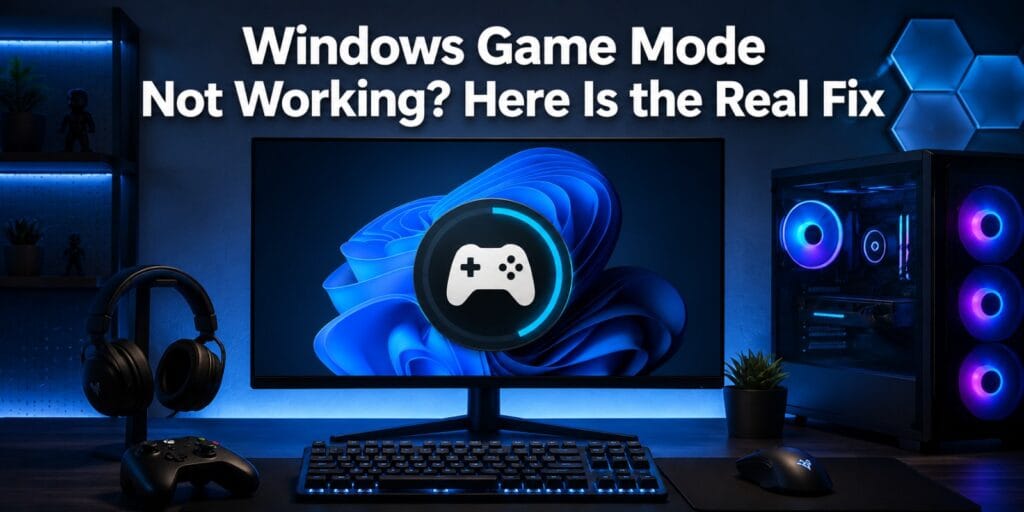
I have chased this exact toggle across three different Windows 11 builds on my own machine. Every time, the fix turned out to be something small that most guides skip over. If your Game Mode is grayed out, missing, or just refuses to help your frame rate, you are not dealing with a broken PC.
Quick Answer: Windows Game Mode not working usually means the toggle is grayed out, keeps resetting, or is on but doing nothing for your frame rate. Most cases trace back to a missing Windows update, a blocked Group Policy setting, a broken Xbox Game Bar install, or a hardware bottleneck that Game Mode was never built to fix. Updating Windows, repairing Xbox Game Bar, and checking your GPU load solve the vast majority of reports.
Key Takeaways
- Game Mode lives in Settings, Gaming, Game Mode, not inside the Xbox Game Bar overlay.
- A grayed out or missing toggle is almost always a policy, update, or app corruption issue.
- Game Mode fixes CPU scheduling problems, not GPU bottlenecks or driver issues.
- Registry edits can restore the setting when the Settings app will not cooperate.
- N and KN editions of Windows need the Media Feature Pack before Game Mode will even appear.
What Windows Game Mode Not Working Actually Looks Like
Game Mode is a built in Windows 11 and Windows 10 setting. It shifts system resources toward whatever game you are actively playing.
When people say it is not working, they usually mean one of four things. The toggle is grayed out and will not respond to clicks. The option has disappeared from Settings completely. It turns itself back off after every reboot or game launch. Or it is switched on, yet the game still stutters exactly as before.
Each of these has a different root cause, and treating them the same way wastes time.
Common Reasons Game Mode Stops Working
Several things can break this one small toggle, and most of them have nothing to do with your hardware.
A missing Windows update is the most common cause on both Windows 10 and Windows 11. If you are on an N or KN edition, Game Mode may not appear at all until you install the Media Feature Pack, since these editions ship without several built in media features. Group Policy or a Mobile Device Management profile can also block the setting through the AllowGameDVR registry path, which grays out the toggle even for administrator accounts.
A corrupted Xbox Game Bar app is another frequent culprit, since Game Mode and Game Bar share underlying Windows gaming services. Third party overlay software, including some recording and voice chat tools, can conflict with those same services and cause the setting to flicker on and off during a session.
How to Fix a Grayed Out or Missing Game Mode Toggle
Work through these steps in order rather than jumping straight to the registry.
- Open Settings with Windows key plus I, then go to Gaming, then Game Mode, and confirm the page loads fully.
- Check Windows Update and install any pending updates, since an incomplete update can leave the Gaming page half loaded.
- Update the Xbox app from the Microsoft Store, since Game Mode depends on components it maintains.
- Go to Settings, Apps, Installed apps, find Xbox Game Bar, open Advanced options, and select Repair.
- If repairing does not help, select Reset on the same Xbox Game Bar page, then restart your PC.
- On N or KN editions, search Microsoft’s site for the Media Feature Pack matching your Windows version, install it, then restart.
Most grayed out toggles clear up after the Xbox Game Bar repair step or a pending update install.
How to Stop Game Mode From Turning Itself Off
If Game Mode turns back off after every restart, the setting is likely being overwritten rather than genuinely broken. This often happens when a script, a cleanup tool, or a second Windows account changes the same registry value.
Check whether you are signed into the same Windows profile where you originally enabled it, since the setting is stored per user account rather than system wide. If you use a work or school managed device, ask your IT administrator whether a policy is resetting gaming settings on sign in, since managed profiles frequently lock this behavior down.
You May Also Like It:
Laptop Overheating Fix: 11 Proven Ways to Cool It Down
Why Is There a White Line on My Laptop Screen? How to fix a white line on a laptop screen?
Growth Navigate Startup Tools: Smart Guide for Founders
Registry Fix for Windows Game Mode Not Working
Use this only if the Settings app toggle will not stick after trying the steps above. Always back up the registry first.
- Press Windows key plus R, type regedit, and press Enter to open Registry Editor.
- In Registry Editor, select File, then Export, and save a backup copy before changing anything.
- Navigate to Computer, HKEY_CURRENT_USER, Software, Microsoft, GameBar.
- Find or create a DWORD value named AutoGameModeEnabled and set it to 1 to enable Game Mode.
- Close Registry Editor and restart your PC so the change takes effect.
According to itechguides, Microsoft’s current Windows 11 settings reference maps the Game Mode switch to AutoGameModeEnabled rather than the older AllowAutoGameMode value some guides still mention. If you follow an outdated tutorial with the wrong key name, the edit simply does nothing.
Game Mode Is On But My FPS Did Not Improve
This is the single biggest misunderstanding around this feature. Game Mode manages CPU scheduling and background task priority, not raw graphics power.
If your system is GPU bound, which is common at 1440p and 4K resolutions, Game Mode cannot manufacture extra graphics performance. Lowering in game settings, updating your graphics drivers directly from NVIDIA, AMD, or Intel, or upgrading your GPU will move the needle far more than any Windows toggle. Game Mode helps most on systems with 8GB of RAM or less, or when several background apps compete for CPU time while you play.
Hardware accelerated GPU scheduling is a separate setting under Settings, System, Display, Graphics, and it addresses a different part of the pipeline than Game Mode does.
Quick Reference Table
| Symptom | Likely Cause | Fix |
| Toggle grayed out | Group Policy or MDM restriction | Check policy, repair Xbox Game Bar |
| Setting missing entirely | N or KN edition, pending update | Install Media Feature Pack, run Windows Update |
| Turns off after restart | Wrong user profile, managed device policy | Confirm account, check with IT if managed |
| On but no FPS change | GPU bound or driver issue | Update GPU drivers, lower graphics settings |
| Xbox Game Bar also broken | Corrupted app files | Reset Xbox Game Bar in Installed apps |
Should You Leave Game Mode On or Off
For most everyday laptops and mid range desktops, leaving Game Mode on is the safer default. It pauses non essential background work like driver installs during active play, and it rarely causes harm on modern builds.
Turn it off only if a specific game shows new stutter, audio glitches with Discord, or conflicts after a recent Windows update. Toggle it, relaunch the game, and compare before deciding it is the cause.
FAQs
Why is Game Mode grayed out in Windows 11?
A grayed out toggle usually means a Group Policy or managed device setting is blocking it, or the Xbox Game Bar app files are corrupted. Repairing Xbox Game Bar from Settings, Apps, Installed apps fixes most cases without needing a registry edit.
Does Game Mode actually increase FPS?
Game Mode can help on systems that are CPU bound or running many background apps, but it does not add GPU power. On a strong graphics card at high resolution, the difference is often too small to notice.
Why does Game Mode keep turning off by itself?
This typically happens when you are signed into a different Windows profile than the one where you enabled it, or when a managed device policy resets gaming settings automatically at sign in.
Is Game Mode different from Xbox Game Bar?
Yes. Xbox Game Bar is the overlay you open with Windows key plus G for recording and widgets, while Game Mode is a separate background setting found under Settings, Gaming, Game Mode.
Do I need Game Mode if I have a high end gaming PC in 2026?
Not necessarily. High end systems in 2026 rarely bottleneck on CPU scheduling, so the practical benefit shrinks as your hardware gets stronger, though leaving it on causes no real downside.
What is the Media Feature Pack and why does it affect Game Mode?
It is a Microsoft add on that restores media related features missing from Windows N and KN editions sold in Europe and Korea due to antitrust requirements, and Game Mode will not appear until it is installed.
I still check this setting first whenever a friend brings me a laptop that stutters during games. Nine times out of ten, the real fix was never about Game Mode itself, it was the update, the app, or the policy standing in front of it.
For the official walkthrough on turning the feature on, see the Xbox Support page on Game Mode. Background on the feature’s place within the Windows operating system is available on Wikipedia’s Windows 11 page.
For Microsoft’s current documentation on the related full screen Xbox mode feature, see Windows Gaming: Full screen experience on Microsoft Support.
You May Also Like It:
Why Is Recycle Bin Showing Wrong File Names in Windows 11
Can Spyware, Malware and Virus Removal Improve Computer Performance?
Red Planet on Snapchat, What It Secretly Means
Pingback: Best Windows Settings for Gaming Without a New GPU - Tech World Garage
Pingback: Application vs Software: What Is the Real Difference - Tech World Garage
Pingback: Why Is My Android Phone Slow? Causes and Easy Fixes - Tech World Garage