
I have rebuilt the same mid range gaming PC three times over the past few years, and every time the graphics card stayed untouched. What actually moved the FPS counter was Windows itself, sitting quietly in the background and eating frames I never noticed were missing.
Every guide out there points to a new GPU as the fix. That advice ignores how much performance sits locked inside stock settings, waiting to be released for free. This guide covers the best Windows settings for gaming without a new GPU, in the order I would apply them today.
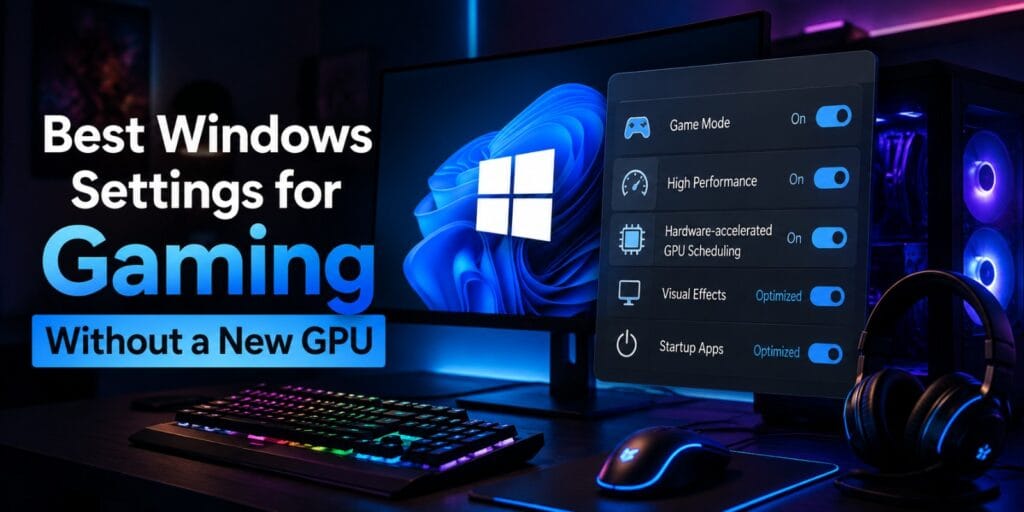
The best Windows settings for gaming without a new GPU are Game Mode, the High Performance power plan, hardware accelerated GPU scheduling, trimmed visual effects, and a cleaned up startup list. Together these free up CPU and memory resources your GPU depends on, often adding 10 to 20 percent smoother frame delivery on the same hardware.
Key Takeaways
- Game Mode and a High Performance power plan give the fastest, safest gains.
- Hardware accelerated GPU scheduling helps newer cards, not older ones.
- Background apps like Discord and Chrome quietly steal CPU and GPU cycles.
- Visual effects and Xbox Game Bar recording cost more performance than most people realize.
- None of these settings cost money or require opening the case.
Turning on Game Mode, switching to the High Performance power plan, and disabling Xbox Game Bar background recording are the three fastest Windows settings for gaming without a new GPU, since they free CPU cycles the game engine and your existing GPU can use instead.
Best Windows Settings for Gaming Without a New GPU: Where the FPS Actually Goes
Windows 11 ships with defaults built for laptops, battery life, and general use. Those defaults were never tuned for squeezing frames out of a gaming session. A handful of settings quietly cap performance, and switching them costs nothing but a few minutes.
The Four Main Causes of Lost FPS
The main culprits fall into four groups. Power management settings throttle CPU and GPU clocks between frames. Background processes compete for CPU time and memory bandwidth your game needs. Visual effects like transparency and animations use GPU cycles for the desktop instead of the game. Outdated graphics settings fail to take advantage of features your existing hardware already supports.
None of these settings replace a genuine hardware bottleneck. A five year old budget GPU will always struggle with a demanding modern title, regardless of what you change in Windows. The goal here is closing the gap between your hardware’s real capability and what it is actually delivering right now.
That gap is often larger than people expect. A CPU bound game running on default Windows settings can lose ten percent or more of its potential frame rate to background overhead alone. Fixing that costs nothing and takes less time than downloading a new game.
Turn On Game Mode and Turn Off Background Recording
One of the simplest Windows settings for gaming without a new GPU is Game Mode. It tells Windows to prioritize your active game over background tasks and pause driver installs mid session. You can turn it on from Settings, then Gaming, then Game Mode, and it stays on by default on most systems.
Xbox Game Bar runs a background recording buffer even when you never press record. On systems with 16GB of RAM or less, this buffer competes for memory the game needs, which shows up as stutter rather than a lower average frame rate.
Steps to Turn On Game Mode and Disable Background Recording
To fix both settings in one pass:
- Press Windows key plus I to open Settings.
- Go to Gaming, then Game Mode, and confirm the toggle is on.
- Go to Gaming, then Captures, and turn off Record in the background while I’m playing a game.
- Restart the game to apply the change.
Newer Windows 11 builds also show an Xbox Mode option on some devices, mainly gaming handhelds. Xbox Mode limits background processes further while active, but it currently targets handheld hardware rather than a typical desktop or laptop setup. Most desktop gamers can leave it off and rely on standard Game Mode instead.
Testing across independent reviewers shows Game Mode delivering a modest average FPS gain, usually in the low single digits. The bigger benefit shows up in frame smoothness, since background tasks get interrupted less often mid session.
Switch to the High Performance Power Plan
Among the most impactful Windows settings for gaming without a new GPU is the power plan. Windows ships with the Balanced power plan active by default, which throttles CPU and GPU clock speeds to save power between frames. That behavior makes sense on a laptop running on battery, but it works against a desktop gamer plugged into the wall.
Steps to Switch to the High Performance Power Plan
Switching to High Performance or Ultimate Performance removes that throttling and lets your CPU run closer to its rated clock speed during gameplay. Open Control Panel, go to Power Options, and select High Performance from the list, enabling Show additional plans first if it is hidden.
Laptop users should watch battery drain and heat after making this change. On a desktop, there is little downside beyond a small increase in electricity use during long sessions.
If High Performance is not visible in the list, click the small arrow next to Show additional plans. Ultimate Performance goes a step further by removing nearly all fine grained power throttling, though the practical difference from High Performance is small on most modern systems.
Some laptops hide the power plan menu entirely and use a manufacturer app instead, such as Lenovo Vantage or ASUS Armoury Crate. On those devices, look for a Performance or Turbo mode inside that app rather than the standard Windows Control Panel.
Enable or Disable Hardware Accelerated GPU Scheduling
Hardware accelerated GPU scheduling, often shortened to HAGS, moves GPU scheduling work off the CPU and onto a dedicated processor built into your graphics card. According to Microsoft’s DirectX engineering team, this offloads quanta management and context switching that previously ran as a high priority CPU thread.
Where to Find the HAGS Toggle
The setting lives at Settings, then System, then Display, then Graphics, then Change default graphics settings. Whether to enable it depends heavily on your specific card and driver version.
HAGS Recommendations by GPU Generation
| GPU Generation | Recommended HAGS Setting | Why |
| RTX 30 series and newer, RX 6000 series and newer | On | Reduces scheduling overhead and enables DLSS Frame Generation |
| GTX 10 series, GTX 16 series, RX 5000 series | Off | Older drivers can show increased frametimes with it on |
| Intel Iris and Arc integrated graphics | On, test both | Newer Intel drivers generally benefit |
| Anything with visible stutter after enabling | Off | Toggle back and compare before and after |
There is no universal right answer here. Toggle it, play for twenty minutes, then toggle it back and compare.
The setting only appears in Windows if your GPU and driver support it. Older integrated graphics chips and some budget cards will not show the toggle at all, which means the decision has already been made for you.
If you plan to use frame generation features on a newer NVIDIA or AMD card, keep HAGS on. Several game engines specifically require it for that feature to activate, and leaving it off will silently disable frame generation without any warning.
Adjust Visual Effects for the Best Performance
Windows spends GPU and CPU cycles on animations, transparency, shadows, and thumbnail previews that have nothing to do with your game. Trimming these frees up resources on lower core count processors especially, and it remains one of the most overlooked Windows settings for gaming without a new GPU.
Steps to Set Windows for Best Performance
Open the Run dialog with Windows key plus R, type sysdm.cpl, and press enter. Go to the Advanced tab, click Settings under Performance, and select Adjust for best performance. If a fully stripped desktop bothers you, choose Custom instead and keep only smooth edges of screen fonts checked.
This single change typically saves one to four percent of background CPU overhead, which matters most on six core or older processors already working hard to feed the GPU.
Set the Correct Graphics Preference for Your Game
Laptops and some desktops with both integrated and discrete graphics sometimes run games on the weaker chip by default. Forcing the game onto the correct GPU avoids leaving performance on the table without spending a cent.
How to Set GPU Preference Per Game
Go to Settings, then System, then Display, then Graphics. Add your game’s executable file if it is not already listed, then set its preference to High Performance. This step matters most on laptops, where the integrated GPU is the power saving default.
Close Background Apps and Trim Startup Programs
Discord’s hardware acceleration, Chrome with a dozen tabs open, and RGB lighting software all draw CPU and GPU cycles that should go to your game. None of these apps announce how much they are taking, so most users never notice the drag.
How to Clean Up Startup Programs
Open Task Manager with Ctrl, Shift, and Escape together, then check the Processes tab for anything using meaningful CPU or GPU while idle. In the Startup Apps tab, disable anything that is not your GPU driver software or audio driver.
A cluttered startup list adds up over months of installing new software. Reviewing it every few weeks keeps background load in check without any ongoing effort.
Update Graphics Drivers Even Without New Hardware
Driver updates are not just for new hardware. Faulty or outdated GPU drivers are one of the most common causes of unexplained FPS drops and stutter on existing cards.
How to Update Drivers Safely
NVIDIA, AMD, and Intel each release driver updates several times a year that include game specific optimizations and bug fixes. Downloading directly from the manufacturer’s website avoids the bundled extra software that sometimes ships with third party driver tools.
NVIDIA users can install GeForce Experience or the newer NVIDIA app to check for updates automatically. AMD users should use the AMD Software Adrenalin app, and Intel users can rely on the Intel Driver and Support Assistant.
A driver rollback is worth trying if FPS dropped noticeably right after an update. Device Manager lets you roll back to the previous driver version from the graphics card properties without a full reinstall.
Check for Overheating and Thermal Throttling
Windows settings only help if your hardware is actually running at its rated speed to begin with. Dust buildup and dried thermal paste cause CPUs and GPUs to throttle their clock speed to avoid overheating, which quietly erases any gains from software tweaks.
How to Check CPU and GPU Clock Speeds
Open Task Manager, go to the Performance tab, and watch CPU and GPU clock speeds during a demanding game. If clock speeds drop well below their rated boost speed under sustained load, heat is likely the limiting factor rather than any Windows setting.
A can of compressed air through the intake and exhaust vents takes five minutes and often restores several hundred megahertz of lost clock speed. Laptops in particular benefit from this, since dust collects faster in a smaller chassis.
Optimize In-Game Settings That Pair With Windows Tweaks
Windows level changes work best alongside a few in-game adjustments, since some settings interact directly with what you changed at the system level. Display mode is the most important one to get right.
Best In Game Settings to Pair With These Windows Tweaks
Set the game to Fullscreen or Exclusive Fullscreen rather than Borderless Windowed. Borderless mode routes rendering through the Windows Desktop Window Manager, which adds a frame of input latency and reduces the benefit of hardware accelerated GPU scheduling.
| In Game Setting | Recommended Value | Why It Matters |
| Display Mode | Fullscreen or Exclusive Fullscreen | Bypasses the Desktop Window Manager for lower latency |
| V-Sync | Off, unless screen tearing is severe | Caps FPS to refresh rate and adds one to two frames of lag |
| Shadow Quality | Medium or Low | One of the heaviest settings on both CPU and GPU |
| Texture Quality | High if VRAM allows | Usually a low FPS cost for a visible quality gain |
| Anti Aliasing | Low or off on integrated graphics | Expensive relative to the visual improvement it offers |
These in game settings do not replace the Windows level changes covered earlier. They work together, since the operating system controls scheduling and background load while the game controls what gets rendered each frame.
How Much FPS Improvement to Expect Realistically
Expectations matter here. These settings redistribute existing resources rather than adding new computing power, so results vary by hardware and by how cluttered your system already was.
| Starting Point | Typical Improvement Range |
| Clean system, drivers already current | 3 to 8 percent |
| Cluttered startup, several background apps running | 10 to 20 percent |
| Integrated graphics with heavy background load | 15 to 25 percent, mostly from freed CPU headroom |
| Already optimized system | 1 to 3 percent, mainly in frame smoothness |
A system that was already well maintained will see smaller gains simply because there was less waste to remove. A neglected system with years of installed background software tends to see the largest jump.
Windows Settings Priority Table
Not every setting delivers the same return for the time it takes. Use this table to decide where to start if you are short on time with these Windows settings for gaming without a new GPU.
Quick Reference: Priority Order
| Setting | Time to Apply | Expected Impact |
| Game Mode and background recording off | 1 minute | Moderate, especially on 16GB RAM systems |
| High Performance power plan | 1 minute | Moderate to high on desktops |
| HAGS toggle test | 5 minutes | Varies by GPU generation |
| Visual effects for best performance | 2 minutes | Small but consistent |
| Correct GPU preference per game | 3 minutes | High on laptops with dual GPUs |
| Background app cleanup | 10 minutes | Moderate, grows over time if ignored |
| Driver update | 10 minutes | High if drivers were outdated |
Mistakes That Undo These Settings
A few habits quietly cancel out the gains from everything above. Watching for these keeps the settings working the way they should.
Reinstalling a game or a driver often resets Windows graphics preferences back to default. Recheck the per app GPU preference and HAGS setting after any major driver update or Windows feature update.
Leaving Windows Update set to install automatically mid session can undo Game Mode’s protection if a restart gets forced through. Pausing updates for a week during a big gaming stretch avoids that interruption entirely.
Installing new background software, especially overlay tools and launcher apps, gradually adds back the CPU load you just cleared out. Revisiting Task Manager every month or two keeps the startup list from creeping back up.
FAQs
Can changing Windows settings really increase FPS without a new GPU?
Yes, within limits. Windows settings free up CPU cycles, memory bandwidth, and background resources that your existing GPU depends on, which commonly adds a measurable frame rate gain on the same hardware.
Is Game Mode worth turning on in 2026?
Game Mode remains a low risk, no cost setting that prioritizes your active game over background tasks. Most testing shows a modest average FPS gain along with a more noticeable improvement in frame smoothness.
Should I enable hardware accelerated GPU scheduling on an older graphics card?
Not always. Cards from the GTX 10 series or RX 5000 series and earlier sometimes show increased frametimes with the setting on, so testing it both ways is the safest approach.
Does the Balanced power plan actually slow down gaming?
Yes, the Balanced plan throttles CPU and GPU clock speeds between frames to save power, which can hold back performance on a desktop that is always plugged in.
What is the best Windows setting for gaming without a new GPU?
The best single Windows setting for gaming without a new GPU is switching to the High Performance power plan combined with turning on Game Mode. Both take under two minutes and free up CPU resources immediately.
Will closing background apps like Discord noticeably help FPS?
It depends on your hardware. On six core or lower processors with 16GB of RAM or less, background apps competing for resources tend to cause more visible stutter than on higher spec systems.
What is the fastest Windows setting to try first for more FPS?
Switching to the High Performance power plan and turning on Game Mode take about two minutes combined and typically show the most immediate difference before touching any other setting.
I have run this same checklist of Windows settings for gaming without a new GPU on three different builds over the years, and it never fails to buy back a few frames the hardware was never going to give up on its own. Before spending money on a new card, five minutes in Windows settings is worth the try.
Microsoft documents its own official gaming optimization guidance on the Windows PC gaming page, including a dedicated walkthrough on the official learning center page for setting up a PC for gaming performance.
Read More: Windows Game Mode Not Working? Here Is the Real Fix
Pingback: How to Check Windows 11 for Malware: Step-by-Step Guide - Tech World Garage