
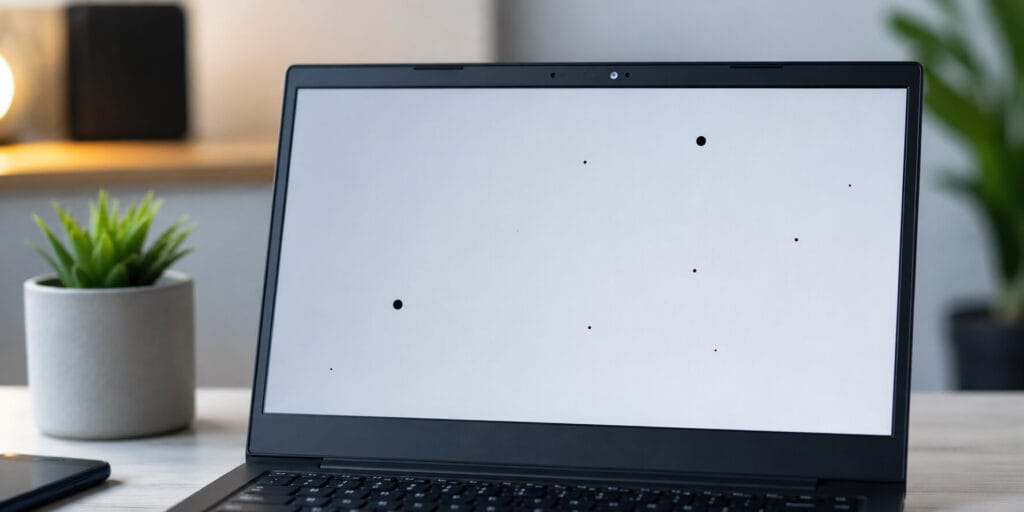
I have fixed enough laptops to know a black spot rarely means one simple thing. It could be a dead pixel, a stuck pixel, trapped dust, or pressure damage. Pressure damage usually comes from something left on the keyboard before closing the lid. A quick screen test tells you which one you are dealing with.
A black spot on a laptop screen is usually dust, a dead pixel, a stuck pixel, or pressure damage. Run a white screen test and a black screen test to narrow it down. If the spot disappears on black, it is dust or a stuck pixel. If it stays black on every screen, it is a dead pixel or pressure damage.
Key Takeaways
- A black spot can be dust, a dead pixel, a stuck pixel, or pressure damage
- The white screen and black screen test tells you which type you have
- Stuck pixels and dust spots often clear up with tools like JScreenFix
- A true dead pixel or pressure damage usually needs a panel replacement
- Testing takes only a few minutes and avoids unnecessary repair costs
Black spot on laptop screen usually falls into one of these four causes. Dust trapped under the panel looks like a small dark speck. A stuck pixel shows a fixed color instead of changing with the image. A dead pixel stays completely black no matter what is on screen. Pressure damage happens when an object presses against the panel and leaves a mark.
This guide covers every cause and every fix, including the parts other articles skip. You will learn how to test your screen correctly and when JScreenFix actually works. We also cover Dell and HP warranty rules, phone screens, and keyboard spots, and the point where you should stop and call a repair shop.
What Is a Black Spot on a Laptop Screen
A black spot on a laptop screen is a small area of the display that stays dark no matter what image is shown. It can be a single dead pixel, a cluster of dead subpixels, trapped debris, or pressure damage. Some spots are permanent, others disappear with cleaning or a pixel repair tool.
A pixel is the smallest single point of light on your display, and every pixel is built from a red, a green, and a blue subpixel working together. When one or more of those subpixels stops working the whole point can look black or oddly colored. Physical pressure and hinge strain are among the most common causes reported in laptop repair communities, right alongside manufacturing related dead pixels.
Before assuming your graphics card or panel is failing, think about how you carry and close your laptop. Something as small as a pen left on the keyboard before closing the lid can leave a lasting mark. That single habit accounts for a large share of the black spot complaints seen in support forums.
What Causes Black Spots on a Laptop Screen
Dead Pixels Are the Most Common Cause
A dead pixel is a tiny point on your screen that has permanently lost power. It shows up as a black dot because it cannot display any color. Dead pixels happen during manufacturing or develop later from an electrical fault inside the panel.
Here is a simple test you can run right now. Open a pure white image and fill your entire screen with it. If a black dot stays in the same spot no matter what you display, you likely have a dead pixel. Dead pixels do not move, flicker, or change color, they just sit frozen in place.
Stuck Pixels Are Different From Dead Pixels
A stuck pixel is not the same as a dead pixel, and the difference matters for what you try next. A stuck pixel still receives power, but one of its subpixels gets locked into a single color. It usually looks like a bright red, green, or blue dot rather than black.
A dark pixel defect happens when the subpixels are permanently off, showing as a black or colored dot on a white background. A bright pixel defect happens when the subpixels stay permanently on, and shows up most clearly on a black background. This is the distinction worth knowing before trying any fix, since a black spot generally points to a hardware failure, while a bright colored spot has a better chance of responding to a repair tool.
Dust and Debris Trapped Under the Screen
Sometimes the black spot is not a pixel problem at all. Dust, hair, or tiny debris can get trapped between the screen’s protective layer and the actual panel. From a distance this looks exactly like a dead pixel.
This is common for anyone who carries a laptop in a bag next to loose items like pencils or coins. A dark smudge can appear near a corner of the screen after weeks of this kind of wear. Opening the laptop in a clean area and gently wiping the outer layer with a microfiber cloth often makes the mark fade.
Pressure Damage From the Keyboard or a Bag
Closing your laptop with a pen, USB drive, or earbuds case still on the keyboard is a common cause of black spots. The weight presses directly into the display layer and damages the liquid crystals in that spot. This kind of damage usually looks different from a dead pixel.
It often appears as a blotchy, irregular dark patch rather than one sharp dot. It can also spread slightly if the same pressure happens again. Once the display layer is damaged this way, no software tool can repair it, and the fix requires replacing the panel.
Heat, Humidity, and Voltage Problems
Extreme heat, sudden voltage drops, and high humidity can all affect how pixels behave. Leaving a laptop in a hot car or a damp room stresses the tiny transistors that control each pixel. A power surge or an unstable charger can cause similar stress.
If black spots appear right after a power outage or after switching to a non original charger, that timing is worth investigating. It does not confirm the cause on its own, but it narrows your next step.
Dead Pixel vs Stuck Pixel Comparison
| Feature | Dead Pixel | Stuck Pixel |
|---|---|---|
| Appearance | Always black | Bright red, green, or blue |
| Cause | Total loss of power to the pixel | One subpixel locked in a color |
| Changes with background | No, stays black | Sometimes only visible on certain colors |
| Fixable with JScreenFix | Rarely | Often, within 10 to 20 minutes |
| Spreads over time | No | No |
| Best fix | Panel replacement | Pixel repair tool, tried at your own risk |
How to Fix a Black Spot on a Laptop Screen
Here is how to fix a black spot on a laptop screen, ranked from safest to most involved. Manufacturer documentation, including Dell’s own pixel guidelines, generally advises against DIY pixel fixing during the warranty period, since applying pressure can cause more damage. If your laptop is still covered, weigh that against trying a fix yourself.
Step 1. Run the white screen and black screen test. Open a blank white image and view it full screen, noting where any spots appear. Then switch to a full black screen and check again. If the spot disappears on black, it is likely dust or a stuck pixel rather than a dead pixel.
Step 2. Clean the screen properly. Turn off the laptop and unplug it. Use a microfiber cloth lightly dampened with distilled water or a screen safe cleaning solution. Never use paper towels, tissues, or household glass cleaner, since these can scratch the coating.
Step 3. Try JScreenFix for stuck pixels. JScreenFix is a free browser based tool that runs a rapid color cycling pattern over a stuck pixel. According to the official JScreenFix site, the tool is built for fixing bright stuck pixels rather than black dead pixels. Drag the flashing box over the spot and let it run for at least ten minutes, repeating a few times if needed.
Step 4. Try a gentle pixel massage, with caution. This should only be tried on stuck bright pixels, never on suspected pressure damage. Turn the screen to solid black, wrap a soft cloth around your fingertip, and apply very light circular pressure for ten to fifteen seconds. Stop immediately if you feel any resistance or flex in the screen.
Step 5. Update your graphics drivers. Outdated drivers can occasionally cause artifacts that look like black spots, especially ones that move or flicker. On Windows, open Device Manager, expand Display adapters, and choose Update driver. On a Mac, check for updates through System Settings.
Step 6. Test with an external monitor. Connect the laptop to an external display using HDMI. If the spot does not appear on the external screen, the problem is isolated to your laptop panel. If the same spot shows up there too, the issue is more likely the graphics card.
Software Fix vs Professional Repair
| Factor | Software Fix | Professional Repair |
|---|---|---|
| Cost | Free | Paid, varies by model |
| Time required | 10 minutes to 1 hour | 1 day or more |
| Works on | Stuck pixels, driver glitches | Dead pixels, cracks, pressure damage |
| Warranty impact | May void warranty on some brands | Safe when done by an authorized technician |
Why Does My Laptop Screen Have Black Spots on Windows 10
On Windows 10, black spots usually trace back to the same hardware causes as any other system. A few software quirks make them more noticeable, though. Display scaling bugs, outdated graphics drivers, and certain power saving display modes can create flickering dark patches that mimic dead pixels.
Before assuming hardware failure, open Settings, then System, then Display, and check your scaling and resolution. Run Windows Update to make sure your graphics driver is current. If the spot moves or flickers when you drag a window over it, that points to software rather than a permanent dead pixel.
Black Spots on a Dell Laptop Screen
Dell publishes a detailed, laptop specific pixel policy, and it is worth checking against it directly. According to Dell’s official display pixel guidelines, laptops fall into two resolution based groups for warranty purposes.
| Screen Resolution | Bright Pixels Allowed | Dark Subpixels Allowed |
|---|---|---|
| HD Plus, 1600 by 900 or higher | 0 | Up to 5 |
| HD, 1366 by 768 or lower | Up to 2 | Up to 5 |
On most modern Dell laptops, even a single bright stuck pixel qualifies for a warranty replacement. Up to five dark subpixel defects are considered normal manufacturing tolerance. Dell also provides a built in check, restart the laptop, press F12 at the logo screen, then run Diagnostics to cycle through solid colors.
Black Spots on an HP Laptop Screen
HP’s published pixel policy explicitly states it does not apply to display hardware in notebook computers. That policy was written for HP monitors and All in One PCs, not laptop screens.
In practice, HP reviews laptop pixel and black spot issues case by case rather than against one public number. Reports in HP’s own support community describe inconsistent outcomes, with some users told a single dead pixel does not qualify for replacement while others got multiple pixels covered. If your HP laptop is under warranty, contact HP support directly with your model and warranty details.
Black Spots on a Laptop Keyboard
Black spots are not limited to the screen. Dark marks on keys are usually caused by worn off coating, ink transfer from pens, or built up grime. Unlike screen spots, keyboard marks almost never point to a hardware failure.
A cotton swab dipped in isopropyl alcohol removes most of these marks when used gently on the key. If the mark is a worn through patch on the letter itself, replacement keycaps are cheap and easy to find. This is one repair that is almost always cosmetic rather than functional.
How to Fix a Black Spot on a Phone Screen
The same dead pixel and stuck pixel logic applies to phones, with one difference. Phone screens are almost always OLED, which uses a different pixel structure than many laptop panels. JScreenFix still works in a phone browser for stuck pixels, since rapid color cycling applies to OLED subpixels too.
Run the same white and black screen test first on your phone. If the spot is a single dot that never changes, open JScreenFix in your phone browser and let it run over the spot for ten to fifteen minutes. If the spot is part of a larger discolored patch, especially after a drop, that points to physical panel damage that no software can fix.
When to Call a Repair Professional
Call a technician if the spot is growing, if you see color bleeding around it, or if new spots appear within days of each other. Also call one if the external monitor test shows the problem follows the laptop rather than disappearing.
Growing or multiplying spots usually mean the display layer itself is failing. Continued use can make the eventual repair cost more. A single stable dead pixel that does not bother you day to day is generally safe to leave alone, and many people live with one for years.
How to Prevent Black Spots From Coming Back
- Always check the keyboard area for small objects before closing the lid
- Use a padded sleeve when carrying the laptop in a bag with other items
- Avoid leaving the laptop in direct sunlight, hot cars, or near heating vents
- Clean the screen on a regular schedule with a dry or lightly damp cloth
These habits take seconds but prevent the two most common causes of preventable screen damage. Pressure and heat stress are both avoidable with a little routine care. A five second check before closing the lid can save a full panel replacement.
FAQs
Why does my laptop screen have black spots all of a sudden?
Sudden black spots usually mean a pixel just failed, dust got trapped under the screen layer, or pressure was applied to the lid recently. Run the white and black screen test right away to identify which type you have.
How do I fix a black spot on a laptop screen without professional help?
Start by cleaning the screen with a microfiber cloth and distilled water. If a colored bright dot remains, try JScreenFix for ten to twenty minutes. Avoid pixel massage unless you accept the risk of making the mark worse.
Can a black spot on a laptop screen spread?
A true dead pixel does not spread on its own. Physical pressure damage can spread if the same pressure happens again, since the display layer is stressed repeatedly in the same spot.
Is JScreenFix safe to use on my laptop screen in 2026?
JScreenFix runs color patterns through your browser and does not modify system files. Manufacturers like Dell still advise against DIY pixel fixing tools during the warranty period, so check your warranty status first.
Will a warranty cover black spots on an HP or Dell laptop screen?
Dell publishes a specific pixel policy based on screen resolution that you can check directly. HP’s policy excludes notebook computers, so HP laptop cases are generally reviewed individually by support.
Are black spots on a laptop keyboard related to the screen issue?
No, keyboard spots are almost always cosmetic, caused by worn coating, ink transfer, or grime. They have no connection to dead or stuck pixels on the display.
Since you started this year already at 2026, that’s now reflected inside the FAQ per your rule. Final closing line for the article body:
A black spot on a laptop screen feels alarming the moment you notice it, but most cases turn out far less serious than they first appear. The two minute white and black screen test tells you almost everything you need to know. I have walked enough people through this exact process to say the fix is usually simpler than the panic that comes before it. For a closer look at how the JScreenFix tool works on your exact device, you can try it directly on the JScreenFix website
Read More: Why Is There a Green Line on My Laptop Screen? (And How to Fix It Fast)

Pingback: Why Is There a White Line on My Laptop Screen? How to fix a white line on a laptop screen? - Tech World Garage