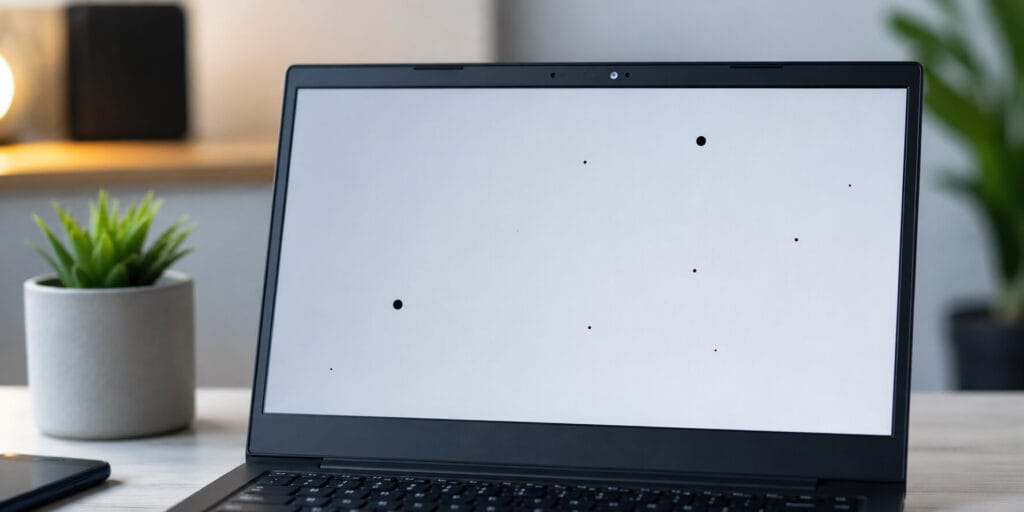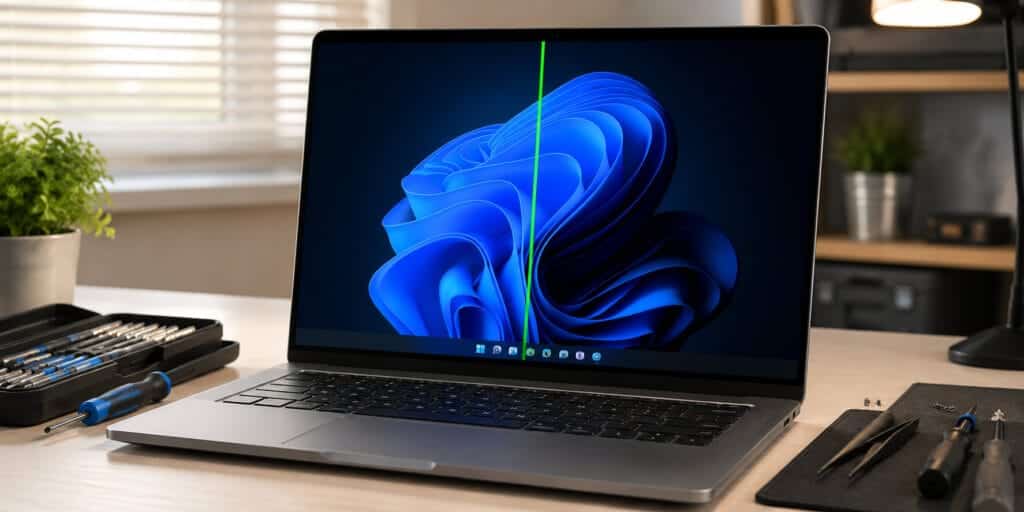
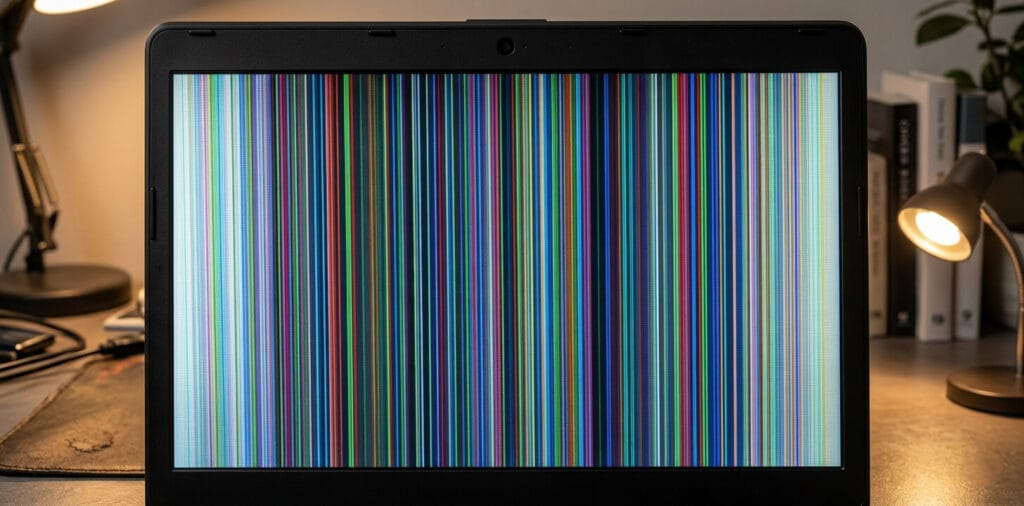
A rainbow screen on your laptop is scary. But it is not always bad news. In most cases, you can fix a rainbow screen on laptop without paying a repair shop one cent. This guide shows you every real fix, in plain steps, so you can get your screen back to normal today. A rainbow screen happens when your laptop shows odd colored lines, bands, or static across the display.
It can look pink, green, blue, or like a static TV channel from the 1990s. The good news is that most causes are simple. A loose cable, an old driver, or a hot graphics card are the top three reasons. Knowing how to fix rainbow screen on laptop starts with finding out which one of these is hitting your machine.
What Causes a Rainbow Screen on a Laptop?
A rainbow screen is not one single problem. It is a symptom. Think of it like a fever. The fever tells you something is wrong, but it does not tell you what.Most rainbow screens come from one of five sources. A loose display cable inside the laptop hinge is the most common cause in laptops over two years old. Bad graphics card drivers cause another large share of cases, especially right after a Windows update.
Overheating inside the laptop case can stress the graphics chip until colors break apart. Physical damage from a drop or a hard knock can crack the panel layer that controls color. Lastly, some laptops show rainbow colors on purpose, because a Windows accessibility setting called Color Filters got turned on by accident.
According to a 2025 Lenovo support glossary on monitor discoloration, overheating GPUs trigger color anomalies because the chip cannot render images correctly under heat stress (Source: Lenovo Support Glossary, 2025). This single fact explains why so many gamers see rainbow screens during long play sessions, not during normal browsing.
Is a Rainbow Screen Always a Hardware Problem?
No. A rainbow screen is not always a hardware problem. Software bugs, outdated drivers, and even accessibility settings can cause the same rainbow look as a broken screen. The only way to know for sure is to run the tests in this guide. Software issues can be fixed in minutes. Hardware issues usually need a part replacement.
How to Fix Rainbow Screen on Laptop: Quick Fixes First
Start with the easiest steps. Many users fix the problem in under five minutes, before they even open a settings menu.
Restart Your Laptop the Right Way
A full restart clears temporary memory glitches that confuse the graphics chip. Do not just close the lid. Hold the power button for ten seconds to force a full shutdown. Wait thirty seconds. Then turn the laptop back on. This simple restart fixes a surprising number of rainbow screen cases, because it forces the graphics driver to reload from scratch.
How to Fix Rainbow Screen on Laptop Caused by Loose Cables
Open your laptop lid slowly and watch the screen as you move it. If the rainbow colors flicker, grow, or shrink as you tilt the screen, the internal display cable is likely loose. This cable runs through the hinge, and constant opening and closing wear it out over years of use.
A laptop hinge typically survives between 20,000 and 30,000 open-close cycles before cables inside start to fray, based on standard hinge durability testing used across the laptop manufacturing industry. If your laptop is three years or older and you open it many times a day, this wear adds up fast.
How to Fix Rainbow Screen on Laptop With Software Settings
If quick fixes did not work, the next step is checking your software. Most rainbow screen problems trace back to graphics drivers, not broken parts.
How to Fix Rainbow Screen on Laptop With a Driver Rollback
Outdated graphics drivers are one of the top reported causes of sudden color glitches, according to Microsoft’s own Q&A support community. One detailed case from a Windows user showed that a bad driver pushed through Windows Update caused a complete rainbow color breakdown, and rolling back to an older driver from August 2016 fixed it instantly (Source: Microsoft Q&A Community, 2018). This shows a key truth. Sometimes the newest driver is the problem, not the solution.
To fix this, open Device Manager by right-clicking the Start button. Expand the Display Adapters section. Right-click your graphics card name. Choose Properties, then click the Driver tab. If a Roll Back Driver button appears, click it. If not, choose Update Driver instead and let Windows search for a better version.
Run Safe Mode to Test the Real Cause
Safe Mode loads only the most basic drivers your laptop needs to turn on. If the rainbow screen disappears in Safe Mode, the problem is almost certainly software, not hardware. To enter Safe Mode, restart your laptop and press F8 repeatedly before the Windows logo appears.
On newer laptops, you may need to hold Shift while clicking Restart from the Start menu instead. This single test gives you the clearest answer in the entire troubleshooting process. A clean screen in Safe Mode points to drivers or recent software. A rainbow screen that stays in Safe Mode points to hardware.
Check Windows Color Filter Settings
Windows includes a built-in accessibility tool called Color Filters, originally built for users with color blindness. If this setting turns on by accident, often through a stray keyboard shortcut, your entire screen can shift into strange rainbow-like tones. Open Settings, then Accessibility, then Color Filters, and make sure the toggle is switched off. This single setting has fixed rainbow screen complaints reported across HP’s own support community in 2025.
Hardware Checks for a Stubborn Rainbow Screen
When software fixes fail, the problem usually sits inside the hardware. These checks help you pinpoint exactly where.
Test With an External Monitor
Connect your laptop to a TV or external monitor using an HDMI cable. This single test answers the most important question in your whole repair journey. If the external screen looks normal, your laptop’s built-in display panel or its cable is the problem.
If the rainbow colors appear on the external screen too, your graphics card itself is likely failing. HP’s own support team recommends this exact test as a first diagnostic step for any laptop showing unusual screen colors (Source: HP Support Community, 2025).
Check for Overheating Inside the Laptop
Heat is one of the fastest ways to damage a graphics chip’s ability to render color correctly. Dust buildup inside laptop fans blocks airflow over months of normal use, and this trapped heat stresses the GPU until it starts producing visual artifacts, including rainbow bands and color streaks.
A laptop running games or video editing software for hours at a time generates far more heat than one used for email and browsing, so gamers and creators see this problem more often than average users. You can check your laptop’s internal temperature using free tools like HWMonitor or HWiNFO.
A healthy laptop GPU should generally stay below 85 degrees Celsius under load. If your readings run hotter than that consistently, clean your air vents with a can of compressed air, and avoid using your laptop on soft surfaces like beds or couches that block the bottom vents.
Inspect the Screen for Physical Damage
Look closely at your screen under bright light. Cracks, pressure marks, or dents near the edges of the panel often cause exactly this kind of rainbow distortion. A laptop that took a fall or got squeezed inside a tight backpack is a strong candidate for this kind of damage. Unlike software issues, physical panel damage almost always needs a professional screen replacement, since the color-producing layer inside an LCD panel cannot be repaired once it cracks.
How Much Does It Cost to Fix a Rainbow Screen on a Laptop?
Costs vary depending on the actual cause. A software fix, like a driver rollback or a settings change, costs nothing and takes minutes. A loose internal cable repair at an independent repair shop typically runs between 60 and 150 dollars in the United States, depending on the laptop brand and model.
A full screen panel replacement is the most expensive option, often costing between 100 and 400 dollars for mainstream laptops, and significantly more for high resolution or OLED screens found in premium 2026 ultrabooks. Getting an accurate quote requires telling the repair shop your exact laptop model and the specific symptoms you see.
How to Prevent Rainbow Screen Problems in the Future
Prevention is far cheaper than repair. A few simple habits protect your laptop screen for years.
- Clean your laptop’s air vents every three to four months with compressed air.
- Use a laptop cooling pad if you game or edit video for long sessions.
- Open and close your laptop lid gently, never by grabbing one corner.
- Keep graphics drivers updated through your manufacturer’s official support page, not random third-party sites.
- Avoid placing heavy objects on top of a closed laptop, since pressure on the lid can crack internal display layers over time.
When to Call a Professional for Rainbow Screen Repair
Some rainbow screen problems are simply beyond home repair. If your laptop shows the rainbow pattern in Safe Mode, on an external monitor, and after a driver rollback, the issue sits deep inside the hardware. At this point, a certified repair technician or your laptop manufacturer’s support center is your best option. Trying to open a sealed laptop chassis without proper tools risks damaging components that were otherwise fine, turning a 100 dollar repair into a 400 dollar one.
Frequently Asked Questions
Can a rainbow screen fix itself without any action?
Sometimes, yes. A temporary software glitch tied to a single app or driver crash can clear up after a simple restart, with no further action needed from you.
Does a rainbow screen mean my laptop is dying?
Not always. Many rainbow screen cases come from fixable software issues or loose cables, not a dying laptop. Hardware failure is only one of several possible causes.
Why does my laptop screen turn rainbow only when I move it?
This points strongly to a loose internal display cable. Movement changes the connection strength, which causes colors to flicker, change, or vanish as the screen angle shifts.
Can overheating alone cause a rainbow screen on a laptop?
Yes. Heat stress on the graphics chip is a documented cause of color artifacts, according to Lenovo’s official support documentation on monitor discoloration issues.
Will updating Windows fix a rainbow screen problem?
It can, but it can also cause one. Some Windows updates push faulty graphics drivers, so updating sometimes creates the very problem you are trying to solve.
How do I know if the problem is my screen or my graphics card?
Connect an external monitor. A clean external display points to your laptop screen or its cable. Rainbow colors on both screens point to the graphics card.
Is it safe to keep using a laptop with a rainbow screen?
Yes, for short term use, as long as the cause is not severe overheating. Continued use during heavy overheating can cause further GPU damage over time.
Does Safe Mode always reveal the true cause of a rainbow screen?
In most cases, yes. A clean Safe Mode screen strongly suggests software or drivers. A rainbow screen that persists in Safe Mode usually points to hardware.
Can a cracked laptop screen be repaired instead of replaced?
No. Once the internal color layer of an LCD or OLED panel cracks, repair is not possible. Full panel replacement is the only lasting fix.
How often should I clean my laptop to prevent rainbow screen issues?
Cleaning air vents every three to four months helps prevent heat buildup, which is one of the leading software-adjacent causes of color display problems.
A rainbow screen feels alarming the first time you see it. But armed with the right steps, most laptop owners can solve it themselves, often for free. Start with a restart, move through the driver checks, test with an external monitor, and watch closely for heat or physical damage signs along the way.
Knowing how to fix rainbow screen on laptop issues turns a stressful moment into a quick, manageable task and protects your device for years of reliable use ahead. The display technology inside modern laptops, often built on liquid-crystal display panels, is more resilient than most people think, and most rainbow screen problems are far easier to fix than they first appear.
Read More: Why Is There a White Line on My Laptop Screen? How to fix a white line on a laptop screen?