Recording a computer screen is now a normal part of daily PC use. People record tutorials, online classes, product demos, presentations, gameplay, video calls and error messages. A short video often explains a problem faster than a long written note.
However, knowing how to choose the best screen recorder is not always simple. Every user needs different features. A teacher cares about clear voice audio, while a gamer cares about smooth frame rates.
A good recorder should be quick to start and easy to use. Windows already includes free tools, such as Xbox Game Bar and Snipping Tool. This guide shows you how to match a recorder to your daily tasks.
To choose the best screen recorder, start with your main task. Make sure it records the full screen or one window. It should capture microphone and system audio. It should also run smoothly on your PC and save MP4 files. Test a short clip first, then pick the tool that fits.
Key Takeaways
- How to choose the best screen recorder starts with your main task.
- Free built-in tools handle simple clips and quick bug reports.
- Gamers need a recorder that keeps frame rates steady.
- Tutors need clean microphone audio and a webcam option.
- Always record a short test clip before a long session.
Quick Answer
The easiest way to choose the best screen recorder is to match it to your task. Use Xbox Game Bar or Snipping Tool for quick clips. Pick OBS Studio for free control, or a paid app when you want built-in editing.
Why Screen Recording Helps With Everyday PC Tasks
Screen recording is no longer only for video creators. Students record lessons so they can review them later. Employees record steps so coworkers can repeat them.
Support is another common use. Instead of typing a long message about an error, you can record it. The helper then sees exactly what happened on your screen.
Small businesses use recordings for product demos and customer guides. Creators add voice commentary and publish the clip online. Each of these jobs needs slightly different recorder features.
Screen recording also helps remote teams. A short video can replace a meeting when the topic is simple. Coworkers watch it when they have time.
What Should You Look for When You Choose the Best Screen Recorder?
Look for flexible capture areas, audio options, steady performance and simple controls. These four points decide how useful a recorder feels after the first week. Everything else is a bonus.
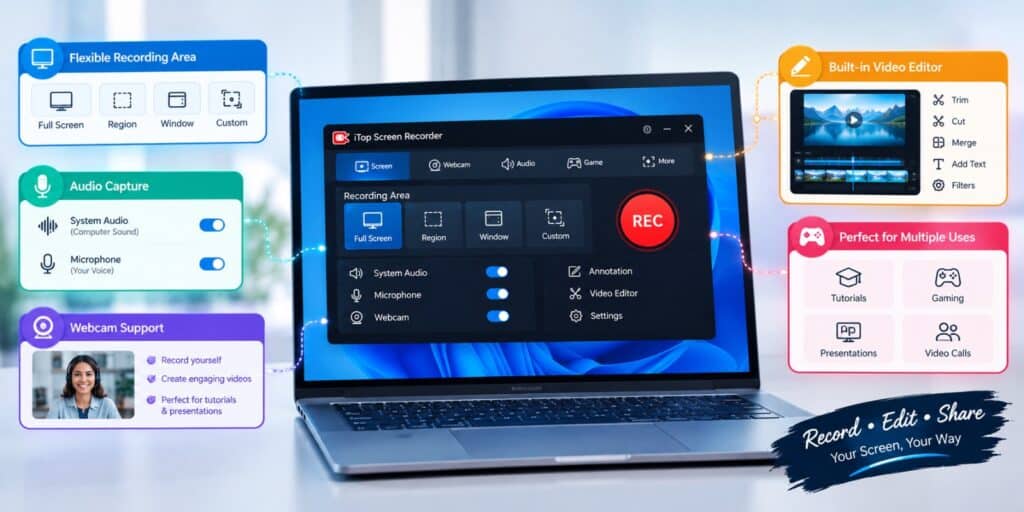
- Capture area that covers the full screen, one window or a custom region.
- Audio that records microphone and system sound.
- Output in MP4, which plays on almost every device.
- Frame rate and resolution controls, so you can balance quality and speed.
- Hotkeys that start and stop recording without opening the app.
- Clean output, since some free tools add a watermark to every clip.
A recorder that lacks one of these points can still work for a quick clip. It becomes a problem when you record every week. Missing hotkeys or weak audio waste time again and again.
Ease of use matters more than most people expect. A recorder with confusing menus makes you avoid recording at all. Open the app and see if you can start recording in under a minute.
Which Type of Screen Recorder Fits Your Task?
When you choose the best screen recorder, you can pick from three types. These are built-in tools, free open source software and paid all-in-one apps. The table below matches each type to common tasks.
| Recorder type | Best everyday tasks | Examples | Setup effort |
|---|---|---|---|
| Built-in Windows tools | Quick clips, bug reports, short app demos | Xbox Game Bar, Snipping Tool | Very low |
| Free open source software | Long sessions, gameplay, custom layouts | OBS Studio | Medium |
| Paid all-in-one recorders | Tutorials, courses, simple editing | Commercial apps with built-in editors | Low |
According to Microsoft Support, Xbox Game Bar is built into Windows 10 and Windows 11. Make Tech Easier notes that the Snipping Tool also records the screen. Both cost nothing, so try them first.
Game Bar has one limit worth knowing. According to Make Tech Easier, it cannot record the Windows desktop or File Explorer. That is why many tutors move to a full recorder.
How Do You Record Tutorials and Lessons Clearly?
Choose a recorder with clear microphone input, region capture and on-screen annotations. Viewers must see every menu and button you click. They must also hear your voice without hiss or echo.
Annotations help when a setting is hard to spot. A click highlight or arrow guides the eye. This works better than describing the location with words alone.
A webcam view adds a personal touch to lessons and demos. Check that the recorder can place the webcam as a small box on the screen. That saves you from joining two videos later.
Record a short sample and play it with headphones. Listen for keyboard noise, fan hum and low volume. Fix these problems before you record the full lesson.
Why Does Audio Quality Matter So Much?
Clear audio decides whether a tutorial feels professional. Viewers forgive a plain screen, but they stop watching when the voice is faint. A decent headset microphone usually beats the built-in laptop microphone.
System audio is the sound that comes from your PC. It includes game sound, video playback and notification chimes. Some recorders capture it, and some need extra setup.
Look for a recorder that keeps microphone and system audio on separate tracks. You can then fix the volume of each one later. This saves a recording when your voice is too quiet.
What About Recording Video Calls and Online Classes?
A screen recorder can also save video calls and online classes. Choose one that captures system audio, because that is where other people’s voices come from. Without it, you only hear yourself.
Ask everyone on the call before you record. It is polite and avoids confusion later. Some meeting apps also have their own record button, which may be simpler.
For classes, record the shared window instead of the whole desktop. Notifications then stay out of the video. You also get a tidier clip for review.
Which Screen Recorder Is Best for Gameplay Without Lag?
Pick a recorder that lets you set frame rate and resolution yourself. Fast games show every weakness in recording software. Stutter and dropped frames ruin a gameplay clip quickly.
Lower the resolution or frame rate when your PC struggles. A smooth 1080p clip looks better than a choppy 4K one. Hardware encoding, when offered, also reduces the load on the processor.
Windows Central notes that Game Bar lets you change resolution and frame rate. Lower values help performance on weaker PCs. If lag continues, the PC guides on TechWorldGarage can help you find the cause.
Free recorders can handle gameplay well when you set them up correctly. OBS Studio is free and open source, and it gives you detailed control over quality. Expect a short learning curve on the first day.
Can Your PC Handle Screen Recording?
Recording uses your processor, graphics card and disk at the same time. An older PC may stutter when you record while running heavy apps. This is normal and often fixable.
Close browser tabs and background apps before you start. Lower the frame rate if the clip looks choppy. Save files to an internal drive instead of a slow USB stick.
A lightweight recorder helps on low-end laptops. Test it with the apps you really use. A tool that runs well in a demo may still lag in your daily work.
Do You Need Built-In Editing Tools?
Built-in editing is useful when you record often. Even a simple trim tool removes pauses, mistakes and slow loading screens. You skip the extra step of opening a separate editor.
Check what the editor can actually do before you pay. Basic trimming and cutting cover most everyday clips. Text and arrow tools help with tutorials.
If you only record short bug reports, skip editing features. A free tool will do the job. Paying for tools you never open makes no sense.
Editing also helps with privacy. Blur or crop out email addresses, names and open tabs before you share a clip. Do this every time you record for customers.
How Do You Choose Recording Settings and Storage?
Choose settings by the final purpose of the video. A quick bug report needs less quality than a course lesson. Higher resolution and frame rate create larger files.
- Bug report. Record only the affected window at 30 frames per second.
- Tutorial. Record at 1080p and 30 frames per second, with a clean microphone track.
- Gameplay. Record at 60 frames per second if your PC keeps up.
Check free disk space before every long session. Save recordings in folders named by project and date. This makes old clips easy to find later.
Also think about where the video will be published. Most sites accept MP4, so choose that format when you can. Test one short clip to see the file size.
How to Choose the Best Screen Recorder in Five Steps
Follow these steps to choose the best screen recorder without wasting money. Each step takes only a few minutes. You end up with a tool that matches your daily work.
- Write down your top two tasks, such as tutorials or gameplay.
- List your must-have features, like webcam, system audio or editing.
- Try the free options first, starting with Xbox Game Bar and OBS Studio.
- Record a two minute test clip and check the sound, sharpness and smoothness.
- Pay only if a paid tool clearly saves you time.
Do not trust the longest feature list. A tool you open daily beats a powerful tool you avoid. Keep the one that feels easy on your own PC.
Review your choice after a month. If you never used the editor, switch to a simpler tool. If you hit limits often, move up a level.
Frequently Asked Questions
What is the best free screen recorder for PC?
The best free option depends on your task. Xbox Game Bar and Snipping Tool suit quick clips, while OBS Studio suits longer sessions and custom layouts. All three cost nothing.
Does Windows 11 have a built-in screen recorder?
Yes. Windows 11 includes Xbox Game Bar and the Snipping Tool, and both can record video. Game Bar works on one app window at a time, so it may not suit full desktop tutorials.
How do I record my screen with sound on a PC?
Turn on both microphone and system audio in the recorder before you start. Record ten seconds first and play it back. This confirms that both sounds were captured.
Which screen recorder is best for gaming in 2026?
In 2026, the best gaming recorder is one that lets you set frame rate and resolution yourself. Hardware encoding, when your PC supports it, also keeps gameplay smooth. Test a short clip before a long match.
Can I record a video call or online class on my PC?
Yes, if your recorder captures system audio. Ask everyone before you record, and record only the meeting window to keep notifications out of the clip.
Do screen recorders slow down a PC?
They can, because recording uses the processor, graphics card and disk. Lowering the resolution or frame rate reduces the load. Closing extra apps also helps.
Final Thoughts
In practice, the best recorder is the one you actually open every week. Knowing how to choose the best screen recorder comes down to your task, your hardware and where the video will be published. Start small and upgrade only when a real need appears.
Wikipedia defines a screencast as a recording of screen output, often with narration. Microsoft Support shows how to start and stop a Game Bar recording with keyboard shortcuts. Both pages are good starting points for beginners.
For more simple PC guides, visit TechWorldGarage. For full control at no cost, the OBS Studio website offers a free download. Try it beside Game Bar and keep the one you prefer.