I have fixed lines on monitor screen problems more times than I can count, both on my own setup and for friends who panic the moment it happens. The first time it happened to me, I nearly ordered a new monitor before checking a single cable. That one loose HDMI connector saved me a wasted purchase, and the fix took two minutes. Lines on monitor screen issues look alarming, but most of them cost nothing to fix.
Quick Answer: A line on a monitor screen usually comes from a loose cable, an outdated graphics driver, or a damaged display panel. Check the cable first, since it solves the problem most often. Update or roll back the graphics driver next. If the line stays after both steps, the panel or an internal cable is the likely cause.
Key Takeaways
- A loose or damaged cable causes most lines on monitor screens, and reseating it fixes many cases right away.
- Vertical lines usually point to a cable or graphics card issue, while horizontal lines often point to a refresh rate or panel problem.
- A line that appears before Windows even loads is a hardware issue, not a software one.
- Testing with a second monitor tells you within minutes whether the screen or the graphics card is at fault.
- Physical panel damage cannot be fixed with software and usually needs a repair or a replacement.
What Causes Lines on a Monitor Screen
Lines on monitor screen problems come from one of three sources. The signal traveling into the monitor can be interrupted. The software controlling the display can be misconfigured, or the panel itself can be physically damaged.
Think of the cable behind your monitor like a garden hose. A kink or a loose connection breaks the flow the same way it breaks water pressure. The result on screen is a stripe or a colored line instead of the picture you expect.
Vertical Lines Versus Horizontal Lines
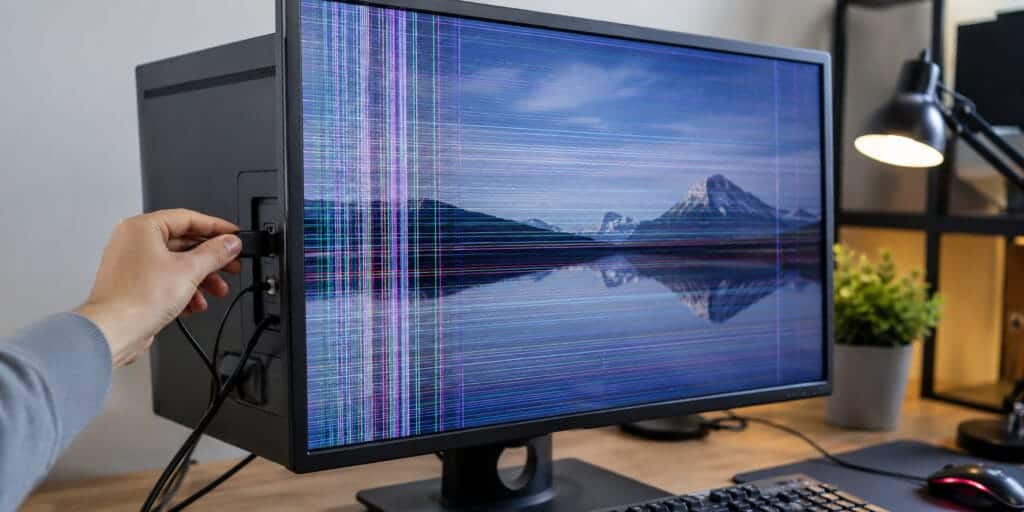
Vertical lines run from the top of the screen to the bottom, and they usually point to a cable or a graphics card problem. A liquid crystal display builds its picture from a grid of pixels arranged in columns and rows. A break anywhere along one of those columns tends to show up as a straight vertical line.
Horizontal lines run across the screen from side to side. They often point to a refresh rate mismatch or a damaged panel instead. A line that moves or flickers when you change a setting is more likely a software problem than a hardware one.
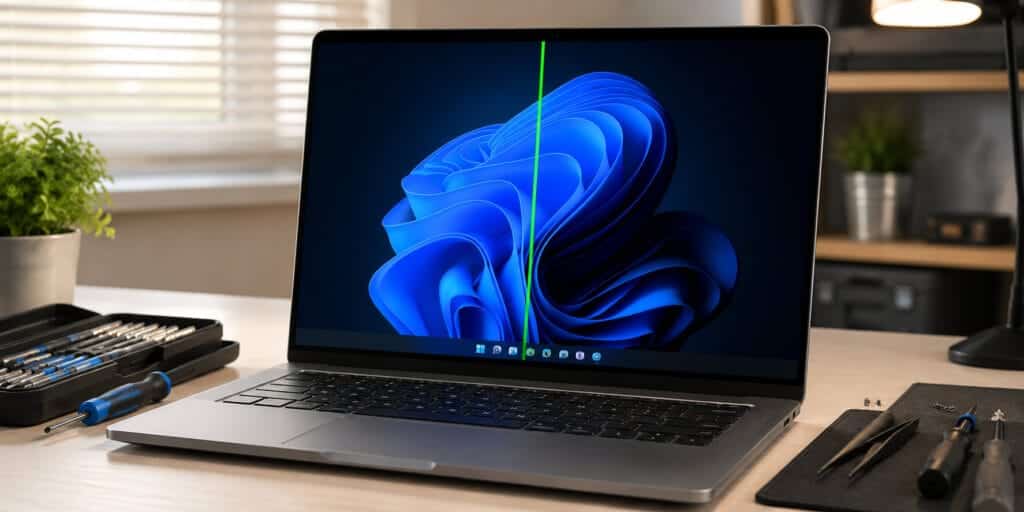
The color of the line can also narrow things down. A green line on a laptop screen often points to a connector issue inside the panel itself, while a white line on a laptop screen is more commonly tied to pressure damage or a cracked layer underneath the glass.
How to Fix Lines on a Monitor Screen Step by Step
Work through these fixes in order, starting with the simplest one. Most people solve the problem within the first two steps. Skipping ahead to buying new hardware almost always wastes money.
Step 1: Restart Your Computer the Right Way
Turn off your computer and unplug it from the wall. Unplug the monitor as well and wait two full minutes. Plug everything back in and turn it on again.
This clears any temporary glitch sitting in memory. Microsoft’s own display troubleshooting guidance recommends resetting the graphics driver or restarting as an early step for display problems. A full power cycle costs nothing and takes only a few minutes.
Step 2: Check and Reseat Every Cable
Turn off the monitor and unplug the video cable from both ends. Blow out any dust and check the pins for damage. Push the cable back in firmly until it clicks into place.
A loose HDMI or DisplayPort cable is the most common cause of a line on monitor screen. If you own a spare cable, swap it in and test again. Older VGA and DVI cables are more prone to this problem, since they carry a signal that degrades more easily over distance.
Step 3: Update or Roll Back Your Graphics Driver
Open your graphics card software, either the NVIDIA app or AMD Software. Check for the newest driver and install it. If the lines started right after an update, roll back to the previous version instead.
A driver update can sometimes cause the exact problem it was meant to fix. Rolling back through Device Manager takes only a few clicks. Restart your computer after any driver change to make sure it takes effect.
Step 4: Adjust Resolution and Refresh Rate
Right click your desktop and open Display Settings. Set the resolution to the option marked recommended. A mismatched resolution can stretch the image and create visible lines.
Check your refresh rate as well. Most monitors run at 60Hz, 75Hz, 144Hz, or 165Hz. Choosing a rate your monitor does not actually support often causes flickering lines.
Step 5: Test With a Different Monitor or Device
Connect your computer to a second monitor or a television if you have one. If the lines disappear, your original monitor is the problem. If the lines follow your computer to the new screen, the graphics card is more likely at fault.
This single test is the fastest way to know where to focus your repair effort. It takes less time than any of the earlier steps. Keep the result in mind before you spend money on a replacement part.
When the Graphics Card Is Causing the Lines
Sometimes the monitor is innocent and the graphics card sends a bad signal instead. Any monitor you connect will show the same lines in that case. This happens more often on older systems or ones that run hot.
Signs Your Graphics Card Is the Real Issue
A line that appears before Windows even loads points to hardware, not software. No driver has loaded yet at that stage, so software cannot be the cause. This usually means the graphics card or its connection to the motherboard needs attention.
Overheating is a common hidden cause inside desktop towers. Dust buildup traps heat around the graphics card over time. A card running consistently hot is more likely to produce display errors.
How to Check GPU Temperature Safely
Download a free tool such as HWiNFO, or check the reading inside your BIOS menu during startup. A temperature that stays high during normal use deserves attention. Clean your computer’s fans and vents with compressed air every few months.
This habit prevents many overheating related display problems before they start. It takes only a few minutes each time you do it. A cooler graphics card behaves in a more stable way, and if you game on the same machine, our guide to the best Windows settings for gaming without a new GPU covers more ways to keep it running cooler under load.
Laptop Screen Lines From a Loose Internal Cable
A laptop screen connects to the rest of the computer through a thin ribbon cable inside the hinge. Opening and closing the lid thousands of times can wear that cable down. A line that changes when you move the screen usually points to this cable rather than the panel itself.
The Gentle Wiggle Test
Hold the laptop screen with both hands, one on each side. Gently tilt it forward and backward a few degrees while watching the line. If the line shifts, flickers, or disappears, you have found the cause.
This test only confirms the diagnosis, it does not fix anything on its own. A laptop repair technician can usually replace this internal cable. The cost is far lower than buying a new laptop.
Physical Damage and Dead Pixels
A cracked panel, a pressure mark, or liquid damage can create a permanent line. These lines do not move, flicker, or respond to any software fix. Pressing gently near the edge of the line, only on a screen with no visible crack, can help confirm this.
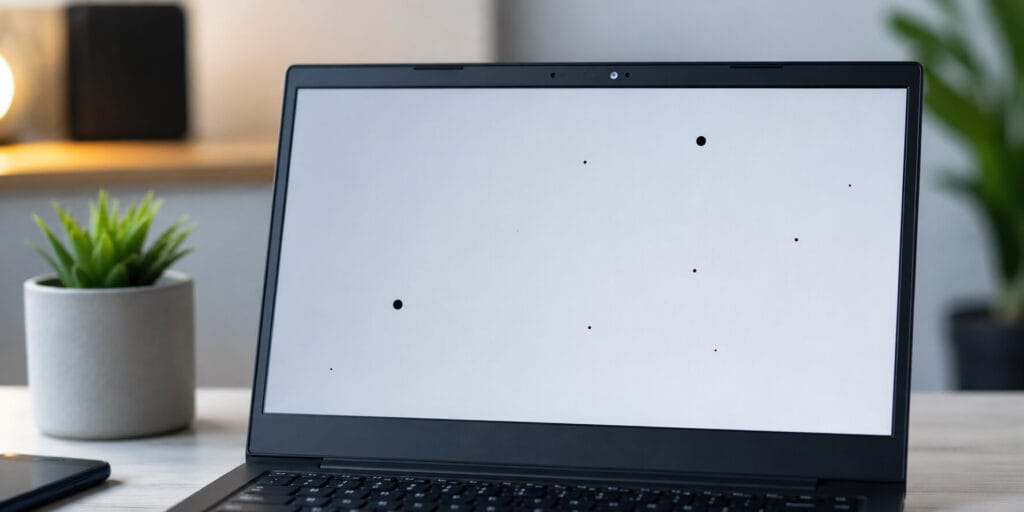
A dead pixel is different from a line. A dead pixel is a single tiny dot, always the same color. A line stretches across the whole screen and usually signals a connector or panel circuit problem instead, which is also true of the black spots that sometimes appear on a laptop screen for similar internal reasons.
Repair or Replace: Comparing Your Options
| Cause of the Line | Typical Fix Cost | Worth Fixing? |
| Loose cable | Free | Yes, always |
| Outdated driver | Free | Yes, always |
| Wrong resolution or refresh rate | Free | Yes, always |
| External monitor panel damage | Repair or replace | Depends on monitor age |
| Laptop internal display cable | Moderate repair cost | Usually yes |
| Cracked laptop screen | Higher repair cost | Compare against laptop value |
A monitor typically lasts several years of normal use before panel problems become more likely. If your monitor is still fairly new or under warranty, contact the manufacturer before paying for any repair. Compare the repair quote against the price of a similar new monitor before deciding.
Preventing Lines on Your Monitor Screen
A small amount of care goes a long way toward avoiding this problem again.
- Keep your monitor and cables away from magnets, speakers, and other sources of interference.
- Clean dust from your computer and monitor vents every few months.
- Use a surge protector, since power spikes can damage display hardware.
- Avoid pressing on the screen or stacking objects on a closed laptop lid.
- Reseat cables occasionally instead of waiting for a problem to appear.
FAQs About Lines on Monitor Screens
Why does my monitor have a colored line that will not go away?
A colored line that stays in one place usually means a damaged cable or a hardware fault inside the panel. Try a different cable first. If the line remains, the panel likely needs repair or replacement.
Can a software update cause lines on a monitor?
Yes, a buggy graphics driver update can cause lines, flickering, or color glitches. Roll back to the previous driver version through Device Manager to test this.
Is a line on my screen covered under warranty?
Many manufacturers cover display defects for a limited period after purchase, often one to three years. Check your monitor’s warranty card or the manufacturer’s website with your serial number to confirm coverage.
Why do I see lines only when I move my laptop screen?
This points to a loose or worn internal display cable inside the laptop hinge. It is a common and fixable hardware issue, not a sign that the whole panel is broken.
How do I know if it is my monitor or my graphics card in 2026?
The test has not changed over the years, even in 2026. Connect a second monitor to the same computer and watch what happens. If the lines disappear on the new screen, the original monitor is faulty, and if they reappear, the graphics card is the likely cause.
Will restarting my computer fix lines on the screen?
Sometimes, since a full power cycle clears temporary memory glitches that can cause display artifacts. It will not fix physical cable damage or a cracked panel, but it costs nothing to try first.
Final Thoughts
A line on your screen is not always as serious as it looks. In my experience, most cases trace back to a loose cable, an outdated driver, or the wrong display setting, and every one of those is free to fix. Work through each step in order, starting with the cable and ending with a hardware diagnosis, and you will know exactly what you are dealing with.
When the cause turns out to be a cracked panel or a worn laptop hinge cable, you now know the real path forward instead of guessing. If you want to understand more about how a single stuck or damaged pixel differs from a full line, Wikipedia’s page on the dead pixel is a useful next stop.