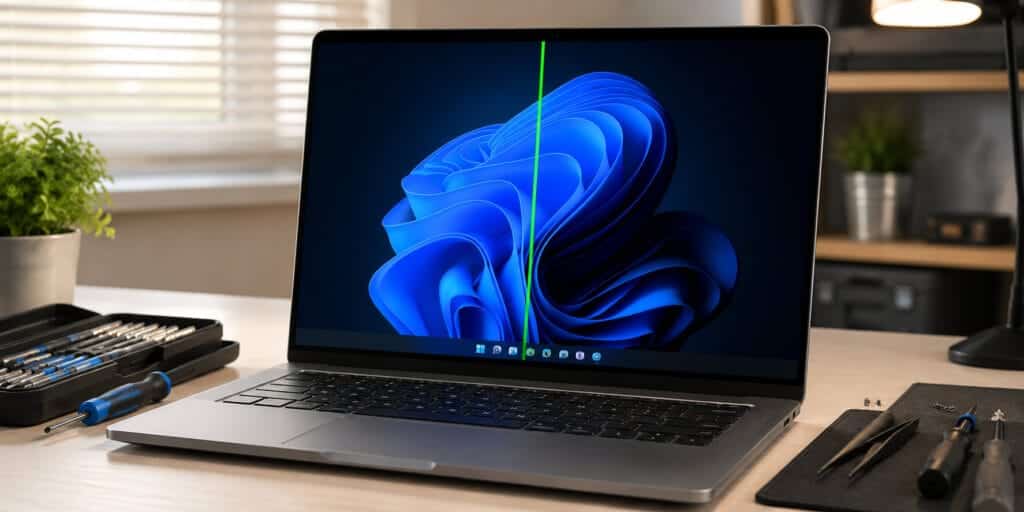
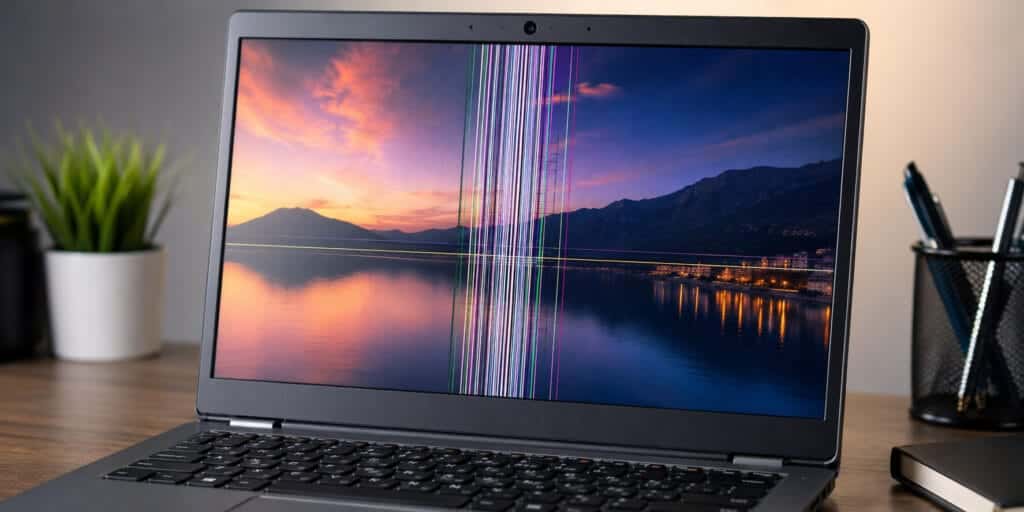
A line of dead pixels on your laptop screen is annoying. It cuts through your photos. It splits your videos in half. If you want to fix dead pixel lines on a laptop today, you are in the right place. Here is the truth. You can fix dead pixel lines on a laptop in some cases. In other cases, you cannot. This guide shows you exactly which case you are in. Then it shows you the real fix.
A dead pixel line happens when a row or column of pixels stops working. The line stays black or colored no matter what is on screen. Most dead pixel lines come from a loose ribbon cable inside the laptop, not a “dead” panel itself.
What Is a Dead Pixel Line, Exactly?
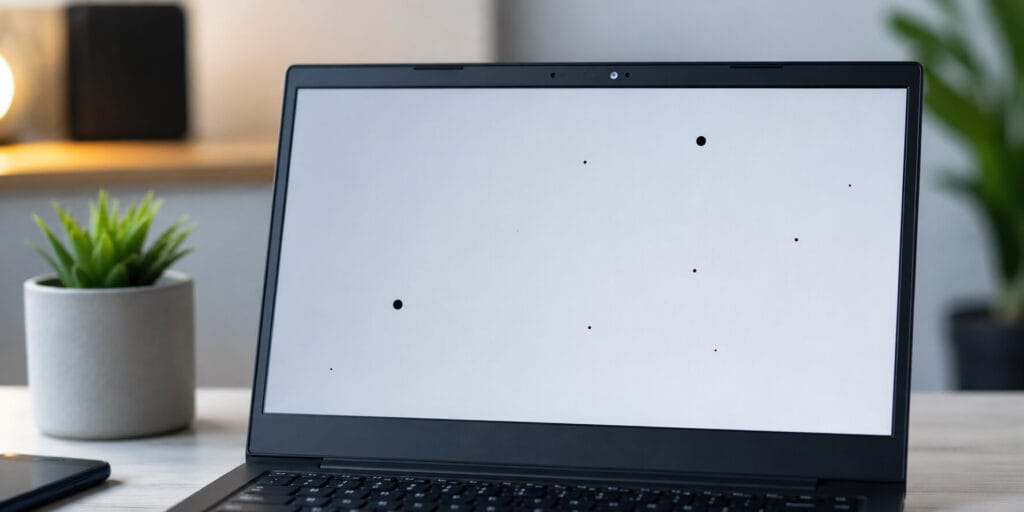
A pixel is one tiny dot on your screen. Each pixel has three smaller parts. These are called sub-pixels. They are red, green, and blue. When one pixel fails, you see a tiny dot. When a whole row or column fails, you see a line. That line can run side to side or top to bottom. Dead pixel lines on a laptop are different from dead pixels.
To fix dead pixel lines on a laptop the right way, you first need to know this difference. A single dead pixel is one bad transistor. A dead pixel line usually means a bigger problem. It often points to a damaged connection inside the screen, not just one broken dot, which is why learning how to fix dead pixel lines on a laptop starts with checking the cause first.
Stuck Pixel vs Dead Pixel Lines on a Laptop: Know the Difference First
This step matters more than any other step in this guide. A stuck pixel can often be fixed. A true dead pixel line usually cannot. A stuck pixel shows one color. It might flash red, green, or blue. The transistor still works. It just got frozen in one position.
A dead pixel is different. It shows pure black. No light comes through it at all. The transistor has failed completely. Here is a simple test. Look at your line on a black background. If it disappears, it is stuck, not dead. If it stays as a black streak on a white screen, it is a true dead line.
Quick answer: A stuck pixel line can sometimes be fixed with software or gentle pressure. A true dead pixel line cannot be fixed at home. It needs a cable repair or screen replacement.
What Causes Dead Pixel Lines on a Laptop Screen?
Most laptop screen lines do not come from “dead” pixels at all. They come from a loose or damaged cable. This cable connects your screen to your motherboard. This cable is called the LVDS cable or flex cable. It runs through the laptop hinge. Every time you open and close your laptop, this cable bends. Over time, the cable wears out. Tiny cracks form inside it. These cracks break the signal to one row or column of pixels.
That is what creates the line you see. A manufacturing defect can also cause dead pixel lines on a laptop straight out of the box. This is less common but does happen, especially on cheaper panel batches. According to Dell’s official display support documentation, panel defects are graded under ISO 9241-302, the same global standard monitor makers use to judge pixel faults (Source: Dell Technologies, 2025).
Physical Damage and Pressure
Closing your laptop with a pen or earbud case left on the keyboard is a common cause. The pressure cracks the panel from the inside. This often creates a line, not just a dot. A drop or hard bump can do the same thing. The screen looks fine outside but the layer underneath gets damaged. The line usually shows up within hours or days after the impact.
Overheating and Age
Heat makes plastic and adhesive weaker over time. The glue holding the ribbon cable to the panel can loosen as a laptop ages. This is especially common after three to four years of daily use.
A 2024 component failure study by iFixit, the well known repair documentation organization, noted that flex cable and ribbon bonding failures are among the most repeated laptop display complaints reported in their public repair guides (Source: iFixit, 2024).
Graphics Driver and Software Glitches
Not every line is hardware damage. Sometimes outdated graphics drivers cause flickering lines that look like dead pixels. This is good news because software problems are easy to fix.
If the line moves, flickers, or disappears when you tilt the screen, suspect a loose cable or driver issue first. If the line stays in the exact same spot no matter what you do, suspect true pixel failure.
How to Fix Dead Pixel Lines on a Laptop: Step by Step
Start with the easiest fix first. Work your way down the list. Stop as soon as something works.
How to Fix Dead Pixel Lines on a Laptop Without Opening It
You do not always need to open the laptop case. Most fixes below work from the outside, using only software or light pressure. Try these in order before reaching for a screwdriver.
This approach is safer for beginners. It also keeps your warranty intact, since opening the case can void coverage on some brands. Only move to the cable-level fix if these steps fail.
Step 1: Restart Your Laptop
This sounds too simple. But a restart clears temporary graphics glitches. Many “dead pixel lines” are actually just a display driver hiccup. Close all your programs first. Then restart fully, not just put it to sleep. Check the screen again once it boots back up.
Step 2: Update Your Graphics Drivers
Old graphics drivers can cause lines that look exactly like dead pixels. This is one of the most overlooked fixes for laptop screen lines. Open your Device Manager on Windows. Find Display Adapters.
Right click your graphics card and choose Update Driver. On a Mac, run Software Update from System Settings instead. A line caused by a driver issue usually vanishes right after the update. A line caused by hardware damage will stay exactly where it was.
Step 3: Run a Pixel-Fixing Tool
If the driver update did not help, try a pixel-cycling tool. These programs flash rapid colors over the stuck area. The goal is to “wake up” the frozen sub-pixel. JScreenFix is one widely used browser-based tool for this. It cycles through colors at high speed for ten to thirty minutes. Place the flashing window directly over your line.
This method works on stuck pixels, not dead ones. A 2023 survey of user reports compiled by repair resource UDPixel found that success rates for pixel-cycling tools land roughly between 50 and 70 percent on stuck pixels caught within the first week of appearing (Source: UDPixel User Reports, 2023).
Success drops fast after that first week. The longer a pixel stays stuck, the harder it becomes to revive. This is why catching the problem early matters so much.
Step 4: Try the Gentle Pressure Method
This method helps with stuck pixel lines caused by a loose internal connection. It will not help with a true dead pixel line from a broken transistor. Turn off your laptop screen first. Take a soft microfiber cloth and fold it into a small pad. Press very lightly on the area right behind the line, near the bezel edge.
Turn the screen back on while still applying gentle pressure. If the line fades or disappears, the cause was likely a loose ribbon cable contact. Release slowly and watch if it returns.
Warning: Never press hard. Too much pressure can crack the LCD panel and turn one line into ten. Light is the keyword here, like pressing a fingertip on a balloon, not punching it.
Step 5: Check and Reseat the Display Cable
This step requires opening the laptop, so only attempt it if you are comfortable with small screws and ribbon connectors. Many home users skip straight to a repair shop for this one. Power off the laptop and remove the battery if possible. Take off the bezel around the screen carefully using a plastic pry tool.
Locate the ribbon cable connecting the panel to the board. Disconnect it gently, then reconnect it firmly. This fixes lines caused by a cable that worked loose during shipping, a drop, or normal hinge wear. Reassemble and test the screen before closing everything up.
Step 6: Test on an External Monitor
This step tells you exactly where the problem lives. Connect your laptop to an external monitor using an HDMI or USB-C cable. If the line disappears on the external screen, your laptop panel or its cable is the problem.
If the line follows onto the external monitor too, the issue is your graphics card, not the screen itself. This single test saves people from paying for a screen replacement they did not need. It takes under two minutes to run.
When Dead Pixel Lines Cannot Be Fixed
Some dead pixel lines are permanent. Knowing this early saves you time and money. A true dead pixel line means the transistor controlling that row or column has physically failed.
Quick answer: Dead pixel lines caused by a snapped ribbon cable or a cracked LCD panel cannot be fixed with software, pressure, or restarts. The only real fixes are cable replacement or full screen replacement.
If the line was there since the day you bought the laptop, suspect a factory defect. If it appeared after a drop or pressure on the lid, suspect physical panel damage. Neither type responds to pixel-fixing software.
Warranty Rules by Brand: What Counts as a Defect
Major laptop brands follow pixel defect tolerance rules. These rules decide whether your single line qualifies for a free repair. This is one detail most guides skip entirely.
| Brand | Standard Policy | Premium Coverage |
| Dell | Requires 6+ stuck or 8+ dead pixels under standard warranty | Premium Panel Guarantee on select XPS and Precision models covers any single visible defect |
| HP | Case-by-case evaluation through HP Support | Higher-tier business laptops often get faster single-defect review |
| Lenovo | IdeaPad and Yoga follow multi-defect policy | ThinkPad Premium Support has historically covered single pixel defects |
| Apple | Evaluated case-by-case under AppleCare | Often repaired at Apple’s discretion within the first year on MacBook Pro and Air |
These policies follow the ISO 9241-302 international display standard, the same baseline rule book used across the monitor and laptop industry (Source: International Organization for Standardization framework, as referenced by major OEM support documentation, 2025).
A single dead pixel line almost always qualifies under any brand’s policy, since a line affects far more than one defective dot. Check your purchase date before assuming you are out of luck. Most standard laptop warranties run twelve to twenty-four months. Premium business laptops often extend coverage further.
Professional Repair Costs and What to Expect
When DIY methods fail, professional repair becomes the next step. Costs vary by laptop model, panel type, and where you live. Screen and cable replacement for most consumer laptops typically runs between 100 and 300 dollars. This includes parts and labor at an independent repair shop. Manufacturer-direct repairs through brands like Dell or Apple often cost more but include better quality control on replacement parts.
A simple ribbon cable replacement, when that is the actual cause, costs far less than a full panel swap. Many repair shops charge under 80 dollars just for the cable fix if your panel itself is undamaged. Always ask the shop to diagnose first before agreeing to a full screen replacement.
Questions to Ask Before Paying for Repair
Ask the shop if they tested the cable separately from the panel. A trustworthy technician checks both before quoting you the most expensive option. Ask whether the replacement part is OEM or aftermarket, since OEM panels usually color-match better and last longer.
Get the repair cost in writing before work begins. Compare it against a refurbished or used laptop price if your device is older than four years.
How to Prevent Dead Pixel Lines From Coming Back
Prevention beats repair every single time. A few small habits protect your screen for years.
- Never close your laptop lid with anything resting on the keyboard, including pens, cables, or earbuds.
- Carry your laptop in a padded sleeve, especially in a backpack with other hard objects.
- Avoid leaving your laptop in a hot car or direct sunlight for long periods.
- Clean your screen only with a dry or slightly damp microfiber cloth, never paper towels.
- Open and close the lid gently rather than snapping it shut, as this reduces strain on the internal ribbon cable.
A laptop kept at normal operating temperature and handled gently rarely develops cable-related screen lines before the five-year mark. Heat and physical stress are the two biggest accelerators of this kind of damage.
Software Lines vs Hardware Lines
This distinction changes your entire repair plan. Software-caused lines are cheap and fast to fix. Hardware-caused lines cost money and time. A software line usually flickers, changes color, or shifts position. It often appears after a Windows update or a new driver install.
A full driver rollback or reinstall typically clears it within minutes. A hardware line stays fixed in one exact spot regardless of which app you open. It does not respond to driver changes. It often gets slightly worse over weeks, which is a strong sign of failing internal hardware rather than a temporary glitch.
Can dead pixel lines on a laptop go away on their own?
Sometimes, yes. A stuck pixel line caused by a temporary signal glitch can clear up within a day or two. A true dead pixel line from hardware failure will not fix itself and usually needs cable repair or replacement.
Is it safe to press on my laptop screen to fix a line?
Light pressure for a few seconds is generally low risk. Heavy or repeated pressure can crack the panel. Always use a soft cloth and stop immediately if the line worsens.
How do I know if it is a dead pixel line or a graphics card problem?
Connect your laptop to an external monitor. If the line shows up there too, your graphics card is the cause. If the external screen looks clean, the laptop panel or cable is at fault.
Does JScreenFix actually work on laptop screens?
Yes, but only on stuck pixels, not dead ones. JScreenFix cycles colors rapidly to loosen a frozen sub-pixel. It has no effect on a pixel where the transistor has fully failed.
Will Windows Update or a driver reinstall fix a dead pixel line?
It can fix lines caused by software glitches or outdated drivers. It will not fix a line caused by a damaged ribbon cable or cracked panel, since those are physical hardware problems.
How much does it cost to replace a laptop screen with a dead pixel line?
Most consumer laptop screen replacements cost between 100 and 300 dollars at independent repair shops. A simple ribbon cable swap, when that is the actual cause, often costs less than 80 dollars.
Can one dead pixel line spread and create more lines?
Yes, this can happen if the underlying cause is a worsening ribbon cable or expanding crack in the panel. A line that grows wider or multiplies over days is a clear sign you need professional repair soon.
Is a dead pixel line covered under laptop warranty?
Often yes, since a line affects far more pixels than the single-defect threshold most brands require. Contact your manufacturer’s support team and reference your model’s specific pixel defect policy.
Does closing the laptop lid cause dead pixel lines?
Yes, this is one of the most common causes. Objects left on the keyboard, like a pen or charger plug, apply direct pressure to the screen when the lid closes and can crack the panel.
Should I try to fix a dead pixel line myself or go to a professional?
Try the free software and gentle pressure methods first, since they carry low risk. If the line persists after a week, or if it requires opening the laptop case, a professional repair is the safer and more reliable choice.
How to Fix Dead Pixel Lines on a Laptop: Final Verdict
A dead pixel line on a laptop is fixable in some cases and permanent in others. The fastest way to know which one you are dealing with is the black screen test described earlier in this guide.
Try the free fixes first. Restart your laptop, update your drivers, and run a pixel-cycling tool for thirty minutes. These steps cost nothing and solve a real share of stuck pixel cases.
If the line remains after a week of trying, stop guessing. Check your warranty status, then get a professional diagnosis. A loose ribbon cable repair is often far cheaper than a full screen replacement, and only a technician can tell you which one you actually need.
Your laptop screen does not have to stay broken. With the right test and the right fix, most dead pixel lines on a laptop get resolved without an expensive trip to the store. For more background on display technology and how liquid crystal displays work, the science behind these screens explains exactly why ribbon cables matter so much.