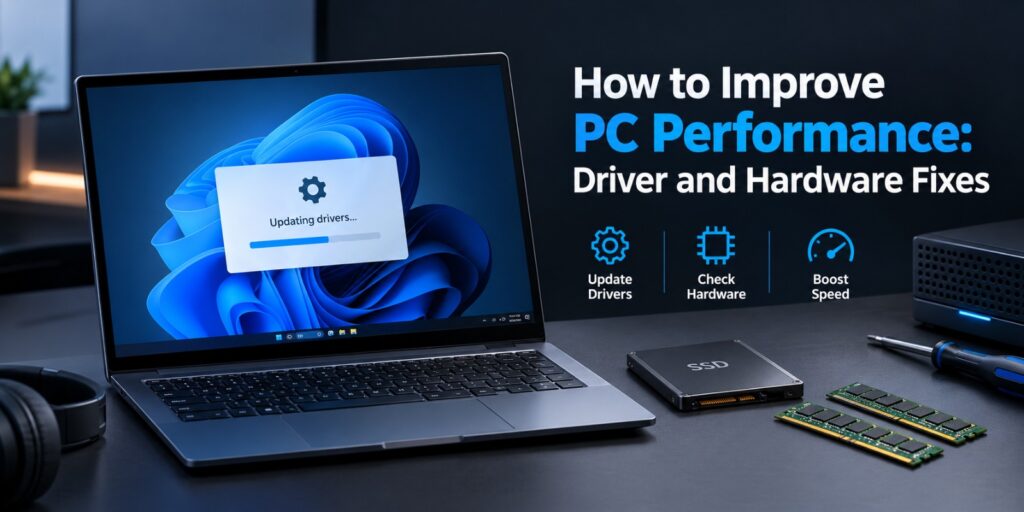
A slow computer wastes time every single day. Apps freeze and files open late. Knowing how to improve PC performance can fix most of these problems at home. Most slowdowns come from two places. Old drivers and tired hardware cause most of them. This guide covers both, along with a few free Windows settings.
Each step below is simple and safe for beginners. You need no paid tools and no technical background. Follow the steps in order and test your PC after each one. Here is how to improve PC performance in a few steps. Update your drivers and remove extra startup apps. Free up disk space and check your RAM and storage drive. Clean dust from fans and run a malware scan. These steps fix the most common causes of a slow Windows computer.
Key Takeaways
- Driver updates fix many lag and crash problems.
- Low RAM and a full drive slow Windows down fast.
- Heat and dust can force a processor to run slower.
- Startup apps and malware use resources without telling you.
- Change one thing at a time so you can see what helped.
Start with a driver update through Windows Update. Then remove extra startup apps. If speed is still poor, check RAM, storage space and temperature.
Why Does a PC Slow Down Over Time?
A PC slows down when software, storage or heat holds the hardware back. Apps pile up over the months. Drives fill and drivers fall behind. According to Computerworld, PCs tend to slow down as they collect apps, files and drivers. Microsoft Support adds that low disk space can reduce performance. Both facts explain why older setups feel heavy.
Some slowdowns come from software and others come from hardware. Drivers sit between the two. The right fix depends on what you notice.
| What you notice | Likely cause | Where to look first |
|---|---|---|
| Slow startup | Too many startup apps | Task Manager |
| Lag in games or video | Old graphics driver | Device Manager |
| Freezes with many tabs open | Low RAM | Task Manager |
| Loud fans and sudden slowdowns | Heat and dust | Vents and fans |
| Disk usage stuck near 100 percent | Full or aging drive | Storage settings |
Match your symptom to the table before you change anything. This saves time and avoids needless downloads. The next sections follow the same order.
How to Improve PC Performance With Driver Updates
A device driver is software that lets Windows talk to a hardware part. Old or broken drivers cause lag, crashes and odd screen problems. Updating them is one of the safest ways to speed up a PC.
Create a Restore Point First
Big driver changes can sometimes cause new trouble. A restore point lets you undo them. It takes about two minutes.
Search the Start menu for Create a restore point and open it. Select your system drive and click Create. Name the point with the date and wait for the message that it worked.
Update Drivers Through Windows Update
Microsoft Support lists Windows updates and optional driver updates as its first performance tip. Updates often carry fixes and speed gains. This is the easiest method for most users.
- Open Settings and select Windows Update.
- Click Check for updates and install what appears.
- Open Advanced options and select Optional updates.
- Tick any driver updates and click Download and install.
- Restart your PC when Windows asks.
According to eWeek, Microsoft notes that optional updates can include drivers that are not critical. They may still fix hardware problems. Always check this list after a major Windows update.
Update Drivers From the PC Maker
Windows Update does not always offer the newest driver. Maker websites often list newer versions for your exact model. Dell, HP, Lenovo and ASUS all run driver download pages.
Dell support explains how its Detect Drivers tool scans a computer for needed drivers. Other brands offer similar tools. Search for your exact model name on the support page.
Chipset and graphics drivers deserve the most attention. Download only from the PC maker or the chip maker. Avoid driver booster tools from unknown sources.
Update One Driver in Device Manager
You can also update a single device by hand. This works well when one part misbehaves. Windows Central notes that you should visit the maker site if no update appears.
- Right click the Start button and open Device Manager.
- Expand a group such as Display adapters.
- Right click the device and select Update driver.
- Choose Search automatically for drivers.
Roll Back a Driver That Made Things Worse
Sometimes a new driver causes new problems. Device Manager lets you return to the older version. Open the device, select the Driver tab and click Roll Back Driver.
If the button is grey, Windows has no older version stored. In that case, use the restore point you created earlier. Restart the PC after either fix.
Know When a BIOS Update Matters
A BIOS update changes the firmware that starts your PC. Most users never need one. Install it only when the maker lists a fix for your exact problem.
Follow the maker steps closely and keep a laptop plugged in. A failed update can stop a PC from starting. When in doubt, skip it.
Hardware Checks That Help You Improve PC Performance
Hardware sets the upper limit on speed. No setting can fix a full drive or too little memory. Check these four areas before you spend any money.
Check RAM Use in Task Manager
Press Ctrl, Shift and Esc to open Task Manager. Open the Performance tab and select Memory. If usage stays near the top, your PC needs more RAM. Closing apps also helps.
Microsoft lists 4 GB of RAM as the Windows 11 minimum. That figure only lets the system run. Browsers and office apps often need more room than that.
Check Your Storage Drive
Select Disk in the same Performance tab. Constant activity near 100 percent points to a slow or crowded drive. A solid state drive loads Windows and apps far faster than a hard disk drive.
Microsoft Support warns that low disk space can reduce performance. Keep a healthy share of the drive empty. Move photos and videos to an external drive if space runs short.
Check Temperature and Dust
Heat can make a processor cut its own speed to protect itself. Dust blocks vents and clogs fans. Both problems make a PC feel slow during long tasks.
Power off the PC and unplug it before cleaning. Use short bursts of compressed air on the vents. Laptops also need a hard, flat surface so air can flow.
Be Honest About Your PC Age
A five year old PC can still run well. Microsoft cautions that these steps will not turn outdated hardware into a new machine. Use them to get the best from what you own.
Windows Settings That Improve PC Performance Fast
Windows includes several free tools that help right away. They take minutes to set up. Try them after your driver and hardware checks.
Turn Off Startup Apps You Do Not Need
Too many startup apps make boot time drag. Microsoft has highlighted this as an easy place to look. Disable only apps you recognize, and leave security software on.
- Press Ctrl, Shift and Esc to open Task Manager.
- Select Startup apps from the left menu.
- Right click an app you do not need.
- Click Disable.
Switch to Best Performance Power Mode
Microsoft Support suggests setting Power mode to Best performance. This raises power use, so laptop battery life drops. Use it while the laptop is plugged in.
You can find Power mode in Settings under System and Power. Choose Best performance from the dropdown. Switch back to a balanced mode when you are on battery.
Reduce Visual Effects
Windows 11 uses animations and shadows that take system resources. Search the Start menu for Adjust the appearance and performance of Windows. Choose Adjust for best performance, or turn off only a few effects.
Older PCs gain the most from this change. Newer PCs may notice little difference. Test it and keep what feels better.
Use Storage Sense and Drive Optimization
Storage Sense is the cleanup tool built into Windows 11. Open Settings, select System, then Storage, and turn it on. It clears temporary files without extra software.
Microsoft also recommends the drive optimization tool. Windows handles this on its own for most drives. You can run it by hand from the Start menu if you like.
Try Efficiency Mode for Heavy Apps
Computerworld notes that Task Manager offers Efficiency mode. It lowers the priority of a busy background app. Right click the app in Task Manager and select Efficiency mode.
Remove Software Clutter and Malware to Improve PC Performance
Unused apps take space and often run in the background. Open Settings, select Apps, then Installed apps. Remove anything you no longer use.
Microsoft Support says that turning off background activity can improve performance. Microsoft also offers the PC Manager app. It can clean storage and manage startup apps.
Malware is another common cause. According to eWeek, Microsoft says malware can use processor and disk resources. Open Windows Security and run a scan under Virus and threat protection.
Run a full scan while you take a break, since it takes time. For more Windows fixes in plain language, browse the guides on TechWorldGarage. Then restart your PC and test its speed again.
Which Fix Gives the Biggest Speed Boost?
The best fix depends on your symptom. Free fixes should come before paid ones. The table below puts each option side by side.
| Fix | Time needed | Best for | Cost |
|---|---|---|---|
| Driver update | About 10 minutes | Lag, crashes and screen issues | Free |
| Startup cleanup | About 5 minutes | Slow boot | Free |
| Storage cleanup | About 15 minutes | Full drive | Free |
| Malware scan | 30 minutes or more | Unexplained slowness | Free |
| Dust cleaning | About 20 minutes | Heat and loud fans | Low |
| RAM upgrade | About 30 minutes | Many open apps | Paid |
| SSD upgrade | One hour or more | Slow loading | Paid |
Times are rough estimates and vary by PC. A good order is software first, then drivers, then hardware. This order keeps costs low.
When Should You Upgrade Instead of Tweak?
Upgrade when free fixes stop helping. If Task Manager shows memory or disk at the limit, hardware is the bottleneck. More settings changes will not solve that.
Check that any part fits your model before buying. Many thin laptops have RAM soldered to the board. Read the maker manual or support page first.
| Upgrade | Helps with | Difficulty |
|---|---|---|
| More RAM | Many tabs and heavy apps | Easy on many desktops |
| SSD instead of hard drive | Slow boot and app loading | Medium |
| Fan and vent cleaning | Heat and noise | Easy to medium |
| Graphics card | Games and video editing | Medium |
Simple Habits That Keep Your PC Fast
Small habits prevent most slowdowns. A short check every few months is enough. Use this list as a routine.
- Install Windows updates and optional driver updates.
- Remove apps you have not used in months.
- Review startup apps after installing new software.
- Keep free space on your main drive.
- Clean dust from vents and fans.
- Restart the PC at least once a week.
Frequently Asked Questions
How do I improve PC performance on Windows 11 in 2026?
Start with Windows Update and optional driver updates. Then disable unneeded startup apps and free up disk space. These steps work on both new and older Windows 11 PCs.
Do driver updates really make a PC faster?
Driver updates can fix lag, crashes and display problems. They help most when a driver is old or damaged. They will not make weak hardware run like a new machine.
How can I tell if hardware is slowing my PC?
Open Task Manager and watch the Performance tab. Memory or disk use stuck near the top points to a hardware limit. High temperature and loud fans point to heat problems.
Is it safe to use driver update software?
Many driver tools come from unknown makers and add unwanted software. Safer options are Windows Update and the PC maker website. Always create a restore point before big driver changes.
Should I add RAM or switch to an SSD first?
Check Task Manager first. If memory is full, add RAM. If a hard drive stays near 100 percent, an SSD gives the bigger gain.
Final Thoughts on How to Improve PC Performance
Slow PCs rarely need a full replacement. Most often, a driver update and a startup cleanup bring back normal speed. Work through the steps in order and note what changed. A device driver page on Wikipedia explains why drivers matter so much to hardware. Microsoft Support also publishes its own tips to improve PC performance in Windows. Those are the official steps, so keep them handy.
Treat these checks as a habit rather than a one time fix. Updates, free space and clean vents keep Windows steady. Your PC then stays quick without extra cost.