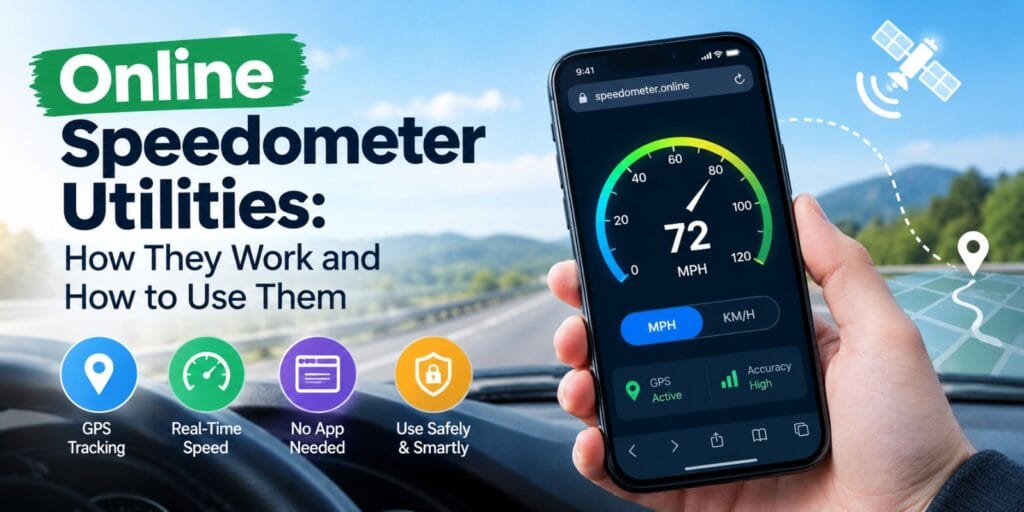
If you have ever spent time traveling on a train or riding in the passenger seat of a car, you have probably wondered whether your browser could show your real travel speed in real time. A quick search for an Online Speedometer turns up a mixed bag of results — some straightforward browser utilities, some location tracking tools, and a few web applications that require unnecessary permissions. Before relying on any tool during your journey, it is worth understanding how these web-based speed trackers actually work, what they can realistically measure, and how to tell a reliable tool from something that might drain your battery or compromise your privacy.
This is not a guide for bypassing hardware installation or fixing broken vehicle instruments. It is a practical rundown of how a web browser interacts with your device’s built-in GPS positioning sensors, what settings to verify before testing your speed, and how to use web tools in a way that actually supports accurate tracking instead of giving you jumping numbers.
What Is a Browser Speedometer?
At the most basic level, a browser-based speed tracker is a small web application that runs inside your mobile or desktop browser and adds functionality that standard websites do not have by default. It sits entirely separate from whatever operating system you are using — it is not part of your device’s native firmware, and it is not built or maintained by your phone manufacturer unless explicitly stated.
That distinction matters more than people realize. A browser speed tool might be built by an independent developer who wants to help commuters track their train velocity, calculate running pace, or double-check bicycle speeds. The domain name alone tells you almost nothing about who built it or what it actually does under the hood.
GPS Hardware vs. Web Platform
Users sometimes assume that if a speed tool opens smoothly inside Chrome or Safari, it must be officially sanctioned or directly tied to their phone’s primary positioning service. That is rarely true. Your phone’s location chip is hardware; a web tool referencing it is a separate, web-based script with its own developer, its own permission prompts, and its own performance track record — or lack of one. Treat them as unrelated until you have confirmed otherwise.
How Does a Web Speed Measurement Tool Work?
The mechanics are fairly simple once you break them down. You open the website, your browser asks you to approve location access, and from then on the script processes your geographic coordinates — usually by tracking latitude and longitude updates, calculating the distance covered between pings, and displaying the resulting velocity on your screen.
That is the general pattern: open the page, grant location permission, let it detect where your device is moving, and interact with the digital dial or numerical readout. Some tools store your recent trip logs locally in your browser cache, while others reset every time you refresh the tab. Some check in periodically for coordinate updates, since a sudden change in signal quality can temporarily disrupt the calculation algorithm.
What a web tool can’t do is more important than what it can. Browser permissions are the boundary — an online script only gets access to position updates that your device antenna picks up, and a well-designed tool should only ask for location access. If a site claims to read your car’s OBD-II engine computer over basic browser GPS without hardware adapters, that is worth treating with real skepticism rather than taking at face value.
Why Location Permissions Matter
When your browser shows you a location access prompt during your first visit, actually read it. It is easy to click “Allow” without thinking, but that prompt is really the only window you get into what the web script can touch. A simple gut-check works well here: does this permission request make sense for what the tool is supposed to do? A basic speed utility asking for high-accuracy location access makes complete sense, but a speed tracker asking for background microphone or contact access is a mismatch worth noticing. A tool that only needs to calculate your speed on screen shouldn’t be requesting broad access to your personal files.
How to Find the Right Speed Tracking Tool
Not every listing on search engines deserves the same trust. Before using any random speed tool, take a few minutes to look at how it operates.
Check the site details, not just the catchy domain name — anyone can build a clean interface. Read the instructions carefully and see if the site matches what you actually need, rather than promising something suspiciously advanced. Look at whether the page functions smoothly without flashing intrusive video ads; a site that has not been updated in a long time or is packed with heavy scripts is more likely to freeze or miscalculate speed. User feedback or clear documentation is one good signal among several, though not absolute proof on its own.
Watch for Unofficial or Cluttered Sites
It is genuinely common for web utilities built around basic tools to use popular terms to ride on search traffic, without offering any real accuracy. Some are harmless — just poorly maintained hobby projects. Others exist specifically to load heavy advertising networks, which is a different issue entirely and one worth avoiding for reasons that go beyond basic speed tracking. Don’t use a tool just because the page title contains the right keywords; confirm what it actually does first.
How to Set Up and Run an Online Speed Tracker
Assuming you have found a reliable website you are comfortable with, setting up speed tracking is straightforward. Open your web browser, head directly to the page URL, and look for the primary activation button — this helps ensure you are on the main interface instead of clicking on a lookalike advertisement banner.
If everything checks out, tap to start tracking. You will get a final browser permission prompt — read it, then confirm location access. Once enabled, you can see your live speed directly on the screen, where you can switch between miles per hour (MPH) or kilometers per hour (KM/H) depending on your preference.
One thing worth flagging directly: don’t rely on random third-party web tools that demand you install extra executable files or unknown system profile updates. That is an easy way to end up with bloatware that does not do what it claims.
How to Use the Tool While Traveling
Once it is active, using a Speedometer Online well comes down to a fairly simple rhythm. Open the tab before you start moving, glance at your browser indicator to confirm location access is active, and then stick to whatever core functions the developer actually documented — not whatever secondhand claims you might have heard.
Where this kind of tool genuinely earns its place is in the smaller, unglamorous parts of travel and fitness tracking. Maybe it helps you double-check your bicycle pace along an open road, or keeps a running tally of your average train velocity during a long commute. Used that way, a web tracker can slot into a broader routine without becoming a distraction — because at the end of the day, safety on the road or track comes first.
Can a Browser Tool Automatically Replace a Car Dashboard?
Short answer: no, and that is not a dodge — it comes down to fundamental technology differences. Web speed tools rely on GPS satellite signals, which means their performance varies depending on overhead clearance, weather, and physical obstacles. Physical vehicle gauges interact directly with your transmission or wheel sensors, putting them in a completely different category.
A few things are worth keeping in mind here. Environmental changes can quietly break satellite tracking overnight, since GPS relies on direct signal paths. Physical barriers still apply — a browser tool cannot track your speed if your phone is buried deep inside a metallic container or blocked by heavy concrete structures. And just because a site claims to be 100% pinpoint accurate under all conditions doesn’t mean it is reliable inside underground tunnels or parking garages.
This is also where travel safety comes in. Most drivers understand that keeping your eyes on the road is essential, and relying solely on a phone screen mounted on your dashboard as a replacement for built-in car gauges carries obvious risks. The more practical question isn’t “can this replace my car’s primary equipment?” but “is this a helpful secondary reference when I have a clear view of the sky?”
Common Problems and How to Troubleshoot Them
Web-based location tools can occasionally drop signal, and when they do, the fixes are usually mundane rather than mysterious.
If the speed readout doesn’t update at all, check your browser’s location permission settings to confirm it is actually enabled and active. It’s easy to miss that permission was accidentally blocked or revoked. If the page is open but not registering movement, the culprit is often a weak GPS signal, an outdated browser version, or a battery-saver mode interfering in the background.
A location warning popping up unexpectedly shouldn’t be brushed off — take a second look at what is being requested and whether it lines up with what the tool is supposed to do. And if something that used to work suddenly stops, try the simple stuff first: refresh the page, check your phone’s location toggle, ensure you are outdoors with a clear view of the sky, and temporarily close heavy background apps. Turning off basic security warnings just to force a glitchy script to run is not a fix worth reaching for.
Is It Safe to Use a Web Speed Tracker?
Safety here isn’t a yes-or-no answer about web tools in general — it is specific to each tool. The things worth checking are consistent, though: who built it, what permissions it requests, whether that access matches its stated purpose, and whether the site displays clear privacy details.
A Simple Safety Check Before Use
A quick mental checklist covers most of it — who made this page, what device sensors does it touch, why does it need location access, and is the functionality explained in plain terms rather than marketing language? Be especially cautious about entering personal details or creating accounts on tools you haven’t fully vetted, no matter how convenient the interface looks.
Web-Based Speed Tracking vs. Hardware Speedometers
| Approach | Where It Helps |
| Browser Tool | Quick, zero-install speed checks using mobile satellite hardware |
| Vehicle Dashboard | Continuous, real-time speed measurement unaffected by sky visibility |
| Bike Computer | Dedicated handlebar tracking for cycling workouts and distance logs |
| GPS Watch | Hands-free pace monitoring during outdoor running and athletic training |
None of these fully replaces the others. A browser tool can make quick speed checks a little smoother, but it is still one piece of utility software, not a complete replacement for hardware gauges.
Final Takeaway
A browser speed tracker is a convenient web tool — not a built-in feature of your phone’s core operating system, and not automatically reliable just because it opens in Safari or Chrome. What it actually does depends entirely on the specific tool you choose and your current GPS signal strength. Used thoughtfully, and with proper location permissions enabled, an Online Speedometer can genuinely support how you monitor your travel pace. Used as a total substitute for proper driving instruments, it is a risk that usually isn’t worth taking. Know what a tool does before you grant location access — that one habit avoids most of the trouble.
FAQs
What is a web-based speedometer tool?
It is a third-party browser utility designed to calculate your movement speed using your device’s built-in GPS positioning sensors. Exact features and layout vary from one site to another, so it is worth checking the specific page rather than assuming based on the domain name.
How do I enable location permissions for speed tracking?
When you open the page, your browser will display a permission prompt. Tap “Allow” or check your phone’s browser permission settings to ensure precise location access is enabled for that tab.
Can a browser speed tool track speed inside tunnels or buildings?
No. GPS radio waves require an unobstructed line of sight to overhead positioning satellites. When you pass through underground tunnels or dense concrete structures, the speed display will hold at zero or freeze until you return to an open area.
Why is my browser speed tool not updating in real time?
This is usually caused by a disabled location toggle, an active battery-saver mode throttling background browser performance, or an obstructed GPS antenna. Refreshing the tab and moving outdoors usually resolves the issue.
Are online speed tools completely safe to use?
It depends on the individual website. Always check what permissions are requested, avoid sites that demand executable software downloads, and ensure the tool only requests location access necessary for its function.
Do I need to install an app to check my speed online?
No. Standard web utilities run directly inside your mobile browser without requiring app store downloads, user registrations, or paid subscriptions.