
I use the computer to do various tasks, so I require it to be efficient and reliable. There may be many temporary files, unnecessary software and its data, cache files, and other such things that may start eating up my storage space and the system’s resources. Therefore, I feel that maintaining my computer regularly allows me to recognize these issues and manage my computer without any problems.
What I Use for Everyday PC Care
I find Advanced SystemCare to be a good choice, as it offers multiple Windows utilities in one single program. It is created by IObit and has many features like junk file removal, optimization, privacy options, system monitoring, and more. It enables me to begin with a comprehensive scan and then utilize the individual tools as per my requirements.
Features I Find Useful for Regular Maintenance
Smart Scanning and Everyday Cleaning
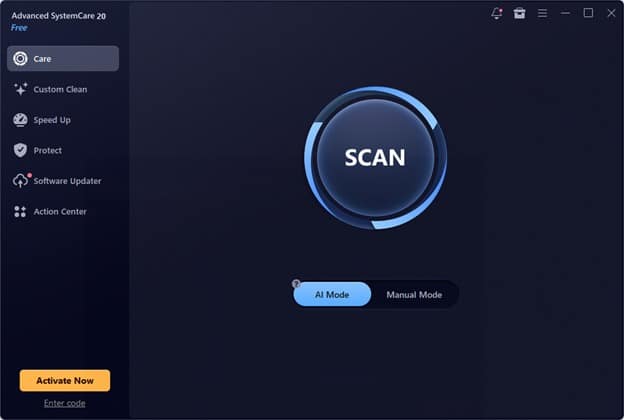
I appreciate the scan function as it provides an overall idea about possible problems. There is the choice of AI Mode and Manual Mode, so it enables me to choose either to be guided by the program or clean more specifically. The cleaning operation deletes temporary files, browsing history, application leftovers, invalid links, and many other useless items. First, I discuss my results since it helps to preserve all necessary configurations and data untouched.
Custom Clean for Better Storage Management
I always have an eye on the disk space, as having too much on the system disk may cause trouble when installing or updating some programs. Using the Custom Clean function, I manage to identify the duplicates and big files that might need extra attention. Moreover, I can check unnecessary files that are accumulated due to regular usage of the computer. I start by looking at the names of files that I want to delete in order to prevent any loss of documents or images.
Startup Optimization and Performance Monitoring
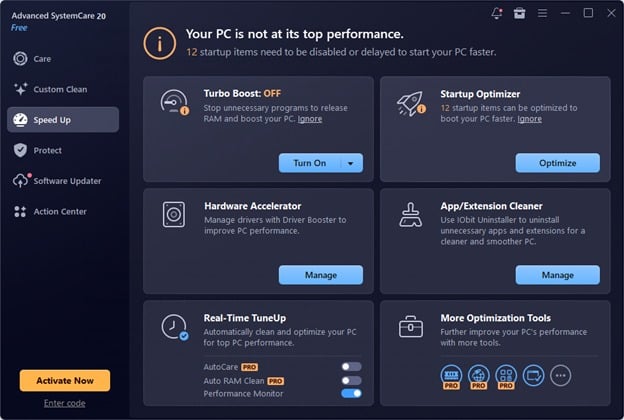
It is nice to be able to check applications that launch automatically with Windows startup. Unnecessary programs that start during the Windows boot-up process can slow down the process of system booting and take up resources in the background. The Startup Optimizer tool is very helpful in determining which programs should be disabled or delayed. Performance analysis gives me data regarding CPU, RAM, and disk usage.
Network and Disk Monitoring
Monitoring tools can come in handy in my investigation of unknown causes of slowdowns. Advanced SystemCare has network speed monitoring to assist in the determination of which background processes take up download or upload bandwidth. It also monitors the temperature of your disks to help me detect possible problems with their working conditions. The values are merely indicators and not diagnostic tools.
Privacy and Security Assistance
It is important for me to monitor my browsing history and personal data. The software provides components such as privacy cleaner, browser protection, and anti-spyware aimed at dealing with certain privacy and security issues. Its software updating capabilities may be useful for determining which applications have updates available. I continue using proper security tools, downloading Windows updates, and analyzing privacy cleaners, especially when removing cookies or saved passwords.
Extra Tools for Specific Tasks
Turbo Boost and Internet Boost are additional components that may be interesting for me in case my computer becomes overloaded. Turbo Boost allows a temporary decrease of selected background processes in order to have enough resources for a particular task. Internet Boost changes settings of certain networks or browsers, while Safe Folder lets me protect selected private files from access. These tools should be used selectively because not all optimizations will improve every computer.
How I Follow My PC Maintenance Routine
Step 1: Download and Open the Program
I go to the official IObit website, get acquainted with the current version, and download an installer. After installing the program, I launch the application and get acquainted with the interface.
Step 2: Run an Initial Scan
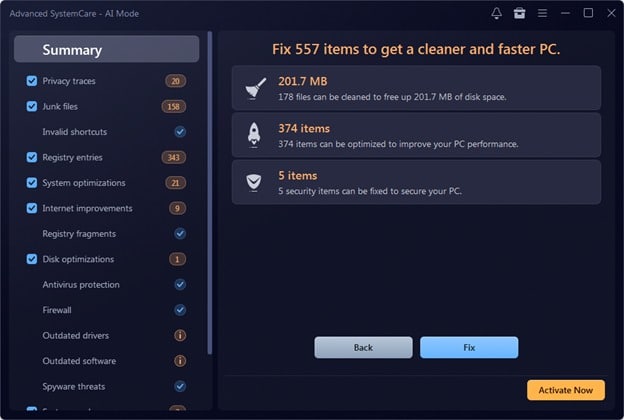
I click on the Care tab and use the AI Mode scan function. The software analyzes all the available parts of my PC where there might be unnecessary elements. After that, I study the scan results without applying all the offered changes right away.
Step 3: Review Startup Programs
I open the tools for optimizing startups and see which programs start automatically. I enable or postpone only those programs that I know are unnecessary for me.
Step 4: Review Privacy and Protection
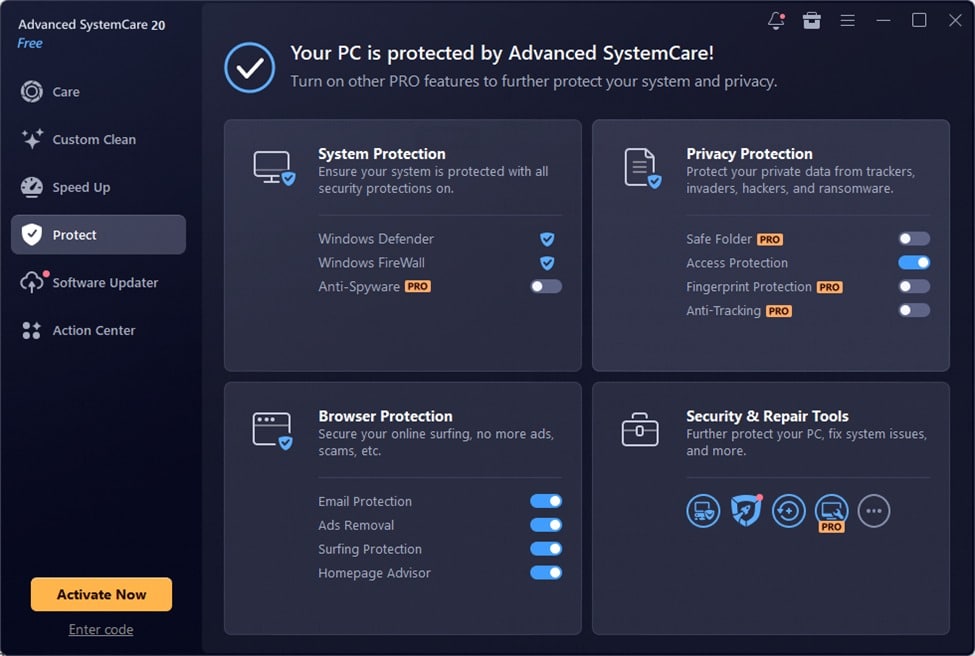
I go through all the privacy and browser settings for protection. I pick the settings that fit me according to my surfing preferences and see what kind of data will be deleted before cleaning my browser data. Also, I make sure that my security system is running continuously.
Step 5: Check the Results and Repeat Regularly
If necessary, I restart my computer to check the available space, boot speed, and speed of operation. I do some regular housekeeping without unnecessary changes every day. I also have a backup of all my essential documents so that cleaning is not hazardous to my personal data.
Who Should Use PC Cleaner Tool
The PC cleaner is what I recommend you use if you wish to enjoy all these functions together in one single package.
My Final Thoughts
Maintenance is something I enjoy due to the fact that it will help me with organizing various factors such as storage, startup procedures, privacy factors, and computer performance in general. Advanced SystemCare provides a range of helpful utilities that will help you with this process. However, I always consider the offered options, secure my vital files, and use proper security programs. In my opinion, the maintenance process is not aimed at achieving ideal computer performance but at organizing it properly.