I once spent an entire afternoon convinced my new monitor was defective, only to discover Night Light had quietly turned itself back on after a Windows update. That five-minute fix taught me something worth sharing: most yellow tint display problems aren’t broken hardware. They’re settings hiding in plain sight.
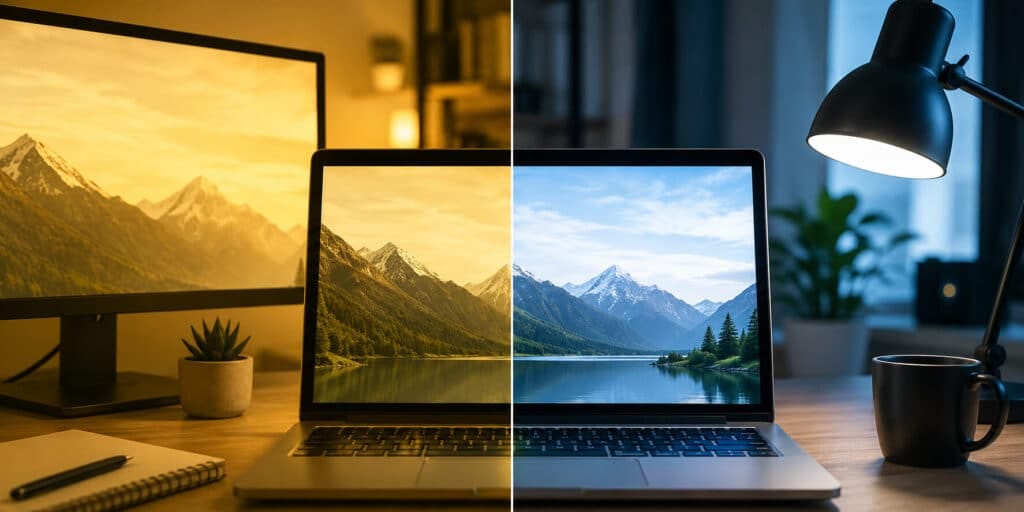
A yellow tint display happens when your screen shifts toward warm colors, making white look cream or beige instead of pure white. In most cases, it’s caused by a blue light filter, a color profile mismatch, or a display setting like Night Light or True Tone. Turning off these features usually restores normal color within seconds.
Key Takeaways
- A yellow tint display is almost always a software setting, not a broken screen.
- Night Light (Windows) and Night Shift or True Tone (Mac) are the most common causes.
- Faulty display cables and outdated graphics drivers can also cause a yellow cast.
- A persistent yellow tint that survives every reset may point to an aging panel or backlight.
- Testing with a different monitor or cable is the fastest way to separate software from hardware problems.
What Is a Yellow Tint Display?
A yellow tint display is a screen that shows an overall warm, yellowish hue instead of neutral color. Whites look off-white, blues look muted, and contrast can feel flat.
This isn’t a technical term you’ll find in a manufacturer’s manual. It’s simply how people describe a display that has drifted away from accurate color temperature.
What Causes a Yellow Tint on a Screen?
Several things can push a display toward yellow. Some are intentional features. Others signal a problem worth investigating.
Blue Light Filters and Night Mode Settings
This is the number one cause. Features like a blue light filter reduce the blue light emitted by a screen, which can help reduce eye strain and improve sleep quality, but may give a slight yellowish tint depending on intensity. Windows calls this Night Light. Apple calls it Night Shift.
Color Temperature and ICC Profile Issues
Every display lets you adjust color temperature. Warmer settings push toward orange, red, and yellow, while cooler settings push toward blue. If your color profile has shifted, or an outdated ICC profile is loaded, colors across the entire screen can skew yellow.
Outdated or Corrupted Graphics Drivers
Your graphics driver controls how your computer sends color data to the screen. If drivers are not up to date, it may affect color rendering, leading to a yellow tint. Reinstalling or updating the driver often resolves this instantly.
Loose or Damaged Display Cables
Video cables carry the signal that tells your screen what color to show. If a cable is not securely plugged in, it can lead to poor connection quality, which might present problems like a yellow tint on the screen. Bent pins, torn sheathing, or a loose connection are common culprits.
Aging Panels and Backlight Degradation
Older LCD panels can develop a warm cast as backlight components degrade over years of use. If the tint gets worse gradually and shows up during boot-up, before any operating system loads, that points toward hardware rather than software.
Heat Damage or Liquid Crystal Displacement
Prolonged heat exposure can cause localized yellow spots rather than a full-screen tint. This is different from a global color shift and usually needs professional repair.
How to Fix a Yellow Tint on Windows
Start with the easiest fix first, then work your way down the list.
Turn off Night Light. Go to Settings, then System, then Display, and switch Night Light off. Check the schedule too, since Windows updates sometimes reactivate it automatically.
Reset the color profile. Search “Color Management” in the Start menu, select your display, and confirm the correct default profile is active under the Advanced tab.
Update your graphics driver. Open Device Manager, expand Display Adapters, right-click your card, and choose Update Driver. If the tint appeared right after an update, try Roll Back Driver instead.
Check third-party apps. Programs like f.lux add their own screen-tinting feature and can run in the background without you realizing it.
Test the cable and port. Swap to a different HDMI or DisplayPort cable and try another port on your graphics card.
How to Fix a Yellow Tint on a Mac
Mac screens usually turn yellow because of two built-in features: True Tone and Night Shift.
Open System Settings, go to Displays, and turn off both True Tone and Night Shift. If the tint remains, move the color temperature slider toward neutral in the same Displays panel. Apple explains exactly how this feature behaves on its official True Tone support page, which is worth checking if the setting names don’t match what you see on your specific macOS version.
If the screen still looks warm, open ColorSync Utility and run through the built-in calibration steps to reset the white point and gamma curve.
Software vs. Hardware: How to Tell the Difference
This distinction matters because it decides whether you need five minutes or a repair technician.
Connect your laptop to an external monitor. If the tint disappears, the problem lives in your laptop’s screen or graphics output. If the yellow tint follows the connection to a different device, the monitor itself is likely at fault.
| Signal | Points To |
| Tint disappears after turning off Night Light or True Tone | Software setting |
| Tint appears during BIOS or startup screen, before Windows loads | Hardware issue |
| Tint follows the monitor to a different computer | Monitor hardware |
| Tint follows the laptop to a different external monitor | Laptop’s own panel or GPU |
| Tint is only in one small area, not the whole screen | Heat damage or panel defect |
Pros and Cons of Blue Light Filters
Blue light filters are the most common intentional cause of a yellow tint, so it helps to weigh them honestly.
Pros: may ease eye strain during long screen sessions, can support a more natural sleep schedule when used in the evening, and requires no extra hardware.
Cons: shifts color accuracy, which matters for photo editing or design work, and can be mistaken for a display fault if you forget it’s enabled.
Common Mistakes People Make
Many people jump straight to buying a new monitor before checking Night Light or True Tone. That’s the most expensive way to fix a five-second setting.
Others reset their color profile without first checking if a third-party app is the real cause. Always close background apps before assuming the operating system is at fault.
When Should You Worry About a Yellow Tint?
You should be concerned if the tint persists after disabling every filter, appears across multiple devices connected to the same monitor, and shows up before the operating system even loads. That combination usually points to a hardware issue with the panel, backlight, or internal scaler board, not a setting you can adjust.
FAQs
What does a yellow tint on a screen mean?
It means the display is showing warmer colors than intended, usually because of a blue light filter, color profile, or aging hardware.
How do I stop my screen from turning yellow at night?
Turn off Night Light on Windows or Night Shift on Mac in your display settings. These features intentionally warm the screen to reduce blue light exposure.
Can a bad HDMI cable cause a yellow tint?
Yes. A damaged or loose cable can distort the color signal between your computer and monitor, producing a yellow or warm cast.
Is a yellow tint bad for my eyes?
No, a mild yellow tint from a blue light filter is generally considered safe and is often used to reduce eye strain in low light.
Why does my screen turn yellow only in certain apps?
Some apps use their own color profile or have a built-in night mode, which can tint the display only while that app is open.
Can outdated graphics drivers cause a yellow screen?
Yes, drivers control how your system communicates with the display, so outdated or corrupted drivers can lead to visible color shifts.
Does a yellow tint mean my monitor is dying?
Not usually. Most cases are software-related. A yellow tint tied to age typically appears gradually and survives every settings check.
How do I know if the problem is my laptop or my external monitor?
Connect the monitor to a different device. If the tint stays with the monitor, the monitor is the source of the problem.
Can heat cause a yellow tint on a screen?
Yes, prolonged heat exposure can displace liquid crystals and cause localized yellow spots, which differ from a full-screen color shift.
Should I calibrate my display if the yellow tint won’t go away?
Yes, after ruling out Night Light, True Tone, and drivers, running your operating system’s built-in calibration tool can fix subtle color shifts.
Screens rarely fail without warning, and in my experience, the yellow tint that scares people the most is usually the easiest one to fix. Check your settings first. Save the panic for when the basics don’t work.
Color temperature is a well-documented concept in display technology, and understanding it makes these fixes far less mysterious once you see the pattern behind them.