
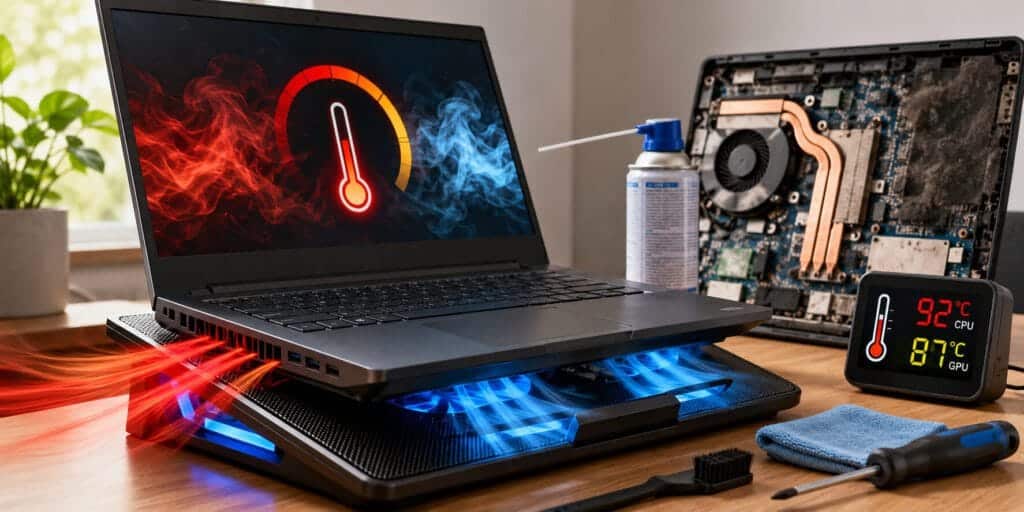
Fix laptop overheating fast with these 11 simple, proven steps. .I’ve fixed more overheating laptops than I can count, and almost every one had the same problem hiding in plain sight: dust. Not a virus, not a dying motherboard. Just months of dust packed into a fan that couldn’t push air anymore.
If your laptop is running hot, the fastest laptop overheating fix is usually the simplest one. Clean the vents, place the laptop on a hard surface, and close background programs eating your CPU. Most overheating problems start with blocked airflow, not failing hardware.
Key Takeaways
- Blocked airflow and dust buildup cause most laptop overheating, not hardware failure.
- A laptop running above 176°F to 194°F (80°C to 90°C) under normal use needs attention.
- Cleaning vents, elevating the laptop, and closing heavy background apps solve most cases in minutes.
- Persistent overheating on an older laptop often points to dried-out thermal paste.
- Sudden shutdowns during use are a safety signal. Stop using the laptop until it’s fixed.
How Do You Fix Overheating Laptop?
Turn off the laptop and let it cool for 15 minutes. Clean the vents with compressed air, place it on a hard flat surface, and check Task Manager for programs using high CPU. If the laptop still overheats under light use, the thermal paste inside has likely dried out and needs replacing.
Why Your Laptop Overheating Problem Happens
A laptop’s processor generates heat every time it does work. A small fan and heat sink pull that heat out through vents, usually on the bottom or side panel. When that system gets blocked, slowed, or overworked, heat has nowhere to go. The laptop throttles its own speed to protect itself, and you feel the slowdown before you feel the heat.
Laptop Overheating Fix: Clear the Blocked or Dusty Vents
This is the most common cause by far. Dust, pet hair, and lint settle inside the fan housing over months of normal use. Airflow drops, the fan spins harder, and internal temperatures climb even during light tasks like browsing.
Laptop Overheating Fix: Soft Surfaces Are Blocking Your Airflow
Laptop vents usually sit on the underside of the case. Using the laptop on a bed, couch cushion, or your lap presses soft material against those vents and cuts off airflow almost completely.
Fix Laptop Overheating Caused by Background Programs
Every open tab, app, and background process adds to CPU load. Dozens of browser tabs, cloud sync tools, and startup apps running at once can push a processor to near-constant high usage, generating steady heat even when you’re not actively working.
Dried-Out Thermal Paste
Thermal paste sits between the CPU and the heat sink, transferring heat between them. Over two to four years, that paste dries out and loses effectiveness. This is the classic explanation when an older laptop overheats even during simple tasks like word processing.
Overworked Fans or Failing Hardware
A fan that spins constantly, makes grinding noises, or doesn’t spin at all needs replacing. A swollen or aging battery can also generate excess heat and, in rare cases, becomes a safety hazard.
Overclocking or Heavy Workloads
Running a CPU or GPU beyond its stock settings for extra performance produces significantly more heat. Gaming, video editing, and 3D rendering push components hard enough that even a healthy laptop will feel warm.
How to Fix Laptop Overheating: Step-by-Step
1. Shut Down and Let It Cool
Power off completely rather than using Sleep mode. This stops all background processes and gives the internal components a real chance to cool before you troubleshoot.
2. Clean the Vents and Fans
Turn off the laptop and unplug it. Hold a can of compressed air at an angle and spray short bursts into the vents to push dust out, rather than deeper in.
You don’t need to open the case for basic cleaning. If your laptop still runs hot after this, opening it up (or having a technician do it) may be the next step.
3. Use a Hard, Flat Surface
Set the laptop on a desk, table, or tray instead of a bed, blanket, or your lap. This one change alone resolves a surprising number of overheating complaints, especially for laptops used mostly on soft furniture.
4. Check Task Manager for Heavy Processes
Open Task Manager (Ctrl+Shift+Esc on Windows) and sort by CPU usage. Close anything unfamiliar or unnecessary that’s pulling high resources, especially browser tabs and cloud backup tools running silently in the background.
5. Update Your Software, Drivers, and BIOS
Outdated graphics drivers and BIOS versions sometimes cause inefficient power use, which generates extra heat. Manufacturers regularly release updates that improve thermal management, so check your laptop brand’s support site periodically.
6. Adjust Your Power Settings
Lowering the maximum processor state in your power plan reduces how hard the CPU works, which lowers heat output. This trades some performance for cooler running, useful if you mostly do light tasks like browsing or document editing.
7. Use a Laptop Cooling Pad
A cooling pad adds active airflow underneath the laptop and elevates it slightly, both of which improve heat dissipation. This helps most during gaming, video calls, or any sustained heavy workload.
8. Replace the Thermal Paste
If a laptop overheats even under light use and it’s more than two years old, dried thermal paste is a likely cause. Replacing it restores proper heat transfer between the CPU and heat sink.
This repair involves opening the case and requires care. If you’re not comfortable with it, a certified repair technician can usually do this in under an hour.
9. Replace a Failing Fan or Battery
A fan that’s silent, grinding, or spinning constantly at full speed needs replacement. A battery below roughly 50% of its original capacity, or one showing bulging or swelling, should also be replaced immediately for safety.
10. Avoid Direct Sunlight and Hot Rooms
Ambient temperature affects your laptop’s baseline heat level. Working in direct sunlight or a room without air conditioning makes the cooling system’s job harder, even if everything inside is functioning normally.
11. Monitor Temperatures With Software
Free tools like HWMonitor or Core Temp show real-time CPU and GPU temperatures. Watching these numbers helps you confirm whether a fix actually worked instead of guessing based on how hot the case feels.
What Temperature Is Too Hot for a Laptop?
Most laptop CPUs run safely between 104°F and 176°F (40°C to 80°C) under normal use. Sustained temperatures above 194°F (90°C) during regular tasks, not gaming or rendering, usually signal a cooling problem that needs attention.
Signs You Need a Laptop Overheating Fix
You don’t always need software to notice overheating. Watch for these signs during regular use.
| Symptom | What It Usually Means |
| Fan runs loud and constant | Fan working overtime, often from dust or heavy load |
| Sudden slowdowns or freezing | Thermal throttling protecting the CPU |
| Laptop shuts down unexpectedly | Emergency shutdown from critical heat |
| Bottom of laptop too hot to touch | Airflow blocked or internal cooling failing |
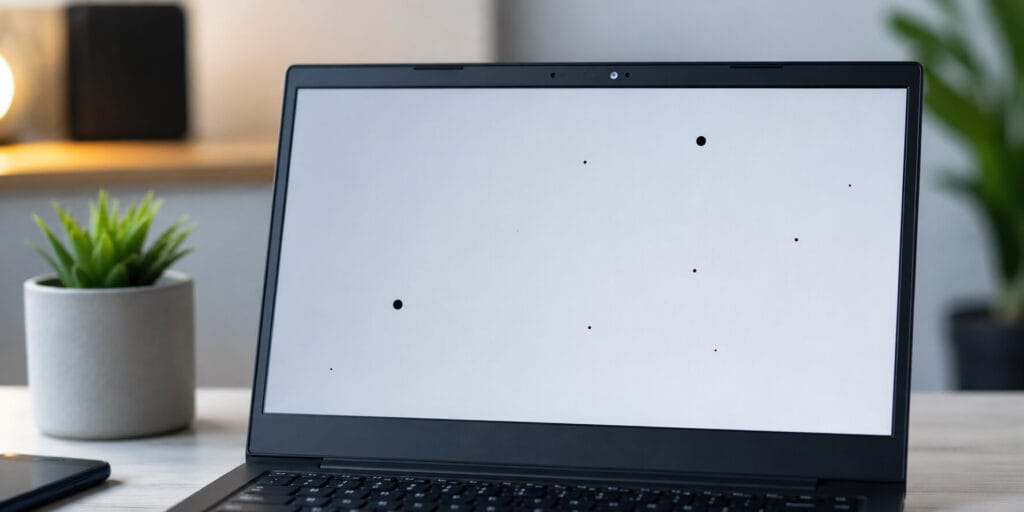
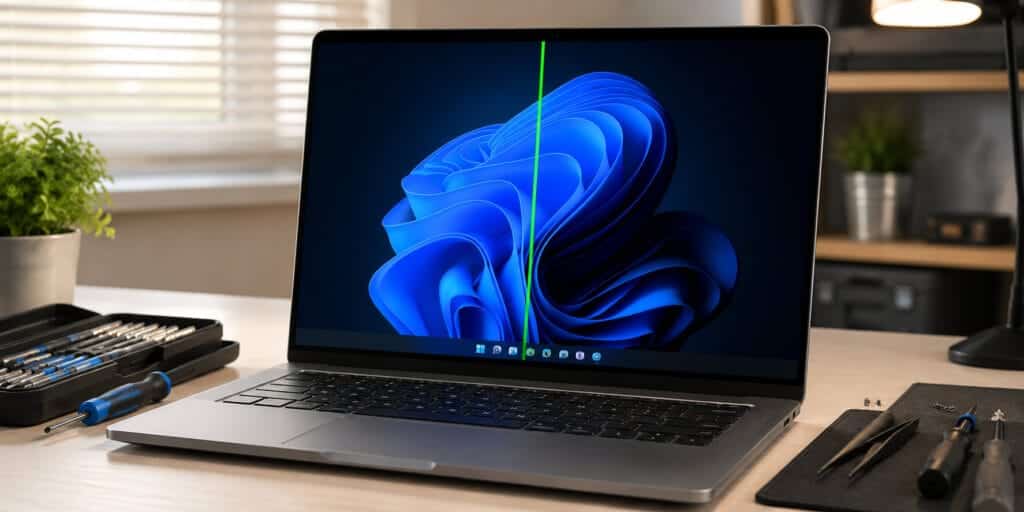
| Screen glitches or artifacts during use | GPU overheating under load |
Common Mistakes People Make When Fixing Overheating
Many people reach for the wrong fix first, which wastes time and sometimes makes things worse.
- Using a vacuum on the vents. Vacuums can generate static electricity that damages internal components. Compressed air is safer.
- Applying too much thermal paste. More paste doesn’t mean better cooling. A pea-sized or rice-grain amount is enough; excess paste can actually insulate heat instead of transferring it.
- Ignoring repeated shutdowns. A laptop that shuts down from heat once will likely do it again. Treat it as a warning, not a one-time glitch.
- Blocking vents with cases or stickers. Some protective cases cover ventilation slots without the user realizing it.
Pros and Cons of DIY Overheating Fixes
Pros
- Free or low-cost, using tools you likely already have
- Fixes the majority of overheating cases within minutes
- Builds useful long-term maintenance habits
Cons
- Opening the laptop case can void warranty on some models
- Thermal paste application requires care and the right technique
- Won’t fix deeper hardware failures like a dying motherboard
When to See a Professional
Take your laptop to a repair technician if it overheats even when idle, if the fan makes grinding or clicking noises, or if you see a swollen battery. These point to hardware failure rather than dust or software load, and attempting repairs without experience risks further damage.
FAQs
Why is my laptop overheating for no reason?
Even light tasks can overheat a laptop if vents are dusty, the surface underneath blocks airflow, or thermal paste has dried out. There’s almost always a specific cause, even when it isn’t obvious.
Can laptop overheating damage the hardware permanently?
Yes. Sustained high heat can degrade the battery, warp components, and shorten the lifespan of the CPU and GPU over time. Occasional warmth is normal; consistent overheating is not.
Is it safe to use my laptop while it’s overheating?
It’s best to stop and let it cool down first. Continuing to use an overheating laptop increases the risk of a sudden shutdown, data loss, or long-term hardware damage.
How often should I clean my laptop’s vents?
Every three to six months for average use, and more often if you have pets or work in a dusty environment.
Does closing my laptop lid cause overheating?
Yes, if it doesn’t go into Sleep mode properly and keeps running while closed. Airflow gets fully blocked in that position, so verify sleep settings are working correctly.
Can a laptop cooling pad really make a difference?
Yes. Cooling pads add active airflow and elevate the laptop slightly, which noticeably helps during gaming or other sustained heavy workloads.
Why does my laptop overheat only while gaming?
Gaming pushes the CPU and GPU to near-maximum load for extended periods, generating far more heat than everyday tasks like browsing or document editing.
Should I replace the thermal paste myself?
If you’re comfortable with careful, precise work and have the right tools, yes. Otherwise, a certified technician can do it safely in under an hour.
Does more RAM help prevent overheating?
Not directly. More RAM reduces strain on the CPU during multitasking, which can indirectly lower heat generation, but it doesn’t cool the laptop by itself.
Can I fix laptop overheating without opening the case?
Yes, in most cases. Cleaning vents with compressed air, changing the laptop’s surface, closing heavy background programs, and using a cooling pad solve the majority of overheating issues without opening anything.
I’ve watched this exact problem trip up people who assumed their laptop was simply dying. Most of the time it wasn’t. It just needed to breathe again. A five-minute cleaning session and a flat surface fix more overheating laptops than any thermal paste replacement ever will, and that’s worth knowing before you spend money on repairs you might not need.
Pingback: Windows Game Mode Not Working? Here Is the Real Fix - Tech World Garage