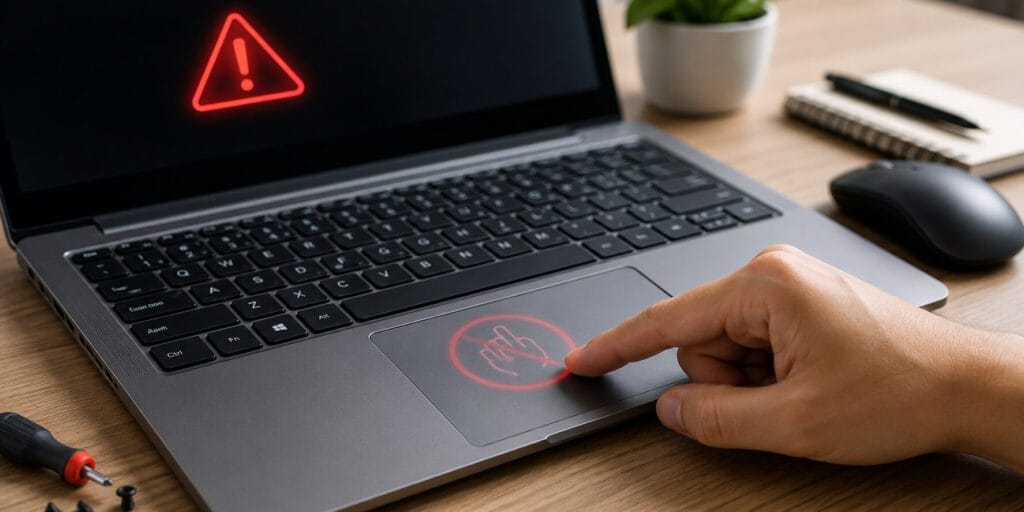
Your laptop touchpad stopped working. You can’t move the cursor. Nothing responds. This is one of the most common laptop problems users face. The good news is that most touchpad issues are fixable in minutes. You don’t always need a repair shop.
This guide covers every fix. From a simple keyboard shortcut to a full driver reinstall.
Why is my laptop touchpad not working? The most common reasons are: the touchpad was accidentally disabled, a driver is outdated or corrupted, an external mouse is interfering, or the touchpad is turned off in BIOS. In most cases, re-enabling the touchpad through Windows Settings or updating the driver solves the problem instantly.
Key Takeaways
- Press Fn + F6, F7, F8, or F9 to quickly toggle the touchpad on/off.
- Go to Settings > Bluetooth & Devices > Touchpad and check if it is enabled.
- Disconnect all external USB or Bluetooth mice, as they may disable the touchpad automatically.
- Update or reinstall the touchpad driver through Device Manager.
- Check the BIOS settings if nothing else works.
- A hardware issue is rare but possible after physical damage.
What Is a Laptop Touchpad?
A laptop touchpad is a flat, touch-sensitive surface built into the laptop. It replaces a physical mouse. You move your finger across it to control the cursor on the screen.
Modern touchpads are capacitive. They detect the tiny electrical charge from your fingertip. Most support multi-finger gestures like two-finger scrolling, pinch-to-zoom, and three-finger swipes.
Synaptics, Elan, and Alps are the three most common touchpad hardware manufacturers. Microsoft introduced the Precision Touchpad standard to improve gesture accuracy and driver reliability across Windows laptops.
Why Is My Laptop Touchpad Not Working?
There are several reasons a laptop touchpad stops working. They fall into two main categories: software issues and hardware issues.
According to Dell’s support documentation, touchpad issues are most commonly caused by outdated or corrupt drivers, incorrect settings, or external device interference. Hardware failure is the least likely cause for a touchpad that stops working suddenly.
The most common causes are:
- The touchpad is accidentally disabled via a keyboard shortcut
- The touchpad is turned off in Windows Settings
- An external mouse has auto-disabled the touchpad
- A driver update caused a conflict or broke the driver
- BIOS has the touchpad set to disabled
- Tablet mode is active on a 2-in-1 laptop
- The touchpad surface is dirty or greasy
- The operating system has a corrupted system file
- Physical damage to the internal ribbon cable
Laptop Touchpad Not Working: Fix Table at a Glance
| Cause | Fix | Difficulty |
| Touchpad disabled via keyboard | Press Fn + Function Key | Very Easy |
| Disabled in Windows Settings | Settings > Touchpad > Turn On | Easy |
| External mouse interfering | Disconnect mouse | Easy |
| Outdated driver | Update via Device Manager | Moderate |
| Corrupted driver | Uninstall and reinstall driver | Moderate |
| BIOS disabled | Enter BIOS, enable touchpad | Moderate |
| Tablet mode active | Disable tablet mode | Easy |
| Dirty touchpad | Clean with isopropyl alcohol | Easy |
| Hardware failure | Visit repair center | Hard |
How to Fix a Laptop Touchpad Not Working (Step-by-Step)
Fix 1: Use the Keyboard Shortcut to Enable the Touchpad
This is the first thing to check. Most laptops have a dedicated key to enable or disable the touchpad.
Look at the F1 through F12 keys on your keyboard. Find a key with a touchpad icon. It usually looks like a rectangle with a finger or a line through it.
Hold the Fn key and press that function key. A message should appear on your screen saying “Touchpad enabled.”
- On ASUS laptops, it is usually Fn + F6 or Fn + F9.
- On Dell laptops, it varies by model.
- On MSI laptops, it is usually Fn + F3 or Fn + F4.
- On HP laptops, look for a touchpad key with a light indicator near the touchpad corner.
If a notification appears saying “Touchpad enabled,” test it immediately.
Fix 2: Check Windows Settings
Sometimes the touchpad gets turned off inside Windows settings without you knowing.
Steps for Windows 11 and Windows 10:
- Press the Windows key + I to open Settings.
- Go to Bluetooth & Devices.
- Click Touchpad.
- Make sure the toggle at the top is switched On.
Also check the option that says “Leave touchpad on when a mouse is connected.” Turn this on if you sometimes plug in a USB mouse.
Fix 3: Disconnect All External Mice
Many laptops automatically disable the touchpad when an external mouse is plugged in. This is a built-in Windows setting.
Unplug your USB mouse. Turn off any Bluetooth mouse nearby. Restart your laptop.
Then check if the touchpad works again. This solves the problem more often than you would expect.
Fix 4: Restart Your Laptop
This sounds too simple. But a full restart clears many software glitches.
Do not just close the lid. Fully shut down the laptop. Wait 30 seconds. Then turn it back on. This discharges residual power and resets hardware connections.
According to Microsoft’s support team, restarting the laptop resets Windows processes that may cause touchpad unresponsiveness.
Fix 5: Update the Touchpad Driver
An outdated or corrupted driver is one of the top causes of a laptop touchpad not working.
How to update via Device Manager:
- Press Windows Key + X and click Device Manager.
- Expand Mice and other pointing devices or Human Interface Devices.
- Right-click your touchpad (it may say “HID-compliant touchpad” or the brand name).
- Select Update driver.
- Choose Search automatically for updated driver software.
- Restart after the update.
You can also visit your laptop manufacturer’s website (Dell, HP, Lenovo, ASUS) and download the latest touchpad driver manually.
Fix 6: Reinstall the Touchpad Driver
If updating does not help, reinstalling forces Windows to start fresh with the driver.
- Open Device Manager again.
- Right-click your touchpad device.
- Select Uninstall device.
- Confirm the uninstall. Do not worry. The driver is not gone permanently.
- Restart your laptop.
- Windows will automatically detect and reinstall the touchpad driver on reboot.
Check the touchpad after it restarts.
Fix 7: Roll Back a Recent Driver Update
Did your touchpad stop working right after a Windows or driver update? A driver conflict may be the cause.
- Open Device Manager.
- Right-click your touchpad device.
- Click Properties.
- Go to the Driver tab.
- Click Roll Back Driver if that option is available.
This restores the previous version of the driver, which may have been working fine.
Fix 8: Check BIOS Settings
The touchpad can be disabled inside the BIOS. This is uncommon, but a BIOS update can sometimes reset the setting.
How to check:
- Restart your laptop.
- Press the BIOS key repeatedly during startup. This is usually F2, F10, F12, or Delete depending on your laptop brand.
- Navigate to the Advanced section.
- Look for a setting named “Touchpad,” “Internal Pointing Device,” or “TouchPad.”
- Make sure it is set to Enabled.
- Save and exit BIOS.
Fix 9: Disable Tablet Mode (Windows 10)
On Windows 10, switching to tablet mode can disable the touchpad.
Open Action Center (click the chat bubble icon in the taskbar). Make sure Tablet Mode is turned off.
On Windows 11, tablet mode enables automatically when you fold a 2-in-1 laptop into tent or tablet form. Unfold your laptop back to its normal position and the touchpad should work again.
Fix 10: Clean the Touchpad Surface
Touchpads are capacitive. They rely on detecting electrical charge from your skin. Grease, dirt, or moisture can block that signal.
Clean the touchpad with a soft cloth slightly dampened with isopropyl alcohol. Do this with the laptop turned off and unplugged. Let it dry fully before turning the laptop back on.
Do not use regular water or cleaning sprays. Isopropyl alcohol evaporates quickly and is safe for electronics.
Fix 11: Double-Tap the Touchpad Corner (HP/Synaptics)
Some HP and Synaptics touchpads have a small LED or invisible zone in the top-left or top-right corner. Double-tapping that corner enables or disables the touchpad.
If your touchpad has this feature, a small light will blink when you tap it. Try double-tapping that area to toggle the touchpad back on.
Fix 12: Run Windows Hardware Troubleshooter
Windows has a built-in troubleshooter for hardware problems.
- Open Settings.
- Go to System > Troubleshoot > Other troubleshooters.
- Find Hardware and Devices and run it.
- Follow the on-screen steps.
- Restart after it finishes.
Fix 13: Boot in Safe Mode to Check for Software Conflicts
Third-party apps like antivirus software or gesture control programs can interfere with the touchpad driver.
To test this, boot into Safe Mode:
- Hold Shift while clicking Restart in the Start menu.
- Go to Troubleshoot > Advanced Options > Startup Settings > Restart.
- Press 4 to start in Safe Mode.
If your touchpad works in Safe Mode, a third-party app is causing the conflict. Uninstall recently added programs one by one to find the culprit.
Fix 14: Run System File Checker (SFC Scan)
Corrupted Windows system files can cause hardware to stop responding.
- Press Windows Key + X and click Windows Terminal (Admin).
- Type: sfc /scannow
- Press Enter and wait. This takes several minutes.
- Restart your laptop when done.
How to Fix a MacBook Touchpad (Trackpad) Not Working
The steps are slightly different on a Mac.
For macOS:
- Click the Apple menu and open System Settings (or System Preferences on older macOS).
- Go to Accessibility > Pointer Control > Mouse & Trackpad.
- Make sure “Ignore built-in trackpad when mouse or wireless trackpad is present” is not checked.
- Update macOS via Apple Menu > System Settings > General > Software Update.
- Reset the SMC (System Management Controller) if the trackpad is completely dead.
For an Intel MacBook, shut it down, then press Shift + Control + Option + Power for 10 seconds. Release and restart.
Laptop Touchpad Not Working: Software vs. Hardware Issues
Knowing the difference saves you time.
Signs it’s a software issue:
- The touchpad worked before and stopped suddenly.
- It works in BIOS but not in Windows.
- It works in Safe Mode but not normally.
- A recent update happened just before the problem started.
Signs it’s a hardware issue:
- The touchpad never responds, even in BIOS.
- You dropped the laptop or it got wet.
- The surface is physically cracked or damaged.
- There is no touchpad listed at all in Device Manager.
If it is a hardware issue, the internal ribbon cable connecting the touchpad to the motherboard may be loose or torn. A qualified technician can reseat or replace it.
Common Mistakes That Make the Problem Worse
- Installing random driver software from unknown websites. Always use your manufacturer’s official site.
- Skipping the restart after a driver update. The fix only applies after a reboot.
- Using water or household cleaners on the touchpad.
- Pressing too hard on the touchpad surface repeatedly. This does not fix it and can cause physical damage.
- Ignoring BIOS settings as a possible cause.
Pros and Cons of Using the Built-In Laptop Touchpad
| Pros | Cons |
| No extra device needed | Less precise than a mouse |
| Works anywhere, no surface needed | Can be accidentally triggered while typing |
| Supports multi-finger gestures | Sensitivity issues in some drivers |
| Built into every laptop | Harder to use for graphic design or gaming |
| No batteries or charging needed | Can stop working due to driver conflicts |
(FAQs)
Why did my laptop touchpad suddenly stop working?
The most common cause is accidental disabling. Either a keyboard shortcut was pressed, or an external mouse auto-disabled it. Check Settings > Bluetooth & Devices > Touchpad to see if it is turned off.
How do I enable the touchpad on my laptop?
Press Fn plus the touchpad function key on your keyboard. Or go to Settings > Bluetooth & Devices > Touchpad and toggle it on.
Why is my touchpad not working after a Windows update?
A driver conflict from the update is likely the cause. Open Device Manager, right-click the touchpad, and select “Roll Back Driver” to return to the previous version.
Can a virus disable the laptop touchpad?
It is unlikely but possible. Malware can corrupt system files or drivers. Run a full antivirus scan and then run the SFC command (sfc /scannow) to repair system files.
Why does my touchpad work in BIOS but not in Windows?
This is a software or driver issue, not a hardware issue. Reinstall the touchpad driver through Device Manager. Also run the Windows hardware troubleshooter.
Is my laptop touchpad broken if it does not appear in Device Manager?
If there is no touchpad in Device Manager, the BIOS may have it disabled. It can also mean a hardware failure, especially after physical damage.
How do I fix a touchpad that moves the cursor on its own?
Erratic cursor movement is often caused by outdated drivers, a dirty touchpad surface, or too-high sensitivity settings. Clean the surface, update the driver, and lower the sensitivity in Touchpad Settings.
Can I replace a broken laptop touchpad?
Yes. Most laptop touchpads are replaceable. The repair usually involves a technician opening the laptop, disconnecting the old touchpad ribbon cable, and replacing the touchpad module. Costs vary by brand and model.
Why is my touchpad clicking but not moving the cursor?
The driver may be partially corrupted. The click function still works but the tracking function has failed. Reinstall the touchpad driver to fix this.
How do I know if it is a hardware problem or software problem?
Boot your laptop into BIOS setup. Try moving within the BIOS menu using the touchpad. If it works in BIOS but not in Windows, it is a software issue. If it does not work in BIOS either, it is likely a hardware failure.
Why does my touchpad stop working when I plug in a mouse?
Windows has a setting that automatically disables the touchpad when an external mouse is connected. Go to Settings > Bluetooth & Devices > Touchpad and enable “Leave touchpad on when a mouse is connected.”
How do I fix a touchpad not working on an HP laptop?
Press Fn + F5 or Fn + F7 depending on your HP model to re-enable the touchpad. Then check Settings > Touchpad. Download the latest Synaptics or Elan driver from HP’s support website if the issue persists.
Conclusion
A laptop touchpad not working is frustrating. But it is rarely a permanent problem.
Start with the simplest fixes. Check the keyboard shortcut. Check Windows Settings. Disconnect any external mouse. Then move to the driver update or reinstall if those do not work.
Most people fix the problem within five minutes using one of the first four steps in this guide. If you have tried everything and the touchpad still does not respond, especially after physical damage, it is time to visit a certified repair center for a hardware inspection.
Your touchpad is fixable. You just need to know where to look.
Read More: black line on computer screen: What Causes Them & How to Fix