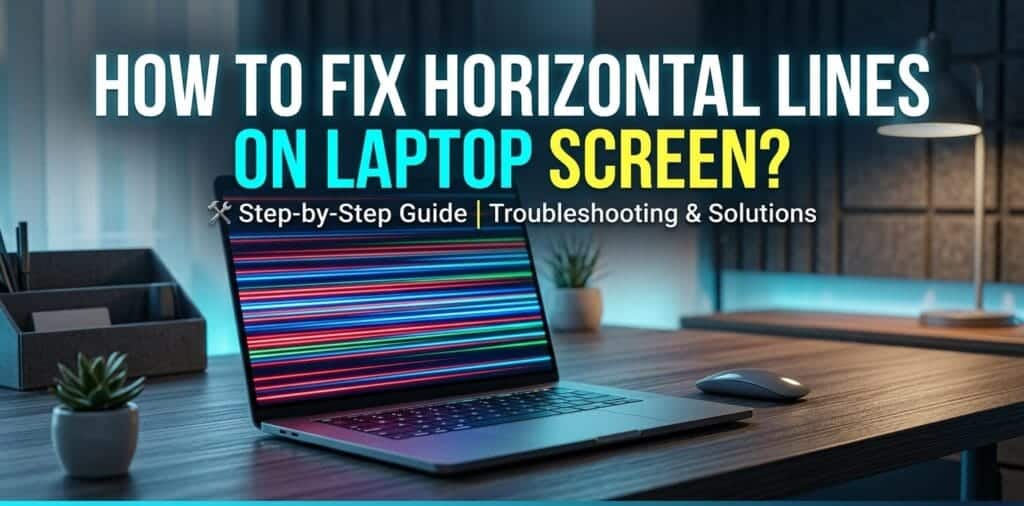
You open your laptop and something looks terribly wrong. Lines are running across your screen. Horizontal. Stubborn. Ruining everything you see. It feels like your laptop is broken beyond repair. It probably is not. Learning how to fix horizontal lines on laptop screen is easier than you think. Most of the time, you can solve this at home. No technician needed. No money spent. This guide walks you through every real fix, step by step, from the simplest to the most advanced.
What Causes Horizontal Lines on a Laptop Screen?
Before you fix something, you need to understand what broke it. Horizontal lines on a laptop screen come from one of two places. Either your software is causing the problem. Or your hardware is failing. Knowing which one saves you hours of frustration.
How to Fix Horizontal Lines on Laptop Screen, Software Fixes
Software problems are the best kind of problem. They are fixable without opening your laptop.
- Outdated or corrupted display drivers: This is the most common software cause. Your graphics driver talks to your screen. When it breaks or goes stale, your screen shows artifacts, glitches, and horizontal lines.
- Wrong screen resolution settings: If your resolution does not match your display’s native size, lines can appear.
- Wrong refresh rate: Your screen refreshes its image many times per second. If that rate is set wrong, lines flicker and form.
- Conflicting third-party apps: Some startup programs interfere with your display settings and cause visual errors.
- Pending Windows or macOS updates : An unpatched operating system can carry bugs that affect your display output.
How to Fix Horizontal Lines on Laptop Screen, Hardware Fixes
Hardware problems are trickier. They may need a technician.
- Loose or damaged display cable: A thin cable connects your screen to the motherboard. If it gets loose, bent, or frayed, horizontal lines appear instantly.
- Failing LCD panel: LCD panels degrade over time. Dead pixel rows show up as solid horizontal lines that never go away.
- Overheating GPU: When your graphics processing unit runs too hot, it produces visual glitches on your screen. This is common on gaming laptops after heavy sessions.
- Damaged graphics card: Less common but serious. A failing GPU sends broken signals to your screen.
- Physical screen damage: A drop, bend, or pressure on the lid can crack internal layers of the display, creating lines.
According to iFixit, a global repair platform trusted by millions of technicians worldwide, loose display cables account for a significant portion of screen line complaints on mid-range laptops, especially units that are two to four years old. (Source: iFixit Repair Community, 2023)
How to Tell If It Is a Software or Hardware Problem
This is your most important first step. Do not skip it.
Plug your laptop into an external monitor. Use an HDMI cable or USB-C adapter. Connect it to a TV or desktop monitor. Now look at the external screen carefully.
- If lines appear on the external monitor too, your graphics card or GPU driver is the problem. The issue is software or hardware inside the machine.
- If the external monitor looks clean and clear, your laptop’s physical screen or its display cable is faulty. The problem is local to the panel.
This one test tells you everything. It takes two minutes.
What If You See Lines Only When You Move the Lid?
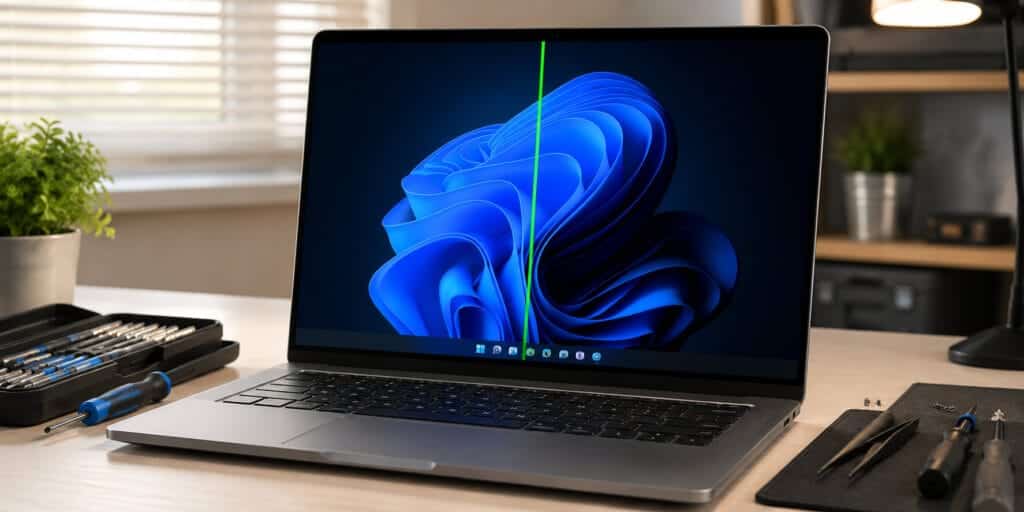
This is a very specific clue. Open and close your laptop lid slowly while watching the screen. If the lines appear or disappear as you move the lid, your display cable is almost certainly loose. The cable runs through the hinge, and bending it in different positions changes the connection. This is a fixable hardware problem.
How to Fix Horizontal Lines on Laptop Screen, Software Fixes
Start here. Always try software fixes first. They cost nothing and take only a few minutes.
Fix 1: Restart Your Laptop
This sounds too simple. But it works more often than people expect. A full restart clears your GPU’s memory buffer. It reloads all display drivers from scratch. Many temporary horizontal lines on a laptop screen disappear after one clean restart. Hold down your power button if your screen is too glitchy to navigate normally.
Fix 2: How to Fix Horizontal Lines on Laptop Screen by Updating Graphics Driver
This fix solves the problem in a large number of cases. Display drivers go outdated quickly. Manufacturers like NVIDIA, AMD, and Intel release new driver versions regularly to fix bugs.
On Windows:
- Right-click the Start button.
- Click Device Manager.
- Expand the Display Adapters section.
- Right-click your graphics driver (it will say NVIDIA, AMD, or Intel).
- Click Update Driver.
- Choose Search Automatically for Drivers.
- Restart after the update finishes.
For best results, go directly to NVIDIA’s official website, AMD’s driver download page, or Intel’s support site. Download the driver manually for your exact model. This gets you the newest version faster than Windows Update.
NVIDIA releases driver updates frequently, often monthly, to fix bugs reported by users. (Source: NVIDIA Driver Release Notes, 2024)
Fix 3: Roll Back Your Graphics Driver
Did the lines appear right after a Windows update? Roll back the driver. Sometimes a new driver introduces bugs that the old one did not have.
- Open Device Manager.
- Expand Display Adapters.
- Right-click your graphics driver.
- Click Properties.
- Go to the Driver tab.
- Click Roll Back Driver.
- Restart your laptop.
This is one of the most underused fixes for how to fix horizontal lines on laptop screen after a system update.
Fix 4: Fix Your Screen Resolution
An incorrect resolution stretches the display in ways it cannot handle. This creates visible lines and visual artifacts.
- Right-click your desktop.
- Click Display Settings.
- Scroll to Display Resolution.
- Select the option labeled Recommended.
- Click Apply.
Every screen has a native resolution. Using any other resolution forces the display to scale, which causes distortion.
Fix 5: Correct Your Refresh Rate
Your display refresh rate must match what your GPU is sending. A mismatch causes flickering and horizontal banding.
- Go to Settings.
- Click System, then Display.
- Scroll down and click Advanced Display Settings.
- Find Display Adapter Properties.
- Go to the Monitor tab.
- Set the Screen Refresh Rate to the highest value your screen supports — usually 60Hz for standard laptops or 144Hz for gaming models.
- Click Apply.
What Is the Best Refresh Rate for a Standard Laptop?
Most standard laptop panels are rated for 60Hz. Gaming laptops may support 120Hz, 144Hz, or even 240Hz. Setting a refresh rate higher than your panel can handle causes screen instability and lines. Always check your laptop’s specification sheet before changing this.
Fix 6: Run a Clean Boot
Sometimes a third-party application on your laptop interferes with display settings. A clean boot starts Windows with only essential services running. If the lines disappear during a clean boot, a startup app is the culprit.
- Press Windows + R.
- Type msconfig and press Enter.
- Click the Services tab.
- Check Hide All Microsoft Services.
- Click Disable All.
- Go to the Startup tab and click Open Task Manager.
- Disable every startup item.
- Restart your laptop.
If your screen looks normal, enable your startup apps one by one. The moment the lines return, you have found the problem app. Uninstall it.
Fix 7: Update Windows or macOS
Operating system updates carry display bug patches. An unpatched system can cause visual errors, including horizontal screen lines.
Windows: Go to Settings, click Windows Update, then Check for Updates.
macOS: Go to System Settings, click General, then Software Update.
Install every pending update. Restart fully. Then check your screen again.
Microsoft confirmed through its Windows 11 release notes that display rendering bugs were patched in multiple cumulative updates throughout 2023 and 2024. (Source: Microsoft Windows 11 Update History, 2024)
Fix 8: Check for Magnetic or Electronic Interference
This is a forgotten fix. If you use your laptop near large speakers, a subwoofer, an old TV, or power bricks from other devices, the magnetic field can interfere with your screen. Move your laptop away from all such devices. Turn them off. Check if the lines disappear.
How to Fix Horizontal Lines on Laptop Screen, Hardware Fixes
If every software fix has failed, the problem is physical. These fixes require more care. Some you can do yourself. Some need a technician.
Fix 9: Let Your Laptop Cool Down
Overheating is a very real cause of horizontal lines on a laptop screen. When the GPU or CPU runs at extreme temperatures, it throttles and produces graphical errors. Laptops placed on beds, pillows, or carpets block the air vents on the bottom. The temperature rises fast. Move your laptop to a hard, flat surface.
Turn it off. Let it cool for 30 minutes. Turn it back on and check the screen. If lines appear during long gaming or video editing sessions and then go away after cooling, overheating is your problem. Clean the laptop’s air vents with compressed air. Replace the thermal paste if the laptop is more than three years old.
Signs Your Laptop Is Overheating
- The bottom feels extremely hot to the touch.
- Fans run loudly at full speed constantly.
- Performance drops during heavy tasks.
- Screen lines appear only after extended use and disappear after rest.
According to Linus Tech Tips and hardware teardown data from iFixit, dried thermal paste is one of the top reasons laptops overheat after three years of use, causing display and performance problems. (Source: iFixit Thermal Paste Analysis, 2022)
Fix 10: Reseat or Replace the Display Cable
This fix requires opening your laptop. If you are not comfortable with that, take it to a repair shop.
The display cable, often called the LVDS cable or eDP cable, connects your screen to the motherboard. It runs through the laptop hinge. Over time, it can loosen, bend, or fray. A loose cable sends broken signals. Your screen shows horizontal lines.
If you decide to try this yourself:
- Power off your laptop completely. Remove the battery if possible.
- Find a disassembly guide for your exact laptop model on iFixit.com.
- Remove the back panel carefully.
- Locate the display cable near the hinge area.
- Gently disconnect it. Reconnect it firmly.
- Reassemble the laptop. Power it on and check the screen.
If the cable is visibly damaged, order a replacement. Search your laptop’s model number plus “display cable” or “eDP cable” on Amazon or AliExpress. These parts often cost between five and thirty dollars.
Fix 11: Test and Replace the LCD Panel
If reseating the cable does not work and the lines are always there, even on the BIOS screen, your LCD panel itself may be failing. Open your laptop’s BIOS screen right after pressing the power button. Press F2, F10, or Delete, depending on your brand. If horizontal lines appear on the BIOS screen, the screen damage is at the hardware level. No software fix will help.
LCD panel replacements are available for most popular laptop models. A Dell XPS, HP Pavilion, Lenovo ThinkPad, or ASUS VivoBook replacement screen typically costs between forty and one hundred fifty dollars. A technician will charge additional labor fees.
How to Diagnose Horizontal Lines by Their Type
Not all lines look the same. The type of line tells you the cause.
| Line Type | What It Looks Like | Most Likely Cause |
| Single black line | One thin, permanent dark line | Dead pixel row or damaged LCD layer |
| Multiple black lines | Several dark bands across screen | Widespread LCD matrix damage |
| Colored lines (green, red, blue) | Bright colored stripes | Loose display cable or GPU failure |
| Flickering lines | Lines that flicker or flash | Refresh rate mismatch or driver conflict |
| Lines only at startup | Appear during boot, then disappear | Temporary driver glitch, usually harmless |
| Lines that shift when you move the lid | Change when you open or close the screen | Loose or damaged display cable |
When to Call a Technician
You should stop DIY troubleshooting and contact a professional when:
- Lines appear on the BIOS screen before Windows even loads.
- Lines appear on an external monitor too.
- The screen has visible cracks or dark spreading patches.
- You dropped the laptop recently.
- The laptop is under warranty — do not open it yourself, as this may void the warranty.
Warranty note: If your laptop is still within the manufacturer’s warranty period, contact the brand directly. Dell offers on-site warranty service in many regions. Lenovo’s Premier Support provides direct technician dispatch. HP’s Care Pack covers accidental damage in some plans. Opening the laptop yourself can void these protections.
How to Fix Horizontal Lines on Laptop Screen on HP, Lenovo, Dell, and ASUS
HP Laptops
HP users frequently report horizontal lines on HP Envy and HP Pavilion series after driver updates. HP’s official fix recommendation is to first uninstall and reinstall the graphics driver using HP Support Assistant, then reset display settings.
Lenovo ThinkPad and IdeaPad
Lenovo’s Lenovo Vantage app includes a built-in hardware scan tool. Run it to detect display cable faults. The Lenovo LOQ gaming line in particular, has seen community-reported display cable issues in units shipped between 2022 and 2024.
Dell XPS and Inspiron
Dell’s SupportAssist software runs a pre-boot diagnostic. Press F12 during startup on a Dell laptop to access it. It includes a display test that identifies dead pixel rows and cable faults.
ASUS and Acer
Both brands offer built-in diagnostic tools accessible through the BIOS. Check your user manual for the exact key combination to enter diagnostics.
Q1: Why did horizontal lines suddenly appear on my laptop screen?
Sudden horizontal lines on a laptop screen are usually caused by a driver conflict, a Windows update that introduced a bug, or a newly loose display cable. Start by restarting your laptop. Then check if a recent update preceded the problem and consider rolling back the driver.
Q2: Can horizontal lines on a laptop screen fix themselves?
Sometimes. If a temporary software glitch or overheating causes the lines, they may disappear after a restart or after the laptop cools. But lines caused by hardware damage, a faulty LCD panel, or a broken cable do not fix themselves. They get worse over time.
Q3: How do I know if the problem is my screen or my graphics card?
Plug your laptop into an external monitor. If the external screen also shows lines, your graphics card is the problem. If the external screen is perfectly clear, your laptop’s physical screen or display cable is faulty.
Q4: Will updating Windows fix horizontal lines on my laptop?
Sometimes. Microsoft releases patches that fix display driver bugs. If the lines appeared after a recent update, installing the next patch may fix it. If the lines are hardware-related, no Windows update will help.
Q5: Is it safe to use my laptop with horizontal lines on the screen?
It depends on the cause. Using a laptop with driver-related lines is safe short-term. But if the lines signal a failing GPU or overheating, continued use can cause permanent damage. If you see lines alongside system crashes, blue screens, or extreme heat, stop using the laptop and get it checked immediately.
Q6: How much does it cost to fix horizontal lines on a laptop screen?
If the fix is software-based, it is free. A display cable replacement costs between five and thirty dollars in parts, plus labor if you use a technician. A full LCD panel replacement costs between forty and one hundred fifty dollars depending on your laptop model, plus labor.
Q7: Can overheating really cause horizontal lines on a laptop screen?
Yes. When the GPU overheats, it throttles aggressively and produces graphical errors. These often appear as horizontal banding or flickering lines on the screen. The fix is better ventilation, a cooling pad, and cleaned air vents.
Q8: My laptop shows horizontal lines on the BIOS screen. What does that mean?
Lines on the BIOS screen appear before any driver or operating system loads. This means the problem is purely hardware. No software fix will work. Your LCD panel or display cable needs physical inspection and likely replacement.
Q9: Do horizontal lines mean my laptop screen is dying?
Not always. Many causes of horizontal lines are fixable. But if you see lines that spread over time, grow in number, or appear alongside dark splotches, your LCD panel is degrading. At that point, replacement is the only real solution.
Q10: Can I prevent horizontal lines from appearing in the future?
Yes. Keep your graphics driver updated. Use your laptop on hard flat surfaces to prevent overheating. Avoid placing heavy objects on the closed lid. Close the lid gently to protect the hinge and display cable. Back up your system before every Windows update.
Conclusion
Horizontal lines on a laptop screen look alarming. They are not always a death sentence for your device. Start with the simplest fix and work your way down. Restart. Update your driver. Fix your resolution and refresh rate. Test on an external monitor. If the problem is hardware, assess whether you need a cable reseated or a full panel replaced. The answer to how to fix horizontal lines on laptop screen almost always lives somewhere in this guide. Take it one step at a time and you will find it.
For deeper technical context on how LCD screens and pixel rows function at the hardware level, you can explore the liquid-crystal display article on Wikipedia.
REad Moe: How to Fix Dead Pixel Lines on a Laptop