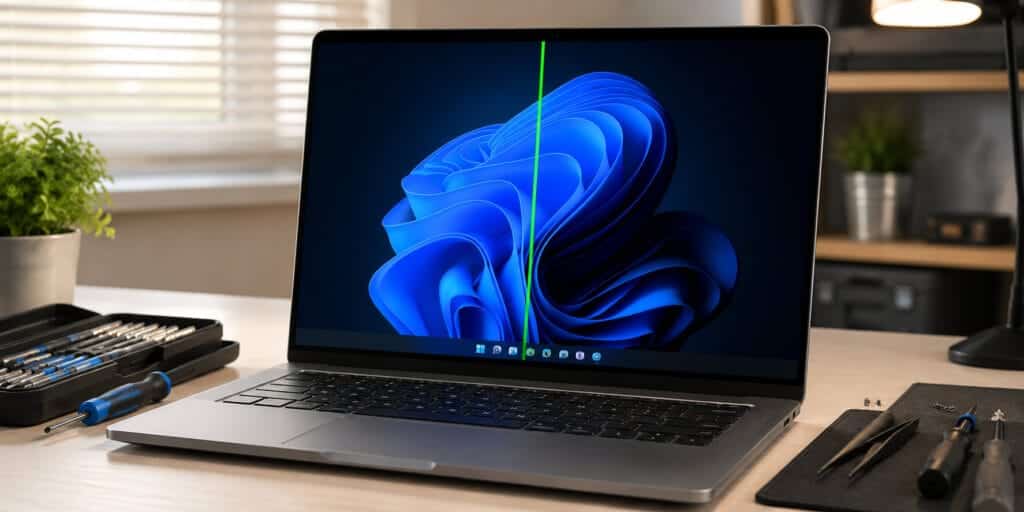
Waking up to black lines on your laptop screen is a frustrating start to any day.. You have work to finish, but the screen makes it impossible to focus on anything properly.
Most people assume it is a software glitch and restart their laptop, hoping it will go away. But if those lines are still there after the restart, something deeper is going on inside your machine.
Ignoring this problem can make things worse over time. A small display issue left unfixed can turn into a completely dead screen, and replacing the full display costs far more than fixing the early signs.
What causes black lines on a laptop screen mostly comes down to two things: a physical connection problem or actual damage to the display hardware. You can fix both if caught early enough. This guide will walk you through the real causes behind those lines, what each one means, and what you can do about them before the problem gets out of hand.
Why Your Laptop Screen Shows Black Lines
Black lines on a laptop screen are not random. Every line you see has a specific reason behind it, and understanding that reason is the first step to fixing it properly.
- The Grid: The display is made of tiny pixels arranged in rows and columns.
- Power Loss: When a row or column stops receiving power, it shows as a black line.
- Internal Failure: This can happen from inside due to a failed cable or component.
- External Impact: It can also happen from outside due to physical impact on the screen.
Quick Diagnostic Summary
| Symptom | Likely Cause | Fix Type |
| Lines flicker when moving the lid | Loose / Damaged Display Cable | Hardware (Minor) |
| Permanent, static horizontal lines | LCD Panel Failure | Hardware (Major) |
| Lines appear only during heavy tasks/gaming | Overheating / GPU Issue | Thermal / Component |
| Lines appeared right after an OS update | Outdated / Corrupted Driver | Software Fix |
Hardware Causes Behind the Lines
1. Loose or Damaged Display Cable
The display cable connects your laptop screen to the motherboard. It runs through the hinge area, and every time you open or close your laptop, that cable bends slightly.
Over months and years, this bending causes the cable to wear out from the inside. When it gets loose or partially damaged, some pixels stop getting the signal they need, and black lines start appearing.
This is one of the most common causes and also one of the most misdiagnosed ones. People replace the screen entirely when all they needed was a new cable, which is a much cheaper fix.
Diagnostic Tip: If your lines appear only when you move the screen or tilt it at a certain angle, the cable is almost certainly the cause. A technician can reseat or replace this cable without touching the screen at all.
2. LCD Panel Failure
The LCD panel is the layer inside your screen that actually produces the image.Liquid crystals arranged in a precise pattern make up this layer, and any disruption to that pattern creates visible lines.
In most cases, Panel failure can happen gradually due to age, heat, or manufacturing defects. Horizontal lines on a laptop screen are often a sign that the LCD layer underneath has started breaking down in specific zones.
This kind of damage usually shows fixed lines that do not move or change with screen angle. Unlike cable issues, panel failure means you need to replace the screen entirely.
Physical Damage to the Screen & Internals
3. Cracked or Smashed Laptop Screen
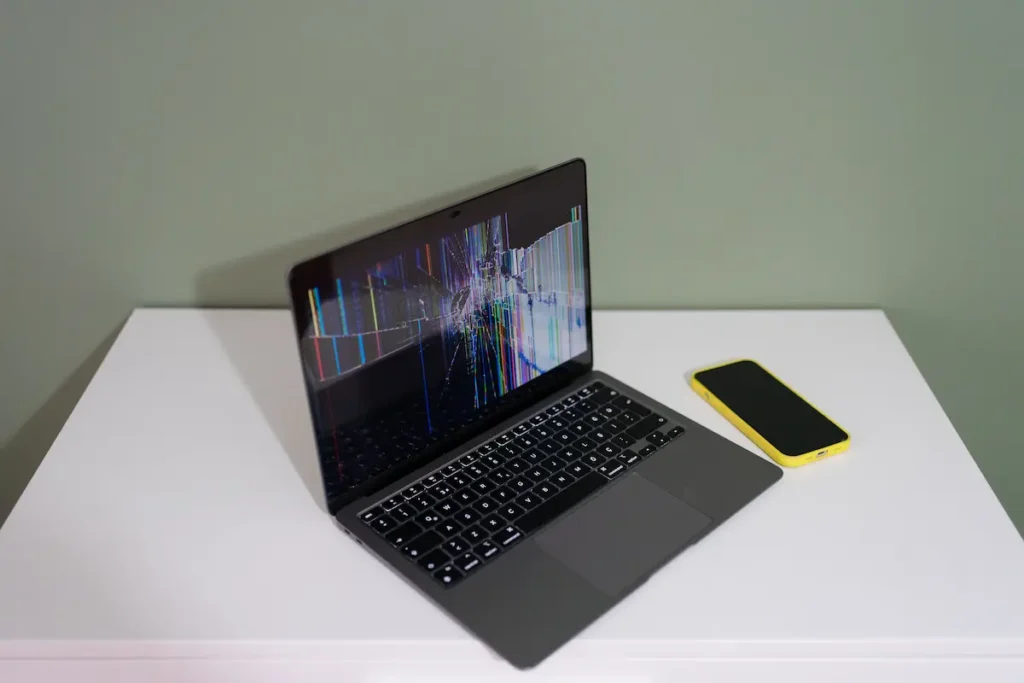
A cracked laptop screen is one of the clearest causes of black lines. When the glass or LCD layer underneath cracks, it blocks light and signal from passing through those areas, creating dark bands.
Even a small crack at the edge can spread over time. What starts as one thin black line can become a large dark patch within weeks if the laptop keeps getting used with pressure on that area.
4. Laptop Display Cracked From Pressure
You do not always need to drop a laptop to crack the screen. Placing heavy objects on top of a closed laptop or pressing the lid too hard can cause internal pressure cracks.
- Heavy books or bags placed on a closed laptop can crack the LCD layer inside.
- Tight laptop bags that squeeze the lid are a very common hidden cause.
- The screen looks fine from the outside, but damage is already done inside.
- Black lines slowly start appearing days after the pressure event.
5. Physical Damage to Laptop Internals
Sometimes the damage is not to the screen itself but to the components connected to it. A hard drop can shake loose internal connectors or crack the graphics chip, both of which can send corrupted signals to the display.
A laptop display damaged from a drop should be checked fully, not just the visible glass. Internal damage that goes unchecked can cause the screen problem to come back even after a repair.
Component & Software Issues
6. Graphics Card or GPU Issues
The GPU is responsible for sending image data to your display. When it malfunctions, it cannot render certain lines or rows properly, and those areas show up as black on your screen.
Older laptops and heavily used machines face more GPU issues for gaming or video editing. If the lines appear only when running heavy tasks, the GPU is likely overheating or failing under load. This type of problem can also appear as flickering lines rather than fixed ones. It is a common sign that the GPU or its connection to the display is under stress.
7.How GPU Problems Cause Black Lines
The GPU is responsible for sending image data to your display. When it malfunctions, it cannot render certain lines or rows properly
8. Faulty RAM Affecting Display Output
RAM stores temporary data that your system needs to process images. When RAM is faulty or seated incorrectly, it can send bad data to the GPU, which then shows errors on screen.
This is less common but still a real cause that many people miss. If your black lines appear randomly and change position, bad RAM might be contributing to the issue. Reseating the RAM sticks or testing with one stick at a time can sometimes make the lines disappear completely. It is worth trying before assuming the screen itself is broken.
9. Outdated or Corrupted Display Drivers
Display drivers are the software that tells your GPU how to communicate with your screen. When these drivers are corrupted or outdated, it can cause vertical or horizontal lines that appear after a system update.
A vertical line issue that started right after an operating system update is a classic sign of a driver conflict. Updating or rolling back your display driver through Device Manager can fix this without any hardware work at all.
Overheating as a Hidden Cause
A laptop showing black lines on the screen after intensive use is showing a clear heat stress pattern. Heat is one of the biggest enemies of laptop components. When your laptop runs too hot for too long, the solder joints on internal chips can weaken and cause connection failures.
A laptop that runs hot and starts showing a black line in the monitor output after intensive use is showing a clear heat stress pattern. Cleaning the vents, replacing thermal paste, and using a cooling pad can slow down this kind of damage significantly.
According to hardware repair specialists, prolonged overheating is a leading cause of display failures that are often misdiagnosed as permanent screen damage. You can read more about how heat affects laptop components and internal circuits at Rousant Systems
- Can black lines on a laptop screen be fixed without replacing it?
Black lines on a laptop screen can be fixed in many cases without replacing the screen. Yes, in many cases they can. If the cause is a loose cable, a bad driver, or a RAM issue, the fix does not require a new screen at all. Only physical LCD damage or a fully failed panel usually requires a screen replacement. - Does a black line always mean the screen is cracked?
No. A black screen with a single horizontal line often comes from cable or driver issues, not cracks. Cracks usually show spreading dark areas or spider web patterns, not clean, straight lines. - Why does my laptop show horizontal lines, but only sometimes?
Intermittent lines are usually caused by a loose display cable or heat expansion. The connection works sometimes and fails other times, depending on screen position or internal temperature. - Is a laptop LCD line always a hardware problem?
Not always. Laptop LCD lines can sometimes be caused by software or driver corruption. Always update or reinstall your display drivers first before assuming any hardware is broken. - Can I use my laptop with black lines on the screen?
You can, but it is not recommended for long. Using a damaged display puts extra stress on the GPU and connected components. The problem almost always gets worse with continued use. - What is the difference between a vertical and a horizontal line on the screen?
A horizontal line usually points to a row of pixels failing, which is often an LCD panel issue. Lines that run vertically often come from column driver failures or cable damage on the side connectors.
Read More: how to fix horizontal lines on laptop screen