
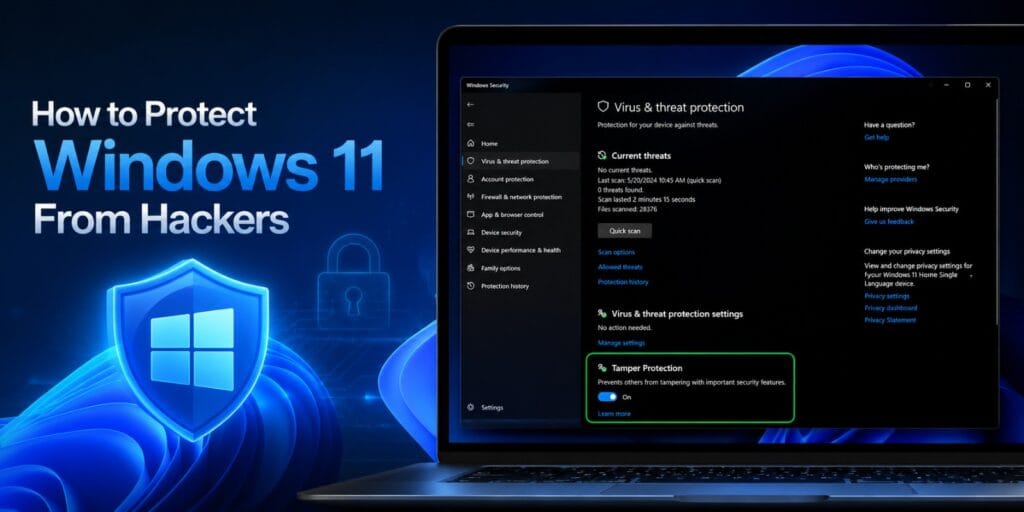
To protect Windows 11 from hackers, combine several layers rather than relying on one tool. Keep Windows updated, use Microsoft Defender, enable Secure Boot and device encryption, protect your sign in with Windows Hello and MFA, and stay alert to phishing and unsafe downloads.
Key Takeaways
- Protecting Windows 11 from hackers requires multiple layers, not just antivirus software.
- Account security and phishing awareness stop more attacks than software alone.
- Advanced features like Core Isolation and Tamper Protection add real, measurable protection.
- Backups are your last line of defense if every other layer fails.
- A quick monthly security check keeps your protection from quietly slipping.
I helped a friend recover after her laptop got hit with a fake Microsoft alert that tricked her into installing a remote access tool. Windows Defender was running the whole time, and it still happened, because the attack targeted her, not the software. That is the real lesson behind how to protect Windows 11 from hackers, since even a fully updated PC can be compromised through a convincing message or a careless click.
Windows 11 users can still face malware, phishing, ransomware, and unauthorized account access, even with antivirus turned on. Keeping Windows updated helps, but it is only one layer among many. Windows 11 includes several built in tools that work together, and this guide covers each one along with the habits that make them effective.
How to Protect Windows 11 From Hackers
Protecting Windows 11 from hackers means combining system level defenses with account security and safe daily habits. No single setting covers every risk on its own.
The main protection layers include the following.
- Keep Windows updated with the latest security patches
- Use Microsoft Defender for real time malware scanning
- Enable Windows Firewall to block unauthorized connections
- Turn on SmartScreen to catch malicious sites and downloads
- Enable Secure Boot to block boot level malware
- Use strong sign in protection with Windows Hello and MFA
- Enable device encryption to protect data if hardware is lost
- Set up ransomware protection through Controlled Folder Access
- Keep apps and browsers updated alongside Windows itself
- Recognize and avoid phishing and malicious downloads
- Maintain regular, tested backups as a final safety net
Each layer covers a different type of attack, so skipping one leaves a gap the others cannot fully close.
1. Keep Windows 11 Updated
Why Windows Updates Are Important for Cybersecurity
Security patches close specific vulnerabilities that attackers actively try to exploit. Once Microsoft releases a fix, unpatched PCs become an easier, known target.
How to Check for Windows 11 Security Updates
Go to Settings, then Windows Update, and select Check for updates. Install anything marked as a security or quality update as soon as it appears.
Turn On Automatic Updates
Automatic updates remove the need to remember manual checks. Our full guide on how to secure Windows 11 covers the exact toggle and setup steps in detail.
Don’t Ignore Security Updates
Delaying a security update, even by a few weeks, extends the window attackers have to exploit it. Restart when prompted rather than postponing indefinitely.
2. Use Microsoft Defender Antivirus
What Is Microsoft Defender Antivirus?
Microsoft Defender Antivirus is the free antivirus engine built directly into Windows 11. It runs inside the Windows Security app with no separate download required.
How Microsoft Defender Protects Windows 11
Defender scans files, apps, and running processes for known malware signatures and suspicious behavior. It also uses cloud delivered intelligence to react to new threats quickly.
How to Check Real-Time Protection
Open Windows Security, then Virus and threat protection, and confirm real time protection shows as on. This setting should stay active at all times unless a specific troubleshooting task requires pausing it.
How to Run a Full Virus Scan
Our detailed guide on how to check Windows 11 for malware walks through Quick, Full, and Offline scans step by step. Use a Full scan whenever a Quick scan alone does not resolve your concern.
When to Use Microsoft Defender Offline Scan
An offline scan helps when malware appears to interfere with normal scanning. It restarts the PC and scans outside the regular Windows environment.
Is Microsoft Defender Enough for Windows 11?
For most home users, Microsoft Defender provides solid, adequate protection on its own. Users handling sensitive business data may still layer on additional tools based on their specific risk level.
3. Keep Windows Firewall Enabled
What Does Windows Firewall Do?
Windows Firewall filters network traffic and blocks connections that were not explicitly allowed. It works quietly in the background without needing regular attention.
How Windows Firewall Blocks Unauthorized Connections
The firewall checks incoming connection attempts against a set of rules tied to apps and network profiles. Unrecognized or unauthorized requests get blocked automatically.
How to Check Firewall Status
Open Windows Security, then Firewall and network protection, and confirm it shows as on for your current network. Check this for private, public, and domain profiles.
Should You Ever Turn Off Windows Firewall?
Turning off the firewall removes a core layer of protection against unauthorized network access. Only disable it briefly for specific troubleshooting, then turn it back on immediately.
4. Enable Microsoft Defender SmartScreen
What Is Microsoft Defender SmartScreen?
SmartScreen is a reputation based filter built into Windows and Microsoft Edge. It checks websites, apps, and files against known threat data before you interact with them.
How SmartScreen Protects Against Malicious Websites
SmartScreen blocks or warns you before loading sites linked to phishing or malware distribution. This adds a layer of defense against social engineering attempts.
How SmartScreen Protects Downloads
When you download a file with a poor or unknown reputation, SmartScreen shows a warning before it runs. This catches many threats before Defender even needs to scan them.
How to Turn On Reputation-Based Protection
Open Windows Security, then App and browser control, then Reputation based protection settings. Confirm Check apps and files, and SmartScreen for Microsoft Edge, are both turned on.
5. Turn On Tamper Protection
What Is Tamper Protection?
Tamper Protection prevents unauthorized changes to your security settings, even by malicious software running with elevated permissions. It locks core Defender settings from being silently altered.
Why Malware Tries to Disable Security Software
Many attacks try to disable antivirus protection first, since that removes the biggest obstacle to running freely. Tamper Protection blocks this exact tactic.
How to Enable Tamper Protection
Open Windows Security, then Virus and threat protection, then Manage settings. Turn on Tamper Protection and leave it on except for specific, trusted configuration changes.
6. Enable Secure Boot
What Is Secure Boot?
Secure Boot is a firmware level feature that only allows trusted, signed software to run when your PC starts. It works before Windows itself even loads.
How Secure Boot Helps Stop Boot-Level Malware
Boot level malware tries to load before your antivirus becomes active, making it harder to detect. Secure Boot blocks this by rejecting unsigned boot software outright.
How to Check Secure Boot Status
Press the Windows key, type msinfo32, and press Enter. Look for Secure Boot State in the System Summary panel.
What to Do if Secure Boot Is Disabled
Our pillar guide on how to secure Windows 11 walks through the full UEFI steps to turn Secure Boot on. Most modern PCs support it once switched from Legacy BIOS mode to UEFI.
7. Protect Your Windows 11 Account
Account takeover is one of the most common ways hackers gain lasting access, so this layer deserves real attention.
Use Windows Hello
Windows Hello replaces a typed password with a PIN, fingerprint, or face sign in tied to your specific device. Set it up under Settings, then Accounts, then Sign in options.
Create a Strong Windows PIN
A PIN is tied to your device and cannot be reused elsewhere if it leaks. Avoid simple patterns like repeated or sequential digits.
Use a Strong, Unique Microsoft Account Password
Reused passwords are one of the fastest paths to account takeover. Use a password manager to generate and store a unique password for your Microsoft account.
Enable Multi-Factor Authentication
MFA requires a second verification step beyond your password, usually a code or app approval. Turn it on through your Microsoft account security settings.
Use Passkeys Where Available
Passkeys replace passwords entirely with a cryptographic key tied to your device. Microsoft supports passkeys for sign in on supported accounts and apps.
Review Microsoft Account Sign-In Activity
Check your account’s recent activity page periodically for unfamiliar locations or devices. Sign out of any session you do not recognize immediately.
8. Enable BitLocker or Device Encryption
What Is BitLocker?
BitLocker is Microsoft’s full drive encryption feature, available on Windows 11 Pro, Enterprise, and Education editions. Home edition users get a simplified version called device encryption instead.
According to Microsoft Learn, BitLocker addresses data theft and exposure risks from lost, stolen, or improperly decommissioned devices. Device encryption offers similar protection automatically on eligible hardware without extra configuration.
How Encryption Protects Your Files
Encryption scrambles data on your drive so it cannot be read without the correct credentials. This mainly protects data if your device is lost or stolen, rather than stopping a remote hacker directly.
How to Check Device Encryption
Go to Settings, then Privacy and security, then Device encryption. If your PC supports it and you are signed in with a Microsoft account, the toggle appears there.
Store Your Recovery Key Safely
Save your recovery key to your Microsoft account or a separate safe location. Losing both your sign in and recovery key can lock you out of your own files.
9. Protect Windows 11 Against Ransomware
What Is Ransomware?
Ransomware is a type of malware that encrypts your files and demands payment for their release. According to the Wikipedia entry on ransomware, it has become one of the more disruptive categories of modern cyberattacks.
How Windows 11 Helps Protect Against Ransomware
Microsoft Defender, SmartScreen, and Controlled Folder Access work together to reduce ransomware risk. No single feature blocks every ransomware variant on its own.
Enable Controlled Folder Access
Open Windows Security, then Virus and threat protection, then Manage ransomware protection. Turn on Controlled Folder Access to block unauthorized apps from modifying protected folders.
Why Backups Are Important Against Ransomware
If ransomware still slips through, a recent backup lets you restore files without paying anything. This is often the only reliable recovery option once files are encrypted.
10. Enable Core Isolation and Memory Integrity
What Is Core Isolation?
Core Isolation protects core Windows processes by running them inside a virtualized, isolated environment. This makes it significantly harder for malware to reach sensitive system components.
What Is Memory Integrity?
Memory Integrity, also called Hypervisor-protected Code Integrity, is a feature inside Core Isolation. It stops malicious or poorly signed drivers from loading into protected memory.
How Memory Integrity Helps Block Malicious Code
Many advanced attacks try to abuse low level drivers to gain deep system access. Memory Integrity blocks unsigned or untrusted drivers from running in that protected space.
How to Check Core Isolation Settings
Open Windows Security, then Device security, then Core isolation details. Turn on Memory integrity if your hardware and drivers support it.
11. Turn On Exploit Protection
What Is Exploit Protection?
Exploit Protection applies a set of mitigation techniques that make it harder for malware to abuse common software vulnerabilities. It works at the system and app level.
How Exploit Protection Helps Defend Windows 11
These mitigations target techniques attackers rely on, like memory corruption, rather than specific known threats. This gives some protection even against previously unseen exploits.
How to Review Exploit Protection Settings
Open Windows Security, then App and browser control, then Exploit protection settings. The defaults suit most users, so avoid changing individual mitigations unless you understand the specific tradeoff.
12. Control Which Apps Can Access Your Data
Review Camera Permissions
Open Settings, then Privacy and security, then Camera, and remove access for apps that do not need it. Fewer permissions mean fewer ways an attacker can misuse a compromised app.
Review Microphone Permissions
Follow the same path under Microphone and disable access for anything unfamiliar. This limits what a malicious app could listen to even if installed.
Review Location Permissions
Location access can reveal patterns about your daily movement if misused. Restrict it to apps that genuinely need it to function.
Remove Access From Apps You Don’t Trust
Uninstall or restrict apps you no longer recognize or use regularly. Reducing installed software shrinks the overall attack surface on your PC.
13. Protect Windows 11 From Phishing Attacks
Don’t Click Suspicious Links
Hover over links before clicking to check where they actually lead. Unexpected messages asking you to act urgently deserve extra suspicion.
Check the Website Address Before Signing In
Confirm the domain matches the real service before entering credentials anywhere. A single misspelled letter can indicate a fake login page.
Watch for Fake Microsoft Security Alerts
Genuine Windows security alerts appear inside the Windows Security app, not in random pop ups or unsolicited calls. Treat urgent, scary security messages from unknown sources with caution.
Don’t Share Passwords or Verification Codes
No legitimate support call or email will ever need your password or a one time code. Sharing either one hands an attacker direct access to your account.
Be Careful With Unexpected Email Attachments
Avoid opening attachments from unfamiliar senders, even if the subject line looks routine. When in doubt, contact the sender through a separate, known channel first.
14. Avoid Malware From Unsafe Downloads
Download Software From Trusted Sources
Stick to official websites or trusted app stores rather than third party download aggregators. This alone avoids a large share of common malware infections.
Avoid Cracked and Pirated Programs
Cracked software often bundles hidden malware alongside the program you actually wanted. The apparent savings rarely justify the added risk.
Be Careful With Unknown EXE Files
Treat unfamiliar executable files with caution, especially from email or unofficial sites. Scan anything uncertain with Microsoft Defender before opening it.
Check Browser Extensions Before Installing Them
Review permissions and recent reviews before adding a browser extension. Remove extensions you no longer actively use.
Remove Suspicious or Unused Software
Periodically review installed programs and uninstall anything you do not recognize. Unused software can quietly become an outdated, unpatched risk over time.
15. Back Up Your Windows 11 PC
Why Backups Matter in Cybersecurity
A backup is your last line of defense if every other protection layer fails. It turns a potentially serious incident into a manageable inconvenience.
What Files Should You Back Up?
Prioritize documents, photos, and anything that cannot be easily replaced or redownloaded. Installed programs generally do not need backing up individually.
Keep a Separate Backup
Store at least one backup copy on a separate drive or cloud service, disconnected from daily use. Ransomware can encrypt connected drives along with your main system.
Test Your Backup Before You Need It
Occasionally confirm you can actually restore files from your backup. A backup you have never tested is not fully reliable.
How to Check If Your Windows 11 PC Is Secure
A short audit covers most of what matters for everyday use.
| Area | What to Check |
| Windows Update | No pending security updates, automatic updates on |
| Microsoft Defender | Real time protection active |
| Firewall | Enabled for all network profiles |
| SmartScreen | Reputation based protection turned on |
| Secure Boot | Status shows On in System Information |
| Device Encryption | Enabled with a saved recovery key |
| Core Isolation | Memory Integrity turned on where supported |
| Account Security | Strong password, Windows Hello, and MFA active |
Running through this list takes a few minutes and catches most settings that quietly reset after a major update.
What to Do If You Think Your Windows 11 PC Has Been Hacked
Disconnect the PC From the Internet
Disconnecting stops an active attacker from maintaining remote access or exfiltrating more data. Do this first, before anything else.
Run a Microsoft Defender Scan
Run a Full scan, and consider a Microsoft Defender Offline scan if the first pass finds nothing. Our malware scanning guide covers each option in detail.
Check for Unknown Apps and Programs
Review installed apps and startup programs for anything unfamiliar. Remove anything you did not intentionally install.
Review Account Sign-In Activity
Check your Microsoft account activity page for unrecognized logins or locations. Sign out of any sessions that are not yours.
Change Compromised Passwords
Change your Microsoft account password immediately, along with any other accounts that shared it. Use unique passwords going forward.
Enable MFA
If MFA was not already active, turn it on right away. This blocks most follow up attempts even if a password was exposed.
Restore From a Safe Backup If Necessary
If files were damaged or encrypted, restore from a backup taken before the incident. Confirm the system is clean before reconnecting fully to your network.
Common Windows 11 Security Mistakes to Avoid
- Disabling Microsoft Defender to speed up an older PC
- Turning off Firewall unnecessarily for troubleshooting and forgetting to turn it back on
- Ignoring Windows security updates for weeks at a time
- Using weak or reused passwords across multiple accounts
- Installing cracked or pirated software
- Adding unknown browser extensions without checking permissions
- Ignoring suspicious sign in alerts from Microsoft
- Running outdated apps with known vulnerabilities
- Skipping backups until after something goes wrong
- Giving unnecessary apps administrator access by default
Windows 11 Security Checklist
Device Security
- Windows updated
- Secure Boot enabled
- Core Isolation reviewed
- Device encryption enabled
Threat Protection
- Defender enabled
- Real time protection enabled
- Firewall enabled
- SmartScreen enabled
- Tamper Protection enabled
- Ransomware protection reviewed
Account Security
- Strong unique password
- Windows Hello enabled
- MFA enabled
- Passkeys used where available
Safe Usage
- Browser updated
- Suspicious downloads avoided
- Phishing awareness maintained
- Regular backups tested
FAQs
How do I protect Windows 11 from hackers?
Combine Microsoft Defender, Windows Firewall, Secure Boot, and strong account security rather than relying on one tool. Add safe browsing habits and regular backups to cover the gaps software alone cannot close.
Is Windows 11 safe from hackers?
Windows 11 is reasonably safe from hackers when its built in protections stay active and updated. Most successful attacks in 2026 still rely on phishing or weak passwords rather than a flaw in Windows itself.
Is Microsoft Defender enough to protect Windows 11?
For most home users, Microsoft Defender provides solid, adequate baseline protection on its own. Users with sensitive business data may still add extra layers based on their specific risk.
How do I know if my Windows 11 has been hacked?
Watch for unfamiliar apps, unexpected pop ups, unusual account activity, or a sudden drop in performance. None of these prove a hack by themselves, so a scan and account review help confirm what is happening.
Does Windows Firewall protect against hackers?
Yes, Windows Firewall blocks unauthorized inbound network connections by default. It works alongside antivirus protection rather than replacing it.
Does Secure Boot protect Windows 11 from hackers?
Secure Boot blocks unsigned or untrusted software from loading before Windows starts. It specifically targets boot level malware rather than every type of attack.
How do I protect Windows 11 from ransomware?
Turn on Controlled Folder Access, keep Defender active, and maintain a separate, tested backup. These three layers together cover both prevention and recovery.
Final Thoughts
Protecting Windows 11 from hackers works through layers, not a single antivirus program running in the background. Updates, Defender, Secure Boot, encryption, and account security each block a different type of attack. Add safe browsing habits and tested backups, and most common threats lose their easiest paths in. Revisit the checklist above every few months, since settings can quietly reset after major updates.
For a closer look at the encryption features covered above, Microsoft’s official documentation on BitLocker overview explains device requirements in more technical detail. You can also review Microsoft’s support page on device security in the Windows Security app for a fuller look at Core Isolation and related hardware protections.
Pingback: How to Remove Malware From Windows 11 Safely - Tech World Garage
Pingback: Windows 11 Privacy Settings You Should Change Now - Tech World Garage
Pingback: How to Check If a Website Is Safe Before You Click - Tech World Garage
Pingback: How to Enable Windows Firewall on Windows 11: Full Guide - Tech World Garage