
To secure Windows 11, keep Windows updated, turn on Microsoft Defender Antivirus in Windows Security, enable Secure Boot, set a strong sign in method, and review your privacy settings. These built in tools cover most home users without needing paid software.
Key Takeaways
- Windows 11 includes free, built in protection through Windows Security and Microsoft Defender Antivirus.
- Secure Boot, firewall, and automatic updates work together to reduce your attack surface.
- Windows 11 collects diagnostic data by default, but most of it can be turned off.
- Microsoft Security Essentials is discontinued and is not needed on Windows 11.
- A secure setup takes under an hour and does not require paid software for most users.
I set up a new Windows 11 laptop for a family member last month and walked through every security setting by hand. It took less time than expected, and most of the protection was already built in, just switched off or left on default. If you want to secure Windows 11 properly, you do not need to buy anything or install extra software right away.
To secure Windows 11, turn on Microsoft Defender Antivirus through the Windows Security app, install updates promptly, enable Secure Boot in your firmware, and set up Windows Hello for sign in. Review your privacy settings afterward. This combination covers the most common attack paths for home and small business PCs.
Is Windows 11 Safe From Hackers?
Windows 11 is reasonably safe from hackers when its built in protections are turned on and kept updated. It includes real time antivirus scanning, a firewall, and Secure Boot to block unauthorized boot software.
No operating system is immune to every attack. Most successful attacks on Windows 11 PCs come from outdated software, weak passwords, or a user opening a malicious file, not a flaw in Windows itself.
How Do I Make Sure My PC Is Secure?
A short checklist covers most of what a typical home PC needs.
- Install Windows updates as soon as they are available.
- Confirm Microsoft Defender Antivirus is active in Windows Security.
- Turn on Secure Boot in your firmware settings.
- Set up Windows Hello with a PIN, fingerprint, or face sign in.
- Turn on Windows Firewall for both private and public networks.
- Review privacy settings for diagnostic data and app permissions.
- Use a strong, unique password and enable multi factor authentication.
Working through this list once covers the majority of common risks. Revisit it every few months, especially after a major Windows update.
Keep Windows 11 and Apps Updated
Most security patches arrive through Windows Update, so delaying updates leaves known gaps open. Go to Settings, then Windows Update, and select Check for updates.
Turn on automatic updates so patches install without you needing to remember. Update your browser and other frequently used apps too, since outdated software is a common entry point for attackers.
Turn On Windows Security and Microsoft Defender Antivirus
Windows Security is the built in app that manages your antivirus, firewall, and device protection settings. Microsoft Defender Antivirus runs inside it and provides real time scanning at no extra cost.
Open Windows Security from the Start menu and check that Virus and threat protection shows real time protection as on. If you suspect an active infection, our guide on how to check Windows 11 for malware walks through running a full scan.
Many searches still mention Microsoft Security Essentials, an older Microsoft antivirus product. It was discontinued when its features were built directly into Windows Defender starting with Windows 8, so Windows 11 users do not need to look for it.
Enable Secure Boot on Windows 11
Secure Boot is a firmware level feature that only allows trusted, signed software to load when your PC starts. It helps block malware that tries to run before Windows itself loads.
How to Turn On Secure Boot
Go to Settings, then System, then Recovery, and select Restart now under Advanced startup. Choose Troubleshoot, then Advanced options, then UEFI Firmware Settings, and select Restart.
Inside the firmware screen, look for a tab called Security, Boot, or Authentication, since the exact label depends on your PC brand. Find Secure Boot and set it to Enabled, then save changes and exit.
How to Check If Secure Boot Is Enabled
Press the Windows key, type msinfo32, and press Enter to open System Information. Look for Secure Boot State in the System Summary panel, where it will show On or Off.
How to Disable Secure Boot
Some older hardware, dual boot setups, or specific graphics cards may need Secure Boot turned off temporarily. Follow the same firmware steps above and set Secure Boot to Disabled instead of Enabled.
Only disable it if you have a specific reason, since Secure Boot is one of the stronger protections available at the firmware level.
Changing Secure Boot State on Different PC Brands
The setting works the same way across brands, but the menu names differ. On some Asus boards it appears under the Boot tab, while Dell and HP often place it under Security or System Configuration.
If the option looks greyed out, your PC may still be using Legacy BIOS mode instead of UEFI, which needs to be changed first. Our full walkthrough on enabling secure boot on Windows 11 covers this in more detail for specific PC brands.
Use Windows Hello and Strong Sign-in Security
A password alone is one of the weaker points on most PCs. Windows Hello lets you sign in with a PIN, fingerprint, or face recognition tied to your specific device.
Set it up under Settings, then Accounts, then Sign in options. Combine this with a strong, unique account password and multi factor authentication on your Microsoft account for stronger overall protection.
Turn On Windows Firewall
Windows Firewall blocks unwanted inbound connections to your PC by default. Confirm it is active for both private and public networks inside Windows Security under Firewall and network protection.
Public networks, like coffee shop Wi-Fi, deserve extra caution since more devices share the same connection. Keep the firewall on for every network profile unless you have a specific technical reason to change it.
How to Keep Windows 11 From Spying on You
Windows 11 collects some diagnostic data by default, along with an advertising ID used for personalized ads. Most of this can be reduced through Settings without affecting how the PC runs.
Go to Settings, then Privacy and security, then Diagnostics and feedback, and turn off Send optional diagnostic data. Also turn off Tailored experiences on the same page.
Next, go to Privacy and security, then General, and turn off the advertising ID along with related suggestion toggles. Review App permissions for Camera, Microphone, and Location, and turn off access for apps that do not need it.
Required diagnostic data cannot be fully disabled on Home or Pro editions, since Microsoft uses it for core security and updates. Optional data and ad personalization, however, can be turned off completely.
How to Secure Windows 11 for Free
Every step covered so far uses tools already included with Windows 11 at no extra cost. Windows Security, Microsoft Defender Antivirus, Secure Boot, and the built in firewall do not require a purchase or subscription.
Search results sometimes reference Windows Defender as something to download separately, but this is a misunderstanding. Microsoft Defender Antivirus ships with Windows 11 and Windows 10 by default, and runs automatically unless a third party antivirus takes over.
If you are comparing free security tools across Windows versions, Windows 10 uses the same Windows Security app with a similar layout. The core protections work the same way on both versions.
Key Windows 11 Security Features at a Glance
| Feature | What It Does |
| Microsoft Defender Antivirus | Scans files and apps for malware in real time |
| Windows Firewall | Blocks unwanted inbound network connections |
| Secure Boot | Blocks untrusted software from loading at startup |
| Windows Hello | Replaces passwords with PIN, face, or fingerprint sign in |
| Diagnostics and feedback controls | Limits optional data sent to Microsoft |
Protect Your Windows 11 PC From Malware and Hackers
The steps above cover prevention, but ongoing habits matter just as much as initial setup. Avoid downloading software from unfamiliar sites, and be cautious with email attachments from unknown senders.
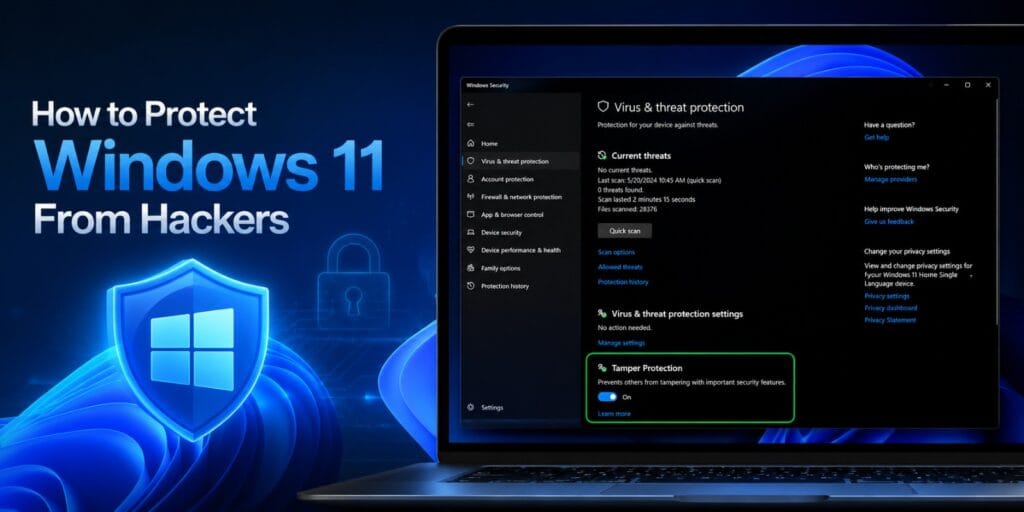
Run a scan periodically through Windows Security, even without obvious symptoms, to catch anything that slipped through. If your PC shows signs of compromise, our upcoming guide on protecting Windows 11 from hackers goes deeper into detection and response.
FAQs
How do I keep Windows 11 from spying on me?
Turn off optional diagnostic data and tailored experiences under Privacy and security in Settings. Also disable the advertising ID and review app permissions for camera, microphone, and location access.
How do I enable security features on Windows 11?
Open Windows Security from the Start menu and confirm real time protection, firewall, and Secure Boot are all turned on. Most of these features are enabled by default but are worth double checking after a new setup.
Is Windows 11 safe from hackers?
Windows 11 is reasonably safe from hackers when updates, Defender, and Secure Boot are all active. Most successful attacks target outdated software or weak passwords rather than a flaw in Windows itself.
How do I make sure my PC is secure?
Update Windows regularly, keep Microsoft Defender Antivirus active, and use a PIN or biometric sign in through Windows Hello. Reviewing privacy and firewall settings once covers most remaining gaps.
Do I need to buy antivirus software for Windows 11 in 2026?
Most home users do not need to buy separate antivirus software, since Microsoft Defender Antivirus is included and updates automatically. Business environments with sensitive data may still choose additional tools based on specific needs.
Is Windows 11 secure by default?
Windows 11 ships with several protections already active, including Defender and the firewall. Some settings, like Secure Boot on older hardware or certain privacy toggles, may still need manual confirmation.
Conclusion
Securing Windows 11 comes down to a short list repeated consistently. Update the system, keep Defender active, turn on Secure Boot, use a strong sign in method, and adjust privacy settings to your comfort level. None of this requires paid software for most home setups, just a bit of time spent in Settings. For deeper Windows security details, Microsoft’s own support pages remain the most reliable reference.
For background on the underlying antivirus engine, see the Wikipedia entry on Microsoft Defender Antivirus. Microsoft’s official documentation on Windows 11 and Secure Boot covers firmware requirements in more technical detail. You can also review Microsoft’s page on staying protected with Windows Security for a fuller feature overview.
Pingback: How to Protect Windows 11 From Hackers: Full Security Guide - Tech World Garage
Pingback: How to Remove Malware From Windows 11 Safely - Tech World Garage
Pingback: How to Enable Windows Firewall on Windows 11: Full Guide - Tech World Garage