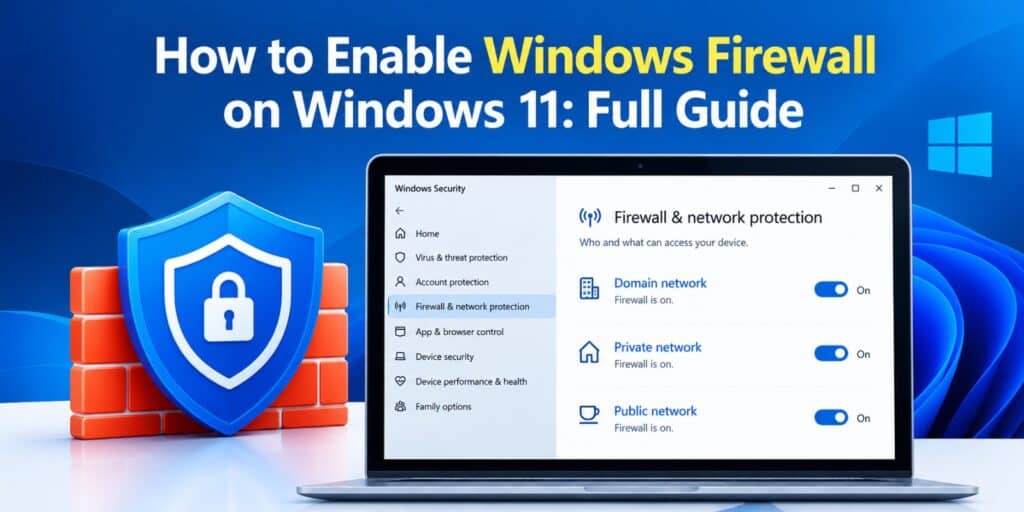
To enable Windows Firewall on Windows 11, open Windows Security, select Firewall and network protection, choose your active network profile, and switch the toggle to On. Repeat this for the Domain, Private, and Public profiles so every connection type stays protected.
Key Takeaways
- Windows Firewall on Windows 11 has three separate profiles, and each one needs to be turned on individually.
- The fastest method is through the Windows Security app, not the older Control Panel route.
- A greyed out firewall toggle usually points to a group policy setting or a conflicting third-party security tool.
- Windows Firewall works quietly in the background and rarely needs manual adjustment once it is on.
- Checking your firewall status takes under a minute and is worth doing after any major Windows update.
I have set up more Windows 11 machines than I can count for family members who assumed their firewall was already running. In several cases it had been switched off during a driver install or a third-party antivirus setup, and nobody noticed until a scan flagged unusual network activity. Knowing how to enable Windows Firewall on Windows 11 properly, across every profile, is one of those small checks that quietly prevents bigger problems later.
Enabling Windows Firewall on Windows 11 takes under two minutes through the Windows Security app. Open Windows Security, click Firewall and network protection, select your network type, and turn the switch to On. Repeat the same step for Private, Public, and Domain networks to fully close the gap.
How to Enable Windows Firewall on Windows 11
Windows 11 stores its firewall settings inside the built-in Windows Security app rather than a separate program. A firewall works by filtering network traffic based on a set of rules, and Windows Firewall is Microsoft’s built-in version of that concept. The process to turn it on is short and does not require downloading anything extra.
Step 1: Open Windows Security
Press the Windows key and type Windows Security, then press Enter. This opens the same security center where Microsoft Defender and other protection settings live.
Step 2: Go to Firewall and Network Protection
Click Firewall and network protection from the left menu inside the app. You will see three network types listed, each with its own current status.
Step 3: Turn On the Firewall for Your Active Network
Select the network profile marked as your current connection, usually Private for home Wi-Fi. Under Microsoft Defender Firewall, switch the toggle to On.
Step 4: Enable the Other Two Profiles
Click back and repeat the same toggle for Public and Domain networks. This step gets skipped often, and it leaves a device exposed the moment it joins a different type of network.
How to Enable Windows Firewall Using Control Panel
Some users still prefer the classic Control Panel interface, and it still works on Windows 11. Open Control Panel, then System and Security, then Windows Defender Firewall.
Click Turn Windows Defender Firewall on or off in the left panel. Select the on option for each network profile shown, then click OK to save the change.
This route takes a few more clicks than the Windows Security app. It remains useful for anyone managing multiple settings from Control Panel in one session.
How Windows Firewall Network Profiles Work
Windows 11 treats every network connection as one of three profile types, and each profile can be enabled or disabled on its own. Understanding this prevents the common mistake of turning on protection for only one network type.
| Network Profile | When It Applies | Recommended Setting |
| Private | Trusted home or personal networks | On, with standard rules |
| Public | Cafes, airports, and shared Wi-Fi | On, with stricter default rules |
| Domain | Workplace networks managed by IT | Usually controlled by group policy |
A device that only enables the Private profile stays exposed the moment it connects to public Wi-Fi. Checking all three profiles takes a few extra seconds and closes that gap completely.
What to Do When the Windows Firewall Toggle Is Greyed Out
A greyed out firewall switch is one of the most common issues people search for after trying to enable Windows Firewall on Windows 11. It almost always traces back to one of two causes.
The first cause is a group policy setting, common on work or school issued laptops managed by an organization. In that case, the IT department controls the firewall centrally, and the setting cannot be changed locally.
The second cause is a conflicting third-party antivirus or firewall program still partially installed. Fully uninstalling the other security software, then restarting the PC, usually restores control of the toggle.
If neither fix works, running the Windows Update Troubleshooter from Settings can reset firewall related services. This resolves most remaining cases without needing a full system reset.
If a conflicting antivirus program was the cause, it is worth confirming your device is still clean afterward. Our guide on how to remove malware from Windows 11 safely covers that follow-up check.
How to Check If Windows Firewall Is Already Enabled
Before making any changes, it helps to confirm the current status first. Open Windows Security, then Firewall and network protection, and look at each profile listed.
A profile marked as on will show a small shield icon without any warning color. A profile marked as off will display it in red along with a direct link to turn it back on.
For a full device security check beyond just the firewall, our guide on how to protect Windows 11 from hackers covers the other layers worth reviewing at the same time.
How to Enable Windows Firewall Using Command Prompt
Advanced users sometimes prefer a command line method, especially when setting up several machines at once. Open Command Prompt as an administrator and run the command below.
netsh advfirewall set allprofiles state on
This single command turns Windows Firewall on for all three network profiles at once. It works well for IT support tasks or scripted setup routines, though the Windows Security app remains simpler for everyday use.
Common Windows Firewall Mistakes to Avoid
- Turning off the firewall temporarily for troubleshooting, then forgetting to switch it back on
- Enabling only the Private profile and assuming Public and Domain are covered too
- Running two firewall programs at once, which can cause conflicts instead of extra protection
- Ignoring a greyed out toggle instead of checking for a group policy or leftover antivirus conflict
- Assuming the firewall alone replaces the need for updates and safe browsing habits
Windows Firewall is one part of a larger security setup rather than a complete solution on its own. Pairing it with regular scans, covered in our guide on how to check Windows 11 for malware, gives more complete protection. Reviewing your Windows 11 privacy settings at the same time closes even more gaps in one sitting.
According to Microsoft Support, turning off Windows Firewall can make a device more vulnerable to unauthorized access, and it should generally stay active except for short, specific troubleshooting. This guidance lines up with what shows up repeatedly in real support cases, where a forgotten disabled firewall was the actual root cause.
Final Thoughts
Enabling Windows Firewall on Windows 11 is a small task that gets skipped more often than it should. Checking all three network profiles, not just the one currently active, closes a gap that catches a lot of people off guard. I still recommend this exact check to friends and family whenever I set up a new PC for them, and it takes less time than making a cup of tea.
For readers who want a broader security setup beyond the firewall, our complete guide on how to secure Windows 11 walks through the remaining layers step by step. Microsoft’s own overview of Windows Firewall documentation is also worth bookmarking for anyone managing multiple devices.
FAQs
Does enabling Windows Firewall slow down my PC?
No, Windows Firewall runs in the background with minimal impact on system performance. It filters network traffic rather than scanning files, so most users never notice a difference.
Is Windows Firewall enough protection on its own in 2026?
Windows Firewall handles network level protection well, but it works best paired with Microsoft Defender and safe browsing habits. Most successful attacks in 2026 still rely on phishing or weak passwords rather than a firewall gap alone.
Why did my Windows Firewall turn off by itself?
This usually happens after installing third-party antivirus software that disables the built-in firewall automatically. Uninstalling that program often restores the original Windows Firewall settings.
Can I use a third-party firewall instead of Windows Firewall?
Yes, but running two active firewalls at the same time can cause network conflicts. Most third-party security suites automatically disable Windows Firewall when their own firewall feature is turned on.
How do I know which network profile I am currently using?
Windows Security lists your active connection at the top of the Firewall and network protection page. It will show as Private, Public, or Domain depending on how the network was set up when you first connected.
Does turning on Windows Firewall block my internet connection?
No, Windows Firewall filters specific types of traffic rather than blocking your internet access as a whole. If a particular app loses connectivity, it can be added as an exception without disabling the firewall.