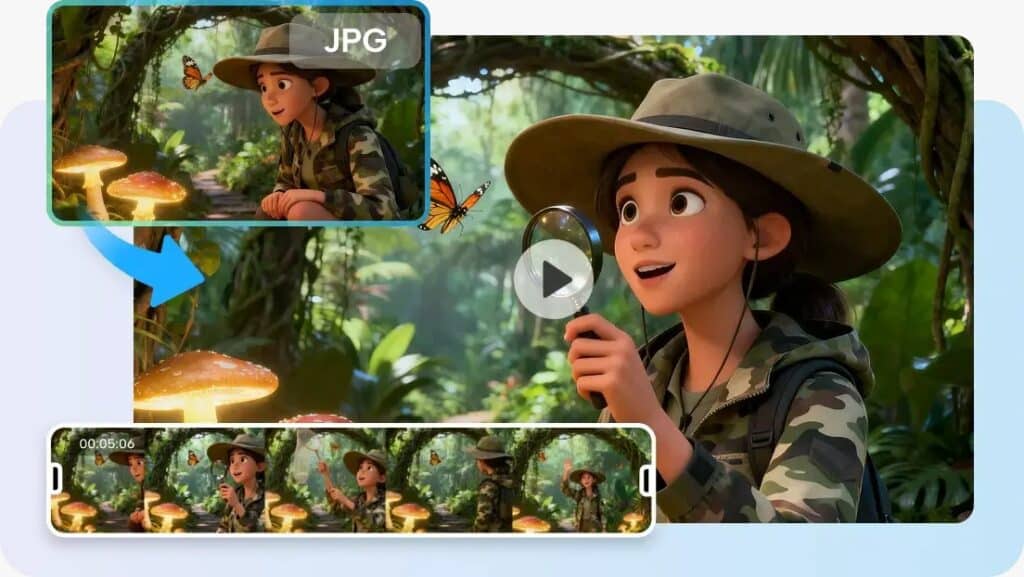
Valuable information, reactions, demonstrations, and conversations are captured during live recordings, which makes it possible to use them further. Live formats, however, can result in pauses, interruptions, repetitions, and uneven pacing. It is also harder to find and structure useful moments in long recordings. Generation features and AI-assisted editing controls in Pippit allow us to enhance existing media. The basic concept is the same: enhance valuable footage rather than redo an entire video.
What Makes Live Video Difficult to Re-Edit
Live footage is not a planned sequence, and the pacing is unpredictable. Speakers can take breaks, elaborate on points, answer questions, or shift from one topic to another. Changes can be to scenes, speakers, captions, framing, background elements, music, or visual emphasis. Pippit’s AI video generator enables prompt-based video creation and editing processes around existing content. Changes to the selected material can be made with editing; changes to the material can be made in such a way that the generated visual content is significantly different with regeneration. If you’re livestreaming, interviewing, demonstrating, or attending an event, it is important to keep original footage to preserve credibility.
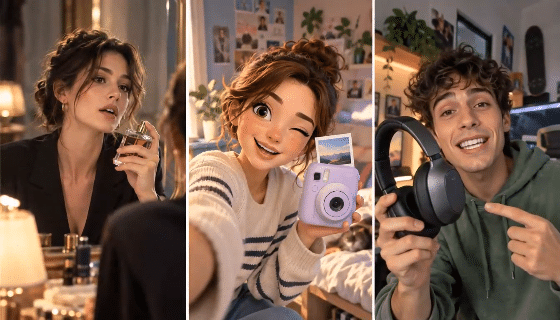
Identify What Should Change Before Editing
Clarify editing priorities with a simple Keep, Change, Remove, Enhance, Reframe, and Sequence framework. These questions should be used before opening Pippit’s editor, particularly if recordings include a number of topics.
- Keep: What are the moments that have the best information, emotion, demonstrations, or memorable statements?
- Change: What visual and/or narrative elements no longer serve the desired publishing goal?
- Remove: What pauses, repetitions, interruptions, or irrelevant parts slow down the pacing?
- Enhance: What are opportunities for captions, music, effects, or visual effects to deepen understanding?
- Reframe: Is the original composition appropriate for the target platform and screen orientation?
- Sequence: Are there moments that can be rearranged in order for a more coherent sequence?
This structure helps to avoid unnecessary changes by creating what should not be changed. Having a clear plan also provides more creative direction for the editing process.
Steps to Re-Edit Live Videos Without Starting Over With Pippit
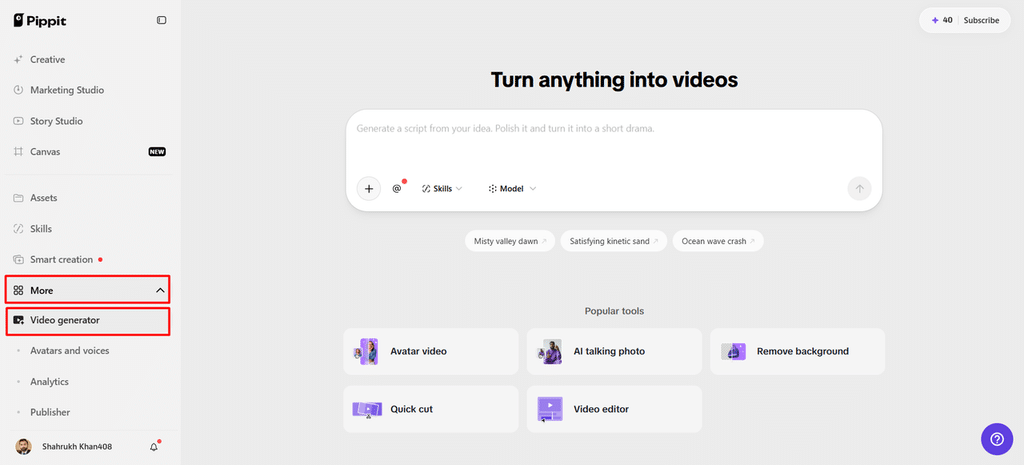
Step 1: Reopen Your Existing Live Video
- Log in to Pippit using Google or social media before reopening your existing live-video project.
- Open “Video generator” from the left menu under the “More” tab to begin editing videos.
Step 2: Rework Existing Live Footage
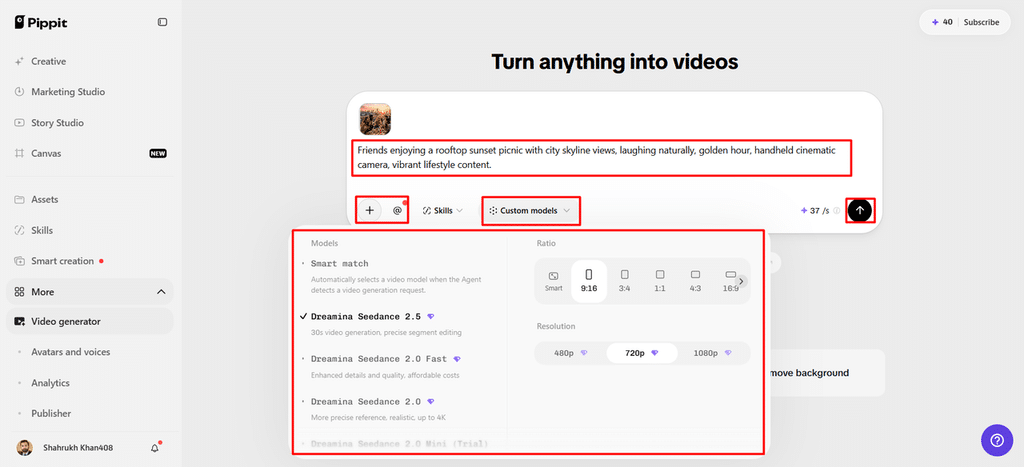
- Select an AI model suited to refining existing live footage while preserving original scene details.
- Choose “Dreamina Seedance 2.5”, “Dreamina Seedance 2.0”, or “Dreamina Seedance 2.0 Fast” for live-video re-editing.
- Other available choices include “Dreamina Seedance 2.0 Mini”, “Dreamina Seedance 1.0”, and “Auto Route” routing.
- Enter a detailed text prompt explaining which scenes, timing, subjects, or visual details need re-editing.
- Click “+” to upload reference images or videos from your device, phone, Dropbox, or link.
- You can also select assets when additional reference media is unavailable for your intended revision.
- Choose an aspect ratio under “Ratio” and select output quality under “Resolution” before editing starts.
- Use “@” to tag a media item or photo inside your prompt for precise referencing.
- Confirm every setting carefully, then click “Generate” to begin re-editing your selected live-video project now.
Step 3: Polish and Export the Revised Video
- Preview your revised video and decide whether further adjustments are needed for your intended sequence.
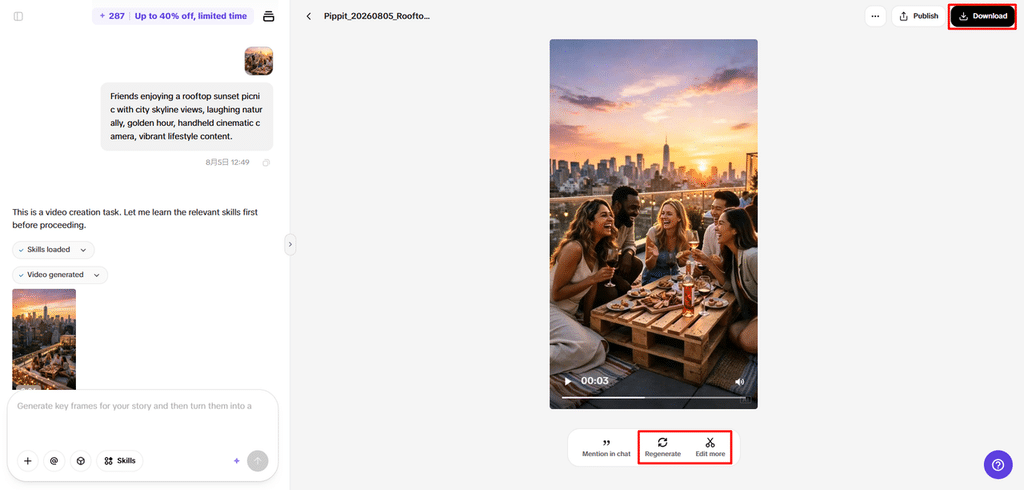
- Click “Regenerate” when the result does not preserve or improve your intended live-video sequence enough.
- Click “Edit more” to refine your footage using available AI editing tools within Pippit now.
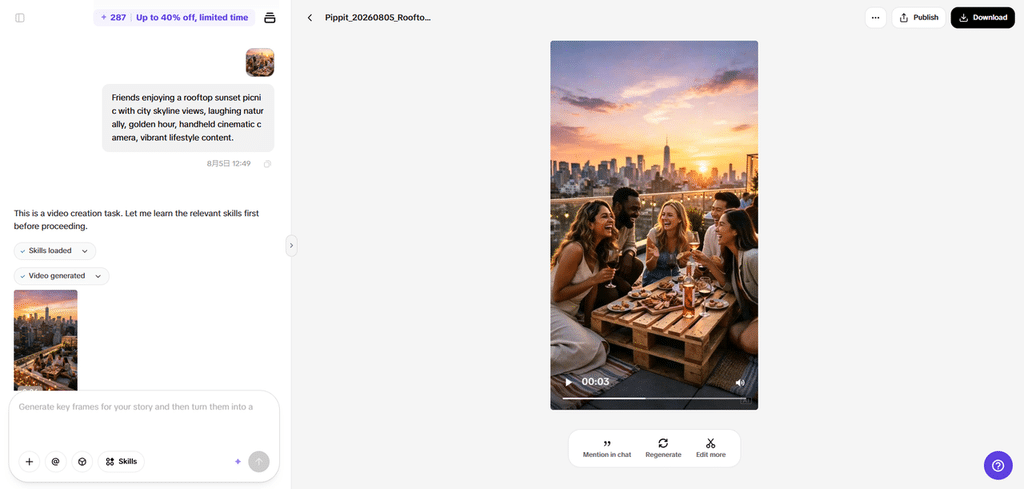
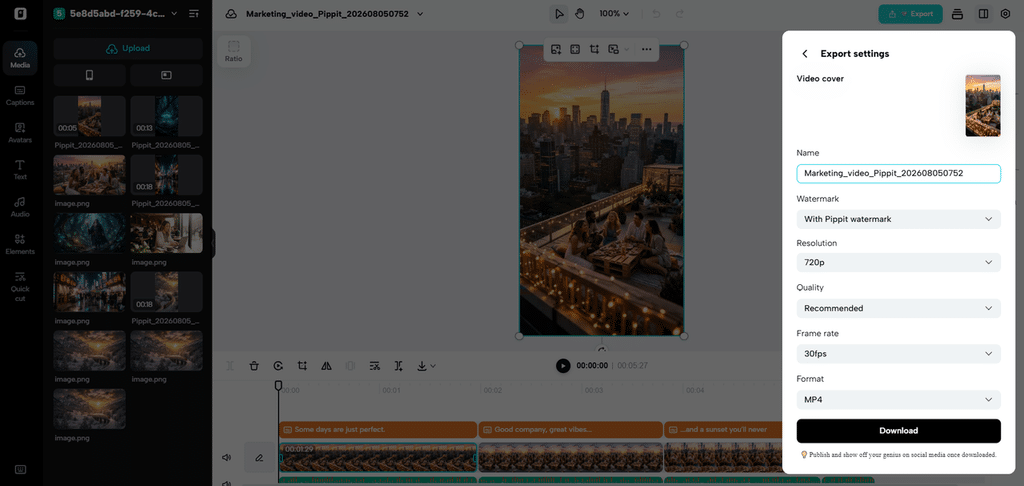
- Customize captions manually, add text, and adjust size, color, alignment, filters, and effects as needed.
- Add background music, remove backgrounds, and fine-tune visuals to match your revised video requirements closely.
- Click “Download” to export the completed revised video directly onto your local device for sharing.
- To share online, click “Publish” to schedule and post your video across social media channels.
Re-Edit Live Footage Through Natural-Language Instructions
Since natural-language prompts describe desired outcomes directly, they make it easier to communicate editing intentions. Have Pippit cut the story down to the best discussion or demonstrations. Redirect focus to a particular speaker, product, object, or key moment as needed. When information is not easy to read, ask for more clarity in captioning, text placement, or hierarchy. Request a new order if the live order undermines the story. Easily adjust composition for vertical, square, or landscape publishing without having to re-create every visual element manually. Seeworld can also be used as a reference concept for planning visual storytelling and scene direction.
Preserve Authenticity While Making AI-Assisted Changes
Live footage can be more credible, since they see real people, products, locations, and events. Aggressive changes to AI can lead to a loss of credibility because some of the details may seem unrealistic or misleading. Check faces, objects, environments, captions, transitions, and spoken information after each variation is created. If aggressive trimming or sequence changes are done, important statements should maintain their meanings. Modifications to source material can be anchored by reference videos and images and help to ensure consistency. Check names, numbers, product details, dates, and facts before posting edited video. Keep the original recording as a separate file to ensure all edits are traceable and recoverable.
From One Live Recording to Multiple Video Formats
When versions have different publishing uses, a single live session can turn into multiple assets. A complete livestream can be trimmed and shortened to make a highlight video with the best parts. Expert conversations can be used to create short educational videos based on individual questions/explanations. Product demos can turn into product promotions that highlight particular functions or use instances. Event recordings can be turned into recap sequences made up of key moments, atmosphere, and short captions. It is possible to create quote-led social videos from interviews, where memorable quotes are the focus and backed up by supporting visuals. Pippit can rework these formats without losing source footage and adjust the presentation parameters. This is a way of using one recording’s worth without having to start each piece of equipment individually.
Build a Repeatable AI Re-Editing Workflow
Always archive the original recording before doing any changes or exports using AI. Before starting the editing workflow, determine the main purpose of each version. Get ready reference images, videos, logos, captions and brand pieces to give a consistent direction. Provide clear prompts to distinguish changes requested from changes that cannot be made. Explain what the subjects are, what the actions are, how fast the pace will be, how the composition will look, what the tone will be, what the captions will be, and what the format will be, if these details are important. Always review each result with care since created edits might cause unexpected visual or textual changes. When accuracy or authenticity is important to the message, compare revised footage with original footage. Make sure to save good versions separately in case good edits get accidentally overwritten.
Conclusion
If parts of the live content feel janky on the first go, they don’t need to be recreated. Pippit offers generation and AI-assisted editing capabilities to transform the media into focused video assets. Controlled re-editing is facilitated through purposeful prompts, reference materials, careful review, and preservation of original files. One live session can be used to help highlight, educate, promote, recap, interview, and socialize. There’s no need to re-create everything every time a new format is needed; existing footage can be used to support more publishing formats.