
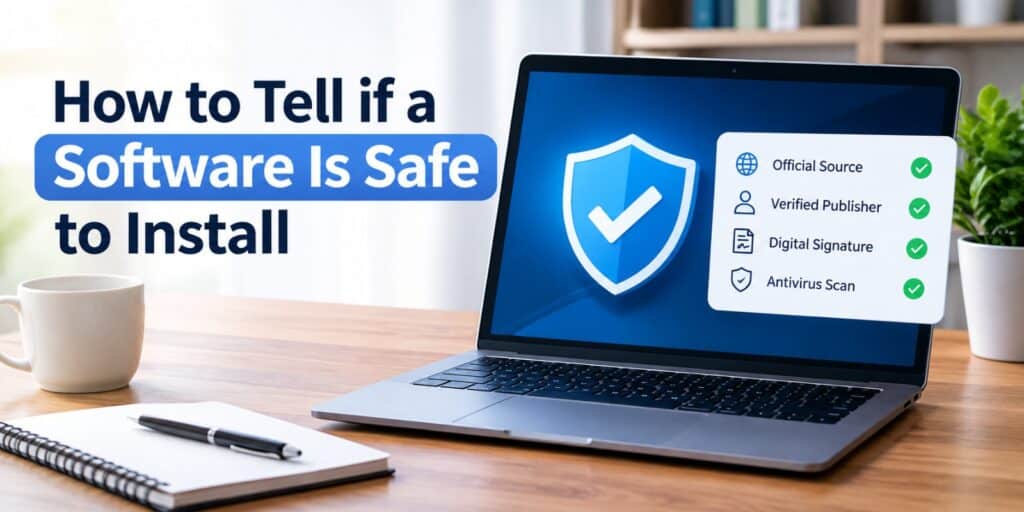
I check this before every install I do for a client, because one wrong download can wreck a working laptop in minutes. The real question is not whether an app looks fine, it is whether the software is safe to install in the first place. A few checks take less than a minute and save hours of cleanup later.
To tell if a software is safe to install, check where the download came from, confirm the publisher is verified, and look for a valid digital signature before opening the file. Scan the installer with your antivirus program first. If Windows shows a SmartScreen warning with an unknown publisher, treat that as a real red flag.
A software is safe to install when it comes from the official developer or a trusted store, shows a verified publisher name, carries a valid digital signature, and passes an antivirus scan. Missing any of these is a reason to pause before you continue.
Key Takeaways
- Download software only from the official website or a trusted app store.
- A missing or unknown publisher name is a warning sign, not a guarantee of danger.
- Always scan installer files with an updated antivirus program first.
- A valid digital signature confirms the file has not been tampered with.
- SmartScreen and browser warnings exist for a reason, do not ignore them.
What Makes a Software Safe or Unsafe to Install
A safe install comes from a known source, carries proof of who made it, and does only what it claims to do. An unsafe one hides its origin or asks for more access than it needs.
Most infections do not come from hacking, they come from a user clicking install on the wrong file. Knowing what to check before that click removes most of the risk.
Check Where the Software Is Safe to Install From
The source matters more than almost anything else. Official developer sites, the Microsoft Store, and well known app stores carry far less risk than random download pages.
Search result ads and third party download hubs often repackage real software with extra unwanted programs attached. Typing the developer name directly into your browser is safer than clicking the first search result. The same caution applies to the page you download from, our guide on how to check if a website is safe covers the exact signs to look for before you trust a download page.
Look for a Verified Publisher and Digital Signature
Before you run an installer, right click the file and open Properties, then check the Digital Signatures tab. A named, verified publisher is a strong sign the software is safe to install.
If the publisher shows as unknown or missing, Windows itself is telling you it cannot confirm who built the file. According to Microsoft, this reputation check is exactly what its built in SmartScreen protection is designed to catch before installation happens.
Scan the Installer Before You Run It
Right click the downloaded file and run a scan with your installed antivirus program before opening it. This single step catches a large share of known threats early.
If you want a second opinion, upload the file to a multi engine scanner before running it. A clean result from several engines is a good extra signal, not a final guarantee.
Watch for Warning Signs During Installation
The install window itself often reveals problems before the software ever opens. Slow down and actually read each screen instead of clicking through.
- The installer wants to add browser extensions or a new default search engine
- It asks for permissions that have nothing to do with its stated purpose
- The publisher name is blank, generic, or does not match the software name
- It pressures you to disable your antivirus before continuing
How to Tell if a Software Is Safe to Install: Quick Checklist
Run through these checks in order any time you are unsure about a new download. Skipping steps is how most infections slip through.
- Confirm you downloaded the file from the official site or a trusted store.
- Check the Digital Signatures tab for a named, verified publisher.
- Scan the installer file with updated antivirus software before opening it.
- Read every installation screen instead of clicking next by habit.
- Decline any bundled extra software you did not ask for.
| Signal | Safer Sign | Warning Sign |
| Source | Official site or trusted app store | Random download hub or pop up ad |
| Publisher | Named and verified | Unknown or missing |
| Antivirus scan | Comes back clean | Flagged or blocked |
| Installer behavior | Only installs what it advertises | Adds toolbars or extra apps |
What to Do if You Already Installed Something Suspicious
If you already clicked install before checking, do not panic, but act quickly. Disconnect from the internet, then run a full antivirus scan and remove anything it flags. Our guide on how to remove malware from Windows 11 safely walks through the full cleanup process step by step. Once your system is clean, our broader guide on how to protect Windows 11 from hackers helps close the gaps that let something risky slip through in the first place.
FAQs
How can I tell if a software is safe to install on Windows 11?
Check that it came from the official site or Microsoft Store, confirm the publisher is verified, and scan the file with antivirus software before opening it.
What does it mean if a software has no verified publisher?
It means Windows cannot confirm who created the file. That alone does not prove it is dangerous, but it is a strong reason to pause and check further.
Is it safe to install software that triggers a SmartScreen warning?
Not automatically. SmartScreen flags files with little reputation history, which includes both new legitimate tools and genuinely unsafe ones, so verify the publisher first.
Can antivirus software catch every unsafe installer?
No single scan catches everything. Antivirus software catches most known threats, but new or disguised malware can sometimes slip past a first scan.
Where is the safest place to download software from?
The developer’s own official website or a recognized store such as the Microsoft Store is generally the safest source for any download.
In 2026, does Windows still need manual safety checks before installing software?
Yes. Even in 2026, Windows built in protections catch many threats automatically, but manual checks like verifying the publisher still close gaps those tools miss.
Final Thoughts: So Is This Software Actually Safe to Install?
That is the exact question every client asks me before they click install on something new. My answer is always the same, check the source, the publisher, and the scan result first.
None of these checks take more than a couple of minutes combined. That small habit is the difference between a clean laptop and a weekend spent removing malware.
I run through this same checklist on my own machine before installing anything I have not used before, no exceptions.
If you want to see exactly how Windows evaluates a new installer, Microsoft’s own support page on SmartScreen protection explains the reputation check behind that warning.
Pingback: Freeware vs Shareware vs Paid Software: Which to Pick - Tech World Garage
Pingback: Call Blocker App for Android Phone: A Safe, Complete Guide - Tech World Garage