
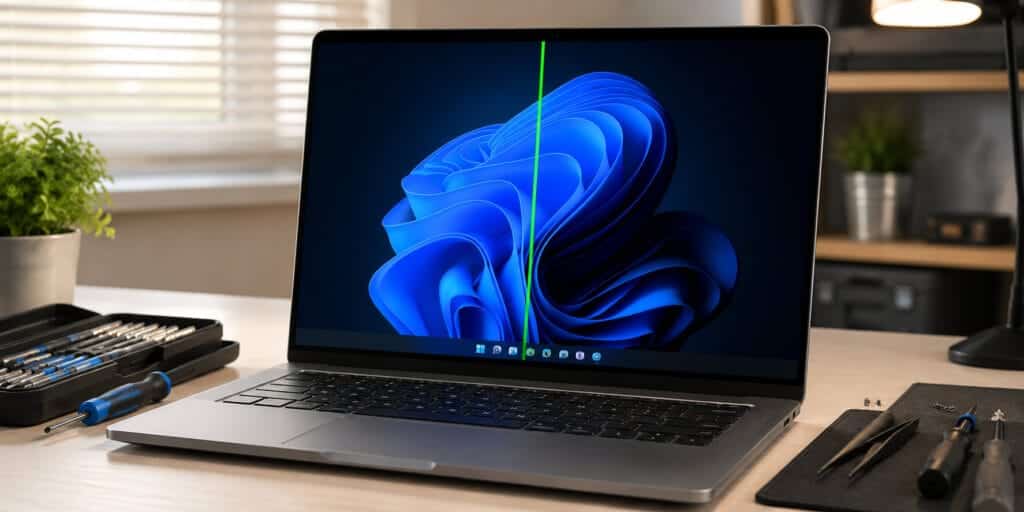
A green line on your laptop screen feels scary. You did nothing wrong, yet your screen looks broken. Take a breath. This is a common problem. Most of the time, it has a simple cause. Why is there a green line on your laptop screen? It usually means your display cable, graphics driver, or LCD panel has an issue. In this guide, you’ll learn exactly why this happens and how to fix it step by step.
What Does a Green Line on a Laptop Screen Actually Mean?
A green line on your laptop screen is a sign your display is not working right. It can be a thin line. It can be thick. It can run up and down, or side to side. Either way, it means something between your graphics card and your screen is not connecting properly.
Think of your laptop screen like a TV with thousands of tiny wires. Each wire sends color information to a tiny part of the screen. If one wire breaks or loses connection, that part of the screen shows the wrong color. Often, that wrong color is green.
This problem is very common on laptops. Brands like Dell, HP, Lenovo, Asus, and Apple MacBooks can all get green lines. Age does not matter much. A laptop from 2020 and a brand new laptop can both show this issue.
Why Is There a Green Line on My Laptop Screen? The Main Causes
There are two big reasons for a green line on a laptop screen. One is software. The other is hardware. Let’s break both down so you know which one you’re dealing with.
Software Causes of a Green Line
Software problems are good news. They are usually easy and free to fix. Here are the most common software causes.
Outdated or corrupted graphics drivers. Your graphics card driver tells your screen how to show colors. If this driver is old or broken, it can cause a green line on your laptop screen. This is one of the most reported causes online.
Wrong screen resolution or refresh rate. If your screen resolution does not match what your laptop recommends, you may see strange lines. This includes green lines, especially near the edges of the screen.
A recent Windows update gone wrong. Sometimes, after Windows updates itself, display settings get reset incorrectly. This can trigger a green line on your laptop screen until you fix the settings or roll back the update.
Sleep mode glitches. Some users report a green line appears only after the laptop wakes up from sleep. This points to a software or driver bug rather than a broken screen.
Hardware Causes of a Green Line on My Laptop Screen
Hardware problems are more serious. They often need a repair shop or a part replacement.
A loose or damaged display cable. Inside your laptop, a thin ribbon cable connects the screen to the motherboard. This cable can loosen over time, especially if you open and close your laptop a lot. A loose cable is a top cause of green lines.
A failing LCD panel. Your screen itself can develop a fault. This is more likely if your laptop is a few years old or has been dropped or bumped.
A graphics card (GPU) problem. The GPU processes everything you see on screen. If it overheats or starts failing, it can send wrong color signals, including green lines.
Physical damage from a drop or impact. Even a small bump can crack internal connections. According to HP Support Community technicians, visual artifacts that appear after impact often point to failing video hardware (Source: HP Support Community, 2021).
Is a Green Line on Your Laptop Screen Dangerous?
No, a green line on your laptop screen is not dangerous to you. It will not cause a fire or hurt your device further by itself. However, it is a warning sign. If you ignore it, the line can spread or multiply over time.
Software Fix or Hardware Problem? How to Tell the Difference
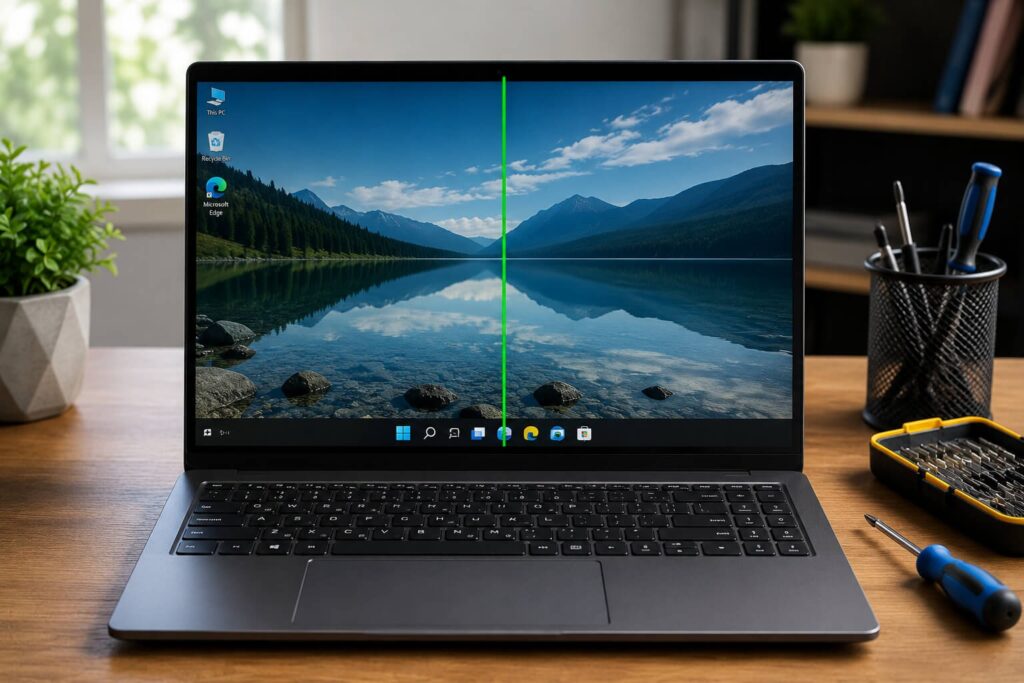
This is the most important question. The answer changes everything about your fix.
The BIOS Test
Here’s a simple test almost every expert recommends. Restart your laptop. As it turns on, press F2, F10, F12, or Delete to enter BIOS setup. This depends on your laptop brand. Look at the BIOS screen. If the green line is there too, it’s a hardware problem.
The BIOS runs before Windows loads, so software cannot cause it. If the green line is gone in BIOS, it’s likely a software or driver issue. According to PartitionWizard’s 2025 troubleshooting guide, seeing a green horizontal line in BIOS strongly suggests a display hardware failure (Source: PartitionWizard, 2025).
The External Monitor Test
Plug your laptop into an external monitor using HDMI or USB-C. Then check the external screen. If the green line does NOT appear on the external monitor, your laptop’s screen or its cable is the problem. If the green line DOES appear on the external monitor too, your graphics card is likely the cause.
How to Fix a Green Line on Your Laptop Screen (Step by Step)
Now let’s go through real fixes. Start from the top and work your way down.
Step 1: Restart Your Laptop Completely
This sounds too simple, but it often works. A full restart clears temporary memory glitches. Don’t just close the lid. Shut down completely, wait 10 seconds, then turn it back on.
Step 2: Update Your Graphics Drivers
Outdated drivers are a leading cause of a green line on a laptop screen. Here’s how to update them on Windows:
- Right-click the Start button and choose Device Manager
- Expand “Display adapters”
- Right-click your graphics card and select “Update driver”
- Choose “Search automatically for updated drivers”
You can also visit your laptop maker’s website. Download the latest driver directly from NVIDIA, AMD, or Intel.
Step 3: Adjust Your Screen Resolution and Refresh Rate
Right-click on your desktop and select Display Settings. Scroll down to “Advanced display settings.” Make sure your resolution matches the recommended setting for your screen. Set the refresh rate back to default too. Sometimes a green line on a laptop screen disappears the moment you fix this one setting.
Step 4: Roll Back Recent Windows Updates
Go to Settings, then Windows Update, then Update History. Look for “Uninstall updates.” If the green line started right after an update, removing that update can solve it.
Step 5: Reseat the Display Cable (For Advanced Users)
If you’re comfortable opening your laptop, this step can fix loose cable issues. Power off completely and unplug your charger. Remove the back panel or screen bezel carefully. Find the ribbon cable connecting the screen to the motherboard. Gently unplug it and plug it back in firmly. This step often fixes green lines caused by movement or hinge pressure. If you’re not confident doing this, a repair technician can do it quickly.
Step 6: Tap Gently Near the Line (Temporary Fix Only)
Some users find that gently tapping the screen near the green line makes it disappear briefly. This is not a real fix. It only confirms the cable connection is loose. Don’t press hard. You could damage the screen further.
When You Need Professional Repair
If you’ve tried every step above and the green line on your laptop screen stays, it’s time for professional help. A failing LCD panel usually needs full screen replacement. A damaged display cable needs a technician to replace it safely. A failing GPU soldered to the motherboard often cannot be fixed at home. Most laptop repair shops can diagnose this in under 30 minutes. Many offer free diagnosis before charging for repairs.
How Much Does It Cost to Fix a Green Line on a Laptop Screen?
Costs vary by laptop brand and the actual cause. A simple cable reseat might cost very little if done by a technician during a checkup. A full LCD screen replacement typically costs more, depending on screen size and laptop model. Getting an exact quote from a local repair center is always the best step before paying anything.
Can a Green Line Spread or Get Worse Over Time?
Yes, it can. If the cause is a damaged cable or failing panel, the green line on your laptop screen often grows. One line can become two. Two lines can become a flickering mess. This is why early action matters. Fixing it early, while it’s just one green line, is usually cheaper and easier than waiting.
Real Examples From Real Users
One user on a tech forum noticed green grid lines on their ASUS TUF A15 laptop right after a driver update failed. After reinstalling the update properly, the lines disappeared completely (Source: Tom’s Guide Forums, 2025).
Another user reported their green line appeared after restarting, but it returned within a day. The cause was a loose display cable that needed reseating by a technician (Source: JustAnswer, 2025).
These two examples show why testing software fixes first, then checking hardware, makes sense. You save time and money by ruling out the easy fixes.
Quick Comparison: Software vs Hardware Green Line Symptoms
| Symptom | Likely Cause |
| Line disappears in BIOS | Software or driver issue |
| Line stays in BIOS | Hardware issue (cable or panel) |
| Line moves when you move the screen | Loose display cable |
| Line stays in the exact same spot always | Failing LCD panel |
| Line appears on external monitor too | Graphics card (GPU) issue |
| Line started after a Windows update | Software glitch, try rollback |
How to Prevent Green Lines on Your Laptop Screen in the Future
Prevention is easier than repair. Keep your graphics drivers updated regularly. Avoid slamming your laptop lid shut. Don’t stack heavy books or items on top of a closed laptop. Carry your laptop in a padded sleeve or bag. Avoid extreme temperature changes, like leaving your laptop in a hot car.
A laptop repair group with experience handling thousands of devices notes that screen lines and flickering rank among the most common hardware complaints they see (Source: Rousant Systems service data, 2024).
(FAQs)
Why is there a green line on my laptop screen all of a sudden?
A sudden green line usually means a driver crashed, a setting changed, or a cable shifted slightly. Restart your laptop and update your graphics driver first.
Why is there a green line on my laptop screen that won’t go away?
A green line that stays through restarts and driver updates usually points to a hardware issue. This is often a damaged display cable or a failing LCD panel.
Can I fix a green line on my laptop screen myself?
Yes, many software causes can be fixed at home. Update drivers, adjust resolution, and restart your laptop. Hardware fixes like cable reseating need more care.
Does a green line on a laptop screen mean the screen is dying?
Not always. It can mean the screen is failing, but it can also mean a simple cable or driver issue. Testing with BIOS and an external monitor tells you which one it is.
Will a green line on my laptop screen spread to the whole screen?
It can spread if the cause is hardware related and left unfixed. Software-related green lines usually do not spread.
Is a green line on a laptop screen covered under warranty?
Many laptop warranties cover screen defects if the laptop is still within its coverage period. Check your warranty terms or contact your manufacturer.
Why does my green line only appear when I move the laptop screen?
This is a strong sign of a loose display cable. Moving the screen shifts the connection point, causing the line to appear or disappear.
Can a virus cause a green line on my laptop screen?
It’s rare, but corrupted system files from malware can sometimes affect display drivers. Running a full antivirus scan is a good safety step.
Why is there a green line on my laptop screen after I updated Windows?
Some Windows updates change display settings or conflict with current graphics drivers. Rolling back the update or updating the driver again usually fixes this.
How do I know if it’s my GPU causing the green line?
Connect your laptop to an external monitor. If the green line appears on that screen too, your graphics card is likely the cause, not your laptop’s display panel.
Final Thoughts
A green line on your laptop screen does not have to be a disaster. Most cases start as small, fixable problems. Software issues often clear up with a restart, a driver update, or a settings change. Hardware issues need a closer look, but even those are repairable.
The key is acting early. Don’t wait for one line to become many. Test your screen using BIOS and an external monitor. Follow the steps in order. If nothing works, a trusted repair technician can finish the job quickly. Your laptop, and your screen, deserve a real fix, not a guessing game.
For more technical background on display technology, you can read about LCD screens on Wikipedia.
Read More: Black Spots on a Laptop Screen: The Hidden Causes and Proven Fixes That Actually Work

Pingback: Lines On Your Monitor Screen? Here Is The Real Fix - Tech World Garage