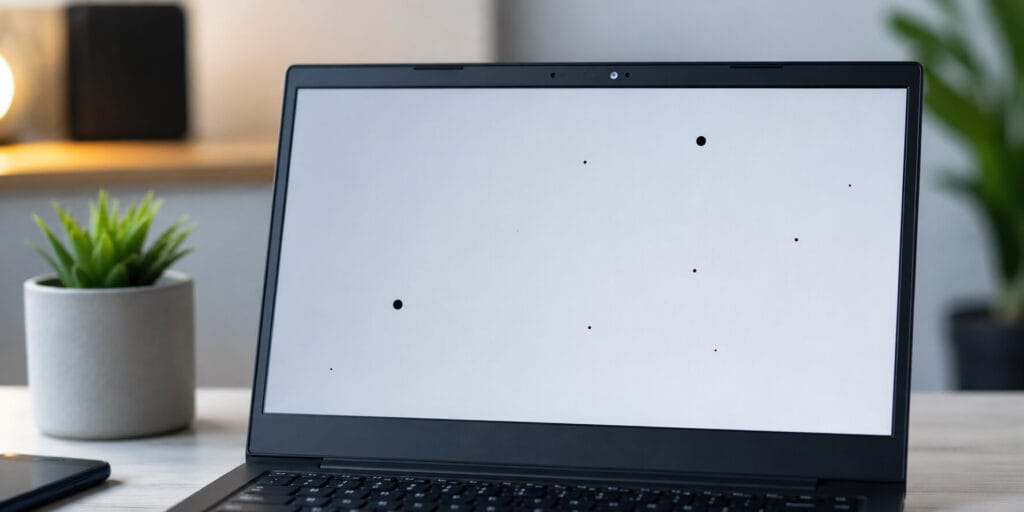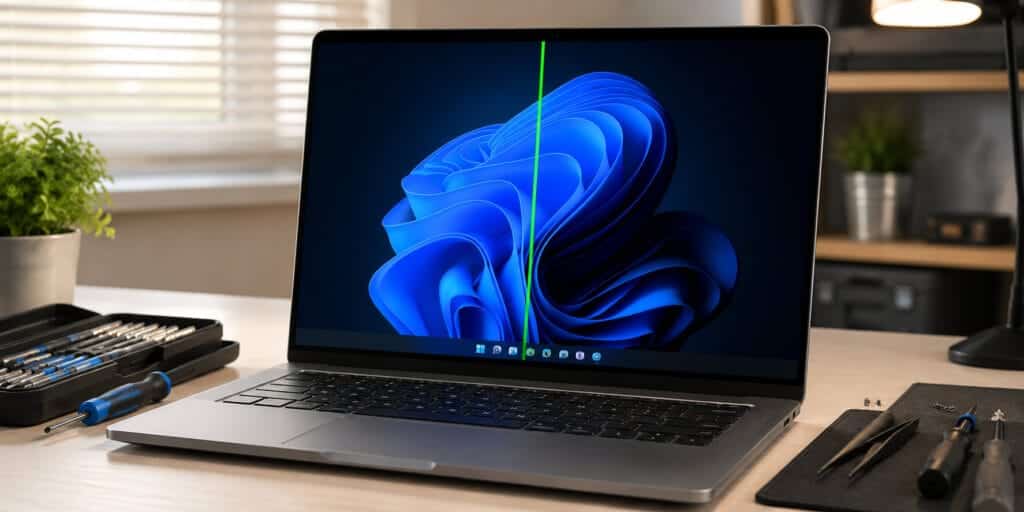
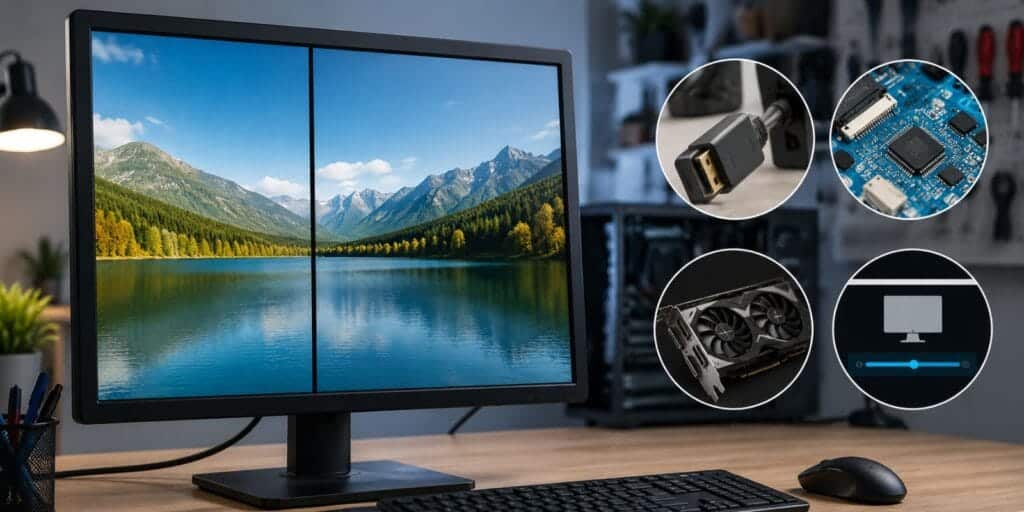
Black lines on a screen are a common problem. The good news is that you can often fix them without changing the whole screen. First, you need to find out what is causing the problem. You may see a thin black line on a laptop screen, black lines going up and down on a monitor, or a black line at the bottom of a MacBook screen. Once you know the cause, it is easier to choose the right fix.
Key Takeaways
- A black line on your monitor can come from a dead pixel row, a loose cable, a failing T-con board, or a GPU problem.
- The fastest way to separate a hardware fault from a software glitch is to take a screenshot. If the line appears in the screenshot, the GPU is likely the culprit. If the screenshot is clean, the monitor itself is the problem.
- Flickering lines that shift when you wiggle the cable or change the display angle usually point to a connection issue, which is often fixable.
- A perfectly still, straight black line that never moves is almost always a hardware fault inside the display panel.
- Always test the monitor with a different cable and a different device before spending money on repairs.
What a Black Line on Monitor Actually Is
A black line on a monitor is a strip of pixels that have stopped producing light entirely. The line stays dark regardless of what’s displayed on the rest of the screen. It can run horizontally, vertically, or sometimes only across part of the display.
This is different from a flickering or intermittent artifact, which tends to come and go. A true black line is permanent and consistent. It doesn’t change color, doesn’t respond to content, and doesn’t disappear when you restart.
Most Common Causes of Black Line on Monitor
Dead Pixel Row or Column
This is the most frequent cause. Every LCD monitor has millions of tiny pixels arranged in a grid. Each row is controlled by a gate driver, and each column by a source driver. When that driver circuit fails, every pixel it controls goes dark at once, producing a perfectly straight black line across the entire screen.
A dead pixel row or column is a circuit-level failure. It has nothing to do with the image being displayed. Software cannot fix it, and pixel-repair apps are designed for stuck pixels, not dead ones. The line is a hardware problem at the panel level.
Loose or Damaged Video Cable
This is the easiest cause to test and often the easiest to fix. The cable running from your computer’s video output to the monitor carries the raw signal. If that cable is bent, slightly unplugged, or internally damaged, it can drop data to specific rows or columns of pixels, producing a black line.
A cable-related line usually flickers or shifts slightly. Try unplugging and firmly reseating both ends of the cable. Then swap the cable entirely. If the line disappears with a new cable, the old one was the problem.
T-Con Board Failure: A Cause of Black Line on Monitor
Inside every monitor sits a timing controller board, known as the T-con board. Its job is to translate the incoming video signal into the precise timing that drives the LCD panel. When it develops a fault, the result is often black lines, flickering, or partial display failure.
T-con board failures are especially common in monitors that are a few years old. The board is a separate, replaceable component in most external monitors, and replacement boards are often available online for $10 to $40 depending on the model. This makes it one of the more cost-effective hardware repairs.
GPU or Graphics Card Issues
Not every black line is a monitor problem. If the graphics card is failing, overheating, or producing corrupted output, lines can appear on the screen even when the monitor itself is perfectly healthy.
Here’s how to tell the difference: take a screenshot while the line is visible. If the line shows up in the saved image file, the problem originates from the GPU, not the monitor. If the screenshot is clean, the GPU is sending a correct signal and the issue is in the monitor or its cable.
You can also connect the monitor to a different computer. If the line disappears, the first computer’s GPU is the source. If the line persists, the monitor is at fault.
Wrong Display Settings That Cause a Black Line on Monitor
This cause is underestimated. If your monitor’s resolution is set higher or lower than its native resolution, or if the refresh rate is mismatched, the panel can produce display artifacts that include horizontal black banding or thin flickering lines.
Go to your display settings and confirm the resolution matches the monitor’s native specification, which is usually printed in the manual or listed on the manufacturer’s website. Set the refresh rate to the monitor’s rated value, typically 60Hz, 75Hz, 120Hz, or 144Hz for gaming displays.
Physical Damage and Panel Wear
Dropping a monitor, pressing too hard on the screen, or placing objects on a laptop’s keyboard before closing the lid can crack or damage the LCD layers internally. Physical damage produces lines that are irregular in shape and often accompanied by blotchy or discolored areas nearby.
Panel wear from age is also real. Over years of use, the internal conductive traces inside an LCD panel can degrade, causing rows or columns to fail gradually. Heat exposure accelerates this process.
How to Diagnose the Problem Step by Step
Working through this sequence will tell you exactly what you’re dealing with before you spend anything on repairs.
Step 1: Restart the system. A temporary memory or driver glitch can occasionally produce display artifacts. If the line vanishes after a restart, it was a software hiccup.
Step 2: Take a screenshot. With the line visible, press the Print Screen key or use a screenshot tool. Open the image file. If the line is there, the GPU or drivers are the source. If the image is clean, the monitor or cable is the issue.
Step 3: Check and reseat the cable. Power off the monitor and computer, then unplug and firmly reconnect both ends of the video cable. Try a different cable if you have one. Try a different port on the GPU, switching from HDMI to DisplayPort or vice versa.
Step 4: Connect to a different device. Plug the monitor into a laptop, another desktop, or any other video source. If the line disappears, your original computer’s GPU or output port is the problem. If the line stays, the monitor is at fault.
Step 5: Check display settings. Verify that the resolution and refresh rate are set to the monitor’s native specifications.
Step 6: Update GPU drivers. If the screenshot showed the line, download the latest drivers directly from Nvidia, AMD, or Intel’s official websites and do a clean installation.
What You Can Fix Yourself vs. What Needs a Professional
| Cause | DIY Fix Possible? | Cost Estimate |
| Loose video cable | Yes | $0 to $15 for a new cable |
| Wrong resolution or refresh rate | Yes | Free |
| Outdated GPU drivers | Yes | Free |
| T-con board failure | Possible with care | $10 to $40 for the board |
| Dead pixel row in panel | No | Screen replacement needed |
| Physical panel damage | No | Screen replacement needed |
| GPU hardware failure | Partial | Driver fix or GPU replacement |
When to Replace Rather Than Repair
Repair makes sense when the fix costs less than half the current value of the monitor. T-con board replacements fall well within that range for most mid-range monitors. Screen panel replacements, on the other hand, can approach or exceed the cost of a new monitor for budget models.
Before paying for any repair, check whether your monitor is still under warranty. Most manufacturers cover dead pixel rows under their dead pixel policy, though policies vary by brand and the number of affected pixels. Samsung, LG, Dell, and ASUS all publish their display warranty terms on their support pages.
If your monitor is more than five years old and the panel itself has failed, replacement is almost always the better financial decision.
Preventing Black Lines in the Future
Prevention is straightforward. Never press on the screen surface. Use proper cable management so video cables aren’t bent sharply at the connection point. Keep the monitor in a stable temperature environment, as heat accelerates panel degradation. Use a surge protector to protect against power fluctuations. And for laptops, never close the lid with anything resting on the keyboard.
FAQ about Black Line on Monitor
What causes a black line on a monitor?
The most common causes are a dead pixel row in the display panel, a loose or damaged video cable, a failing T-con board, incorrect display settings, or a problem with the GPU. The screenshot test is the fastest way to determine whether the GPU or the monitor is at fault.
Can a black line on a monitor be fixed?
It depends on the cause. Cable issues, incorrect settings, T-con board failures, and driver problems can often be fixed. Dead pixel rows in the panel itself usually require full screen replacement, as there is no reliable way to repair individual dead pixel circuits.
How do I know if the black line is from the GPU or the monitor?
Take a screenshot while the line is visible. If the line appears in the saved image file, the GPU is generating corrupted output. If the screenshot is clean and the line is only visible on screen, the monitor or its cable is the source.
Why does my black line flicker or move?
A moving or flickering line almost always points to a connection issue: a loose video cable, a damaged cable, or a failing T-con board. A completely stationary line that never changes is more likely a dead pixel row in the panel.
Can updating drivers fix a black line on a monitor?
Only if the GPU is the cause. If the screenshot test shows the line in the image file, updating or clean-reinstalling GPU drivers from the manufacturer’s website may resolve it. If the screenshot is clean, drivers are not the issue.
Is a black line on a monitor covered under warranty?
Possibly. Most display manufacturers cover dead pixel rows under their warranty, though policies differ. Check with your manufacturer’s support page and have your purchase date ready. Dell, LG, Samsung, and ASUS each have specific dead pixel policies that outline their coverage thresholds.
Can a bad HDMI or DisplayPort cable cause a black line?
Yes. A damaged or poorly seated cable can disrupt the signal to specific pixel rows or columns. This is one of the first things to rule out, because a replacement cable costs very little and takes only minutes to test.
What is a T-con board and can it be replaced?
The T-con (timing controller) board translates the incoming video signal into the precise timing signals that drive the LCD panel. It is a separate, replaceable board inside most external monitors. Replacement T-con boards for popular monitor models are widely available online and typically cost between $10 and $40.
Why is there a black line at the bottom of my laptop screen?
On laptops, a black line near the bottom of the screen is often caused by damage to the flex cable that connects the display panel to the motherboard. This cable runs through the laptop’s hinge and can develop cracks over time from repeated opening and closing. The line may flicker when you adjust the lid angle, which confirms a cable issue.
Does a black line mean my monitor is dying?
Not necessarily. A single black line that stays in one place may be the result of a localized circuit failure that doesn’t spread. However, if new lines are appearing over time or the original line is growing wider, it signals a progressive failure in the panel or its control circuitry. In that case, replacing the monitor sooner is the practical choice.
Conclusion
A black line on a monitor is almost always a hardware problem, but it isn’t always an expensive one. Start with the simple checks: reseat the cable, swap the cable, test on a different device, and verify your display settings. The screenshot test takes ten seconds and tells you immediately whether you’re dealing with a GPU issue or a monitor issue. That single test points everything else in the right direction. If the line persists after working through the diagnostics, you’ll at least know exactly what you’re dealing with before calling a technician or deciding whether repair or replacement makes more financial sense.
For more background on how LCD technology works, the liquid-crystal display article on Wikipedia provides a solid technical foundation.