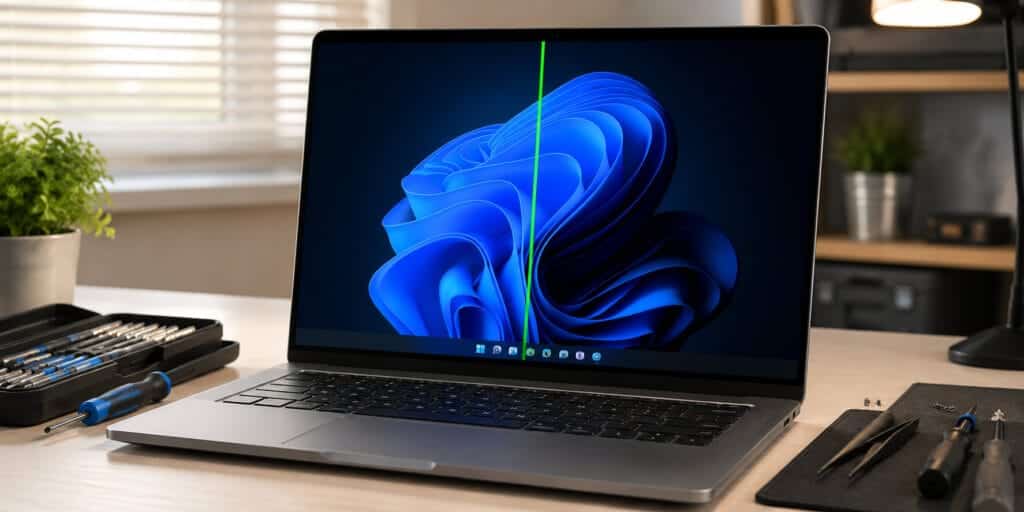
You sit down at your desk. You open your laptop. And there it is, a dark, stubborn stripe cutting right across your display. A black line on a computer screen is one of the most alarming things a user can see. It can appear suddenly, for no obvious reason. And it sits there, ruining everything you try to do.
The good news? Many cases are fixable. You just need to know what you are dealing with first. A black line on computer screen is a dark strip that stays black no matter what is on screen. It does not flicker with content. It does not go away when you change the brightness. It just sits there, on white pages, on videos, on everything.
What Exactly Is a Black Line on Computer Screen?
A black line is different from a black spot. A spot is a single dark dot. A line stretches across a row or column of pixels. It can be one pixel thin or several millimeters wide.
These lines appear in three common orientations:
- Horizontal: runs left to right across the screen
- Vertical: runs top to bottom along the display
- Partial: appears only in one section of the screen
The line never shows any color or light. That is the key feature that separates it from other display problems.
| Line Type | Common Cause | Fixable? |
| Horizontal black line | Gate driver failure, flex cable | Sometimes |
| Vertical black line | Column driver failure, loose cable | Sometimes |
| Multiple black lines | Progressive cable or panel failure | Rarely without replacement |
| Small black line | Single dead pixel row | Rarely |
| Flickering black line | GPU or T-con board issue | Often |
Why Does a Black Line on Computer Screen Appear?
There is no single answer. The causes range from a $5 cable to a failed display panel. Here are the real reasons, explained simply.
Dead Pixel Lines: The Most Common Culprit
Your screen has millions of tiny pixels. Each pixel lights up to form the image you see. When an entire row or column of pixels dies at once, it creates a black line on computer screen. This is called a dead pixel line. It happens when the circuit that controls a row or column stops working.
LCDs made after 2010 use integrated circuit drivers. When one of these drivers fails, an entire line of pixels goes dark permanently. Dead pixel lines are very common in screens that are more than three years old.
The Flex Cable: A Hidden Weak Point
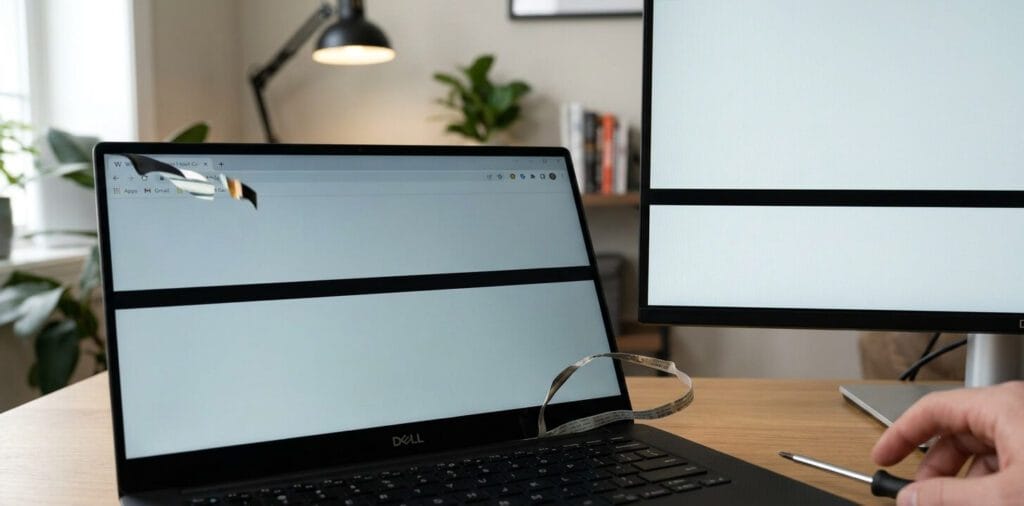
Inside every laptop, a thin ribbon cable carries the video signal from the motherboard to the screen. This cable bends every time you open or close the lid. Over time , usually after two to four years of daily use , the cable cracks inside. The signal to a row or column of pixels breaks.
The result is a black line on computer screen that may flicker when you move the lid. This is actually one of the most repairable causes. Flex cables cost between $5 and $30 for most laptop models.
T-Con Board Failure
The T-con (Timing Controller) board translates the video signal into a format the LCD panel understands. It is a separate component in external monitors. When the T-con board develops a fault, it can send corrupted signals to pixel rows. This causes black horizontal or vertical lines.
T-con boards are especially prone to failure in monitors older than four years. Replacing a T-con board typically costs between $20 and $80, making it one of the more affordable hardware repairs.
GPU and Driver Problems
Sometimes the black line on computer screen has nothing to do with the display itself. A failing graphics card (GPU) can send corrupted image data to the screen. This produces lines that flicker, shift, or change with different apps.
Outdated or corrupted display drivers can also trigger black line artifacts. NVIDIA released driver updates in 2023 and 2024 specifically addressing display artifact bugs on RTX-series cards.
Physical Damage
Dropping a laptop or pressing hard on the screen can shatter the internal LCD layers. This creates black lines in the impact zone. Physical damage is almost always permanent. A screen replacement is typically the only solution.
How to Diagnose a Black Line on Computer Screen
Before spending money on repairs, run a quick diagnosis yourself. Follow these steps in order.
Step 1: Take a Screenshot
Take a screenshot and open it on another device. If the black line appears in the screenshot, the problem is with the GPU or software. If the screenshot is clean, the problem is with the physical display.
Step 2: Check the BIOS Screen
Restart your computer. Watch the startup logo. If the black line on computer screen appears before Windows or macOS loads, it is a hardware problem. The operating system is not involved yet.
Step 3: Connect an External Monitor
Plug your laptop into an external monitor using HDMI or DisplayPort. If the line appears on the external display too, your GPU is causing it. If the external screen is clean, the problem is your laptop’s panel or cable.
Step 4: Move the Lid Slowly
Open a white webpage on your laptop. Slowly open and close the lid while watching the screen. If the black line flickers or shifts as you move the lid, your flex cable is damaged.
Step 5: Update Your Graphics Driver
Open Device Manager on Windows. Find Display Adapters. Right-click your GPU and select Update Driver. Restart your computer. Sometimes a driver update alone erases the black line on computer screen entirely.
Fixes That Actually Work for a Black Line on Computer Screen
Here is what genuinely helps , and what wastes your time.
Software Fixes (Try These First)
Update your display driver. This takes five minutes and fixes the problem in many cases where the GPU or driver is at fault. Download the latest driver directly from NVIDIA, AMD, or Intel’s official websites. Do not rely on Windows Update alone.
Adjust your screen resolution. Right-click the desktop and open Display Settings. Set the resolution to the Recommended option. An incorrect resolution can create display artifacts that look like black lines.
Drain residual charge. Turn off your monitor. Unplug the power cable from the wall. Hold the power button for 30 seconds. This drains static charge from internal capacitors and can clear temporary display glitches.
Hardware Fixes (When Software Fails)
Reseat the video cable. For desktop monitors, disconnect and reconnect the HDMI or DisplayPort cable on both ends. A loose cable connection is one of the simplest causes of a black line on computer screen.
Replace the flex cable. This is a DIY repair for confident users. Laptop repair guides for specific models are available on iFixit. The cable costs under $20 for most laptops made since 2015.
Replace the T-con board. For external monitors, this is often the most cost-effective hardware fix. The T-con board is easy to access on most desktop monitors and costs $20 to $80 depending on the model.
Professional screen replacement. If the LCD panel itself is cracked or the driver IC has failed, a full screen replacement is required. Costs range from $80 to $350 for laptops, depending on brand and model.
Black Line on Computer Screen: Device-Specific Issues
MacBook Pro
Apple MacBook Pro models from 2016 to 2019 are particularly prone to black lines caused by flex cable wear at the hinge. Apple acknowledged this issue and launched a repair program for affected units. If your MacBook Pro has a black line at the bottom of the screen, check the Apple Support website for active repair programs. Your repair may be fully covered.
Dell Laptops
The Dell XPS 13 and XPS 15 series have reported flex cable failures causing black vertical lines. Dell’s standard warranty covers manufacturing defects. Always test with an external monitor first to confirm the issue is in the display, not the GPU.
HP Laptops
HP Spectre and Envy models have had documented cases of dead pixel line failures. HP covers screen defects under its standard one-year warranty. Extended warranty plans through HP Care Pack can cover repairs for up to three years.
Lenovo ThinkPad
Lenovo ThinkPad screens are generally replaceable with standard aftermarket panels. This makes black line repairs more affordable than on Apple or premium Dell models. Third-party LCD panels for ThinkPads are widely available and usually cost $40 to $120.
What Does NOT Fix a Black Line on Computer Screen
Some advice online will waste your time or damage your device further.
- Pixel-fixing apps, these are designed for stuck pixels, not dead pixel lines or circuit failures
- Massaging the screen, applying pressure to an LCD panel risks spreading the damage
- Restarting repeatedly may hide a software glitch temporarily, but hardware problems do not disappear on their own
When to Replace Instead of Repair
The repair-versus-replace decision comes down to cost. A good rule: if repair costs more than 50% of the device’s current market value, replacement is usually smarter. Screen replacement for laptops averages $100 to $300 in the United States, according to repair data from iFixit and TechRestore (Louisville, KY).
External monitors older than five years are often cheaper to replace entirely than to repair. Always check your warranty first. Many screen defects are covered under manufacturer warranties for one to two years after purchase.
How to Prevent a Black Line on Computer Screen
Prevention is always better than repair. These habits protect your display.
- Close your laptop gently, without twisting the lid
- Never place objects on the keyboard before closing the lid
- Use a padded laptop bag to prevent drops
- Keep drivers updated every few months
- Run a screen test every few months to catch dead pixels early
- Use a surge protector to prevent electrical damage to your monitor
FQAs
What causes a black line on a computer screen?
The most common causes are dead pixel lines, a damaged flex cable inside the laptop hinge, a failing T-con board in the monitor, or a faulty graphics card. Physical damage from drops also causes black lines.
Can a black line on a computer screen be fixed?
Yes, in many cases. If the cause is a loose cable, outdated driver, or a failed T-con board, the fix is straightforward. Dead pixel lines caused by panel-level damage usually require screen replacement.
How do I know if the black line is a hardware or software problem?
Take a screenshot and view it on another device. If the line appears in the screenshot, it is a software or GPU issue. If the screenshot is clean, the problem is in your physical display hardware.
Does a black line mean my screen is dying?
Not always. A single, stable black line may stay the same for months or years. However, if new lines appear or the existing line grows, the underlying hardware fault is worsening and will eventually require replacement.
Will updating my graphics driver fix the black line?
Sometimes. If the black line appeared after a Windows update or driver change, reverting or updating the GPU driver can remove it. This fix works for software-caused lines, not hardware-damaged panels.
Is a black line covered under warranty?
It depends on the cause. Manufacturing defects are covered under standard warranties. Physical damage from drops or pressure is usually not covered. AppleCare+ may cover certain MacBook Pro issues related to known manufacturing problems.
How much does it cost to fix a black line on a laptop screen?
Repair costs range from $5 for a flex cable replacement to $350 for a full screen replacement, depending on the device. External monitor T-con board replacements typically cost $20 to $80.
Can I use a laptop with a black line on the screen?
Yes, but with limitations. A stable line in a non-critical area may not interfere with daily use. A line in the center of the screen significantly affects usability and should be repaired or the screen should be replaced.
Why did a black line appear on my screen overnight?
Dead pixel lines and circuit failures can appear suddenly without any visible cause. A temperature change, power surge, or simply normal wear on aging components can trigger the failure with no warning.
Is a black line the same as a dead pixel?
No. A dead pixel is a single dark dot. A black line is an entire row or column of dead pixels, caused by a failure in the circuit that controls that row or column, rather than individual pixel failures.
The Bottom Line
A black line on computer screen is serious , but it is not always a death sentence for your device. Start with the simple diagnostics: take a screenshot, check the BIOS, and connect an external monitor. Try a driver update before assuming the worst.
If the line is caused by a flex cable or T-con board, repair is affordable and often DIY-friendly. If the panel itself is damaged, a professional screen replacement is your cleanest option. Whatever you do, check your warranty first. Many black line cases are covered, and the repair could cost you nothing.
For a deeper understanding of how LCD display technology works and why these failures occur at the hardware level, see the relevant overview on Wikipedia.
Read More: Black Line on Monitor: Why It Appears and How to Fix It