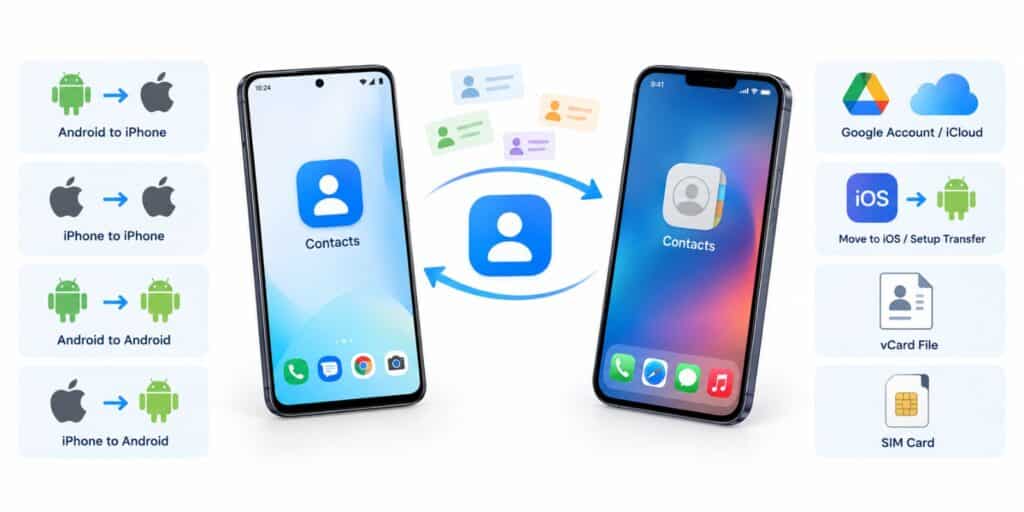
How to transfer contacts to a new phone depends on your two phones. Android to iPhone works best with Apple’s Move to iOS app. iPhone to iPhone works with Quick Start or iCloud. Android to Android works with the setup copy screen or your Google Account. iPhone to Android works with the setup pairing screen or a contacts file.
That is the quick answer. The longer answer matters, because contacts often sit in more than one place. Pick the wrong source and you may end up with half a phonebook. This guide covers every common switch, plus checks and fixes.
Before You Transfer Contacts: A Five-Minute Checklist
Good prep solves most problems with how to transfer contacts to a new phone. Do these five things first, even if you are in a hurry. They take about five minutes in total.
- Charge both phones. Apple asks you to plug in both devices for a Move to iOS transfer. Google also lists charging both devices as a first step.
- Connect to Wi-Fi. Apple and Google both list a Wi-Fi connection before you begin.
- Count your contacts. Open Contacts on the old phone and write down the total. You will compare it later.
- Know your passwords. You need your Google Account or Apple Account details. Google also says you must unlock the old phone with a PIN, pattern or password.
- Check storage. According to Apple Support, the content you move must fit on the new device. A full phone can cause a partial transfer.
Key Takeaways
- Contacts saved in a Google Account or iCloud follow you when you sign in.
- Android to iPhone is easiest during iPhone setup with Move to iOS.
- Recent iOS and Android 17 versions add a direct transfer option between the two systems.
- Count your contacts before and after, and keep the old phone until you are sure.
Where Your Contacts Actually Live
Contacts can sit in four places. These are a Google Account, iCloud, the phone itself and a SIM card. Each place needs a slightly different transfer method.
According to Google Help, contacts in a Google Account sync with Google Contacts. They also sync to all your Android devices. Apple says an iPhone does not store contacts on the SIM card. Those two facts explain most transfer surprises.
| Where contacts are saved | How to check | Easiest way to move them |
| Google Account | Open contacts.google.com on a computer | Sign in on the new phone |
| iCloud | Open icloud.com/contacts on a computer or tablet | Sign in with the same Apple Account |
| Phone storage | Names appear only on the old phone | Use a transfer tool or export a file |
| SIM card | Look for a SIM option in your import settings | Import from the SIM on the new phone |
Google says saved Google contacts show up on a new Android phone after sign in. So check the Google Contacts website first. If the names are there, your move may already be done.
How to Transfer Contacts to a New Phone From Android to iPhone
Use Apple’s Move to iOS app while you set up the iPhone. It copies contacts, messages, photos and more over a temporary Wi-Fi link. If setup is finished, you can add your Google Account or import a file.
Method 1: Move to iOS During iPhone Setup
- Turn on the new iPhone and follow the setup screens.
- On the Quick Start screen, tap Set Up Without Another Device.
- On the Transfer Your Apps and Data screen, tap From Android, then Transfer with App.
- Open Move to iOS on the Android phone. You can get it from Google Play.
- Tap Continue and agree to the terms.
- Wait for a code on the iPhone, then enter it on the Android phone.
- Join the temporary Wi-Fi network that the iPhone creates.
- Select Contacts, plus anything else you want, then tap Continue.
- Leave both phones alone until the loading bar on the iPhone finishes.
Apple warns that Move to iOS must stay on screen on the Android phone. According to Apple Support, a phone call or another app can stop the transfer. Apple also says a USB-C cable gives a faster transfer.
Apple says the iPhone must be new or erased for this method. If you already finished setup, you can erase the iPhone and start again. You can also use one of the other methods below.
Method 2: Transfer Without the App on Android 17
Apple says a supported phone running Android 17 can transfer without the app. During iPhone setup, tap From Android, then Transfer without App. Scan the QR code with the Android camera. Pick contacts and other data, then tap Continue.
Not every Android phone supports this yet. Apple tells users to check with the phone maker. If yours does not support it, use Method 1.
Method 3: Add Your Google Account to the iPhone
This method works on a new iPhone or one that is already set up. Apple says an iPhone works with providers like Google. You can often keep the contacts you already have. Add your Google Account in Settings and switch on Contacts.
Your Android contacts must be saved in that Google Account first. Contacts stored only on the phone will not appear. Check contacts.google.com on a computer before you rely on this method.
Method 4: Move a vCard File Through iCloud
Use this method when only some contacts matter. On a computer, open Google Contacts and select the people you want. Choose More actions, then Export.
Google says you can download contacts as a CSV or vCard file. Pick the vCard option for an iPhone. Then go to icloud.com/contacts, choose Import Contact and select the file.
Apple says a vCard with several people becomes separate entries. Each person shows up as their own contact. You can then check them in the Contacts app on the iPhone.
How to Transfer Contacts to a New Phone From iPhone to iPhone
Quick Start is the fastest way. Place the new iPhone near the old one and follow the prompts. If you prefer the cloud, use the same Apple Account and turn on iCloud Contacts.
Use Quick Start
Apple says Quick Start needs iOS 11 or iPadOS 13 or later. It keeps both devices busy for several minutes. Pick a time when you do not need your old phone.
During Quick Start, you choose how to move your data. If you download from iCloud, apps and data arrive in the background. If you transfer directly, you wait until the transfer finishes on both devices.
Apple adds one limit. A device enrolled in Apple School Manager or Apple Business Manager cannot use Quick Start. Most personal phones are not affected.
Use iCloud Contacts
If contacts already sync with iCloud, use the same Apple Account on the new iPhone. Make sure Contacts is switched on in the iCloud settings. The names should appear after a short sync.
Apple says iCloud or another mail account is the way to move contacts between iPhones. You can check the list on a computer at icloud.com/contacts. Apple notes that this site needs a tablet or computer.
How to Transfer Contacts to a New Phone From Android to Android
Turn on the new phone and pick the Android device option when asked. Pair the phones with a QR code and copy your apps and data. If you no longer have the old phone, restore from your Google backup.
Copy Everything During Setup
- Turn on the new device.
- When asked to set up using another device, select Android device.
- Scan the QR code to pair the phones.
- Enter the PIN, pattern or password of the old phone. This moves your Wi-Fi details and Google accounts.
- Choose to copy apps and data, then follow the on-screen steps.
Google also suggests backing up the old phone first. Samsung phones add their own tool called Smart Switch. Both routes bring contacts across without typing a single number.
Restore From a Google Backup
Without the old phone, tap Skip when setup asks about another device. Connect to Wi-Fi, set up your SIM and sign in with your Google Account. Then choose the backup you want to restore.
Google says you need your Google Account and password for this route. For security, you may need the PIN, pattern or password of the old phone. Keep that detail ready.
Restore Contacts Later From Settings
You can also restore contacts after setup. Open Settings, tap Google, then Set up and restore, then Restore contacts. Choose the account, pick the phone that holds the contacts and tap Restore.
Google says the phone restores only contacts it does not already have. That avoids duplicates. Google also says a newer Android backup will not restore onto an older version.
How to Transfer Contacts to a New Phone From iPhone to Android
Start setting up the Android phone. Choose iPhone or iPad when it asks about copying data. Scan the QR code with the iPhone camera, pick Contacts and wait. Newer iPhones can also begin the process from Settings.
Transfer During Android Setup
- Turn on the Android phone and tap through the first screens.
- When asked to copy data from an existing device, select iPhone or iPad.
- Scan the QR code with the iPhone camera to pair the phones.
- Select the data you want to copy, including contacts.
- Keep both phones connected until setup is finished.
Without a QR code, Google says to use Wi-Fi, a SIM and Google sign in. You are then asked to connect a cable. If you have no cable, Google offers steps for copying without one.
Start From iPhone Settings
Apple says iOS 26.3 and iPadOS 26.3 can send data and an eSIM to Android. Update both phones, join Wi-Fi and turn on Bluetooth. You also need a compatible version of Android 17.
On the iPhone, open Settings and tap General. Tap Transfer or Reset iPhone, then Transfer to Android. Place the phones side by side and scan the QR code on the Android screen. Select contacts and tap Continue.
Export a vCard From iCloud
This route works on any Android phone. On a computer, go to icloud.com/contacts and select all contacts. Choose Export vCard.
Apple says one vCard can hold every contact you select. Open Google Contacts next and use its import option. Pick the vCard file, and the names will sync to your Android phone.
Other Ways to Move Contacts When the Usual Methods Fail
Sometimes the setup screen is gone, or the phones will not pair. These backup methods still work. They are slower, but they get the job done.
Import Contacts From a SIM Card
Apple says you can import contacts from a SIM card if the SIM supports it. Insert the old SIM, open Settings, then Apps, then Contacts, then Import SIM Contacts. Choose where to save them.
Apple adds that results depend on how the old phone stored data on the SIM. Some details may not come across. On Android, Google links to a SIM import guide in its switching page.
Share a vCard File
A vCard is a standard file for contact details. Apple says a vCard can hold one or more people. Google says you can export contacts as a CSV or vCard file.
This method suits people with contacts spread across several accounts. Export from each source, then import each file into one account. Do this on a computer for the cleanest result.
Which Method Fits Your Situation
| Method | Best for | Works after setup is finished |
| Move to iOS | Android to a new iPhone | No, unless you erase the iPhone |
| Quick Start | iPhone to a new iPhone | No, it runs during setup |
| Android setup copy | Android to a new Android phone | No, but you can restore contacts later |
| Google Account sign in | Any switch that includes Android | Yes |
| iCloud sign in | iPhone to iPhone | Yes |
| vCard file | A few contacts or mixed accounts | Yes |
| SIM import | Contacts saved on the SIM | Yes |
What to Check After You Transfer Contacts to Your New Phone
Open Contacts on the new phone and scroll to the bottom. Compare the total with the number you wrote down earlier. A small gap is normal, but a large gap needs a closer look.
Spot check a few people who have two numbers, a photo or an email address. Also look for duplicates. Google Contacts has a tool to merge duplicates from its help center.
Keep the old phone until you are sure. Google says to clear your data only after you confirm everything copied. Once your numbers are safe, you may want to cut spam calls too. Our guide to a call blocker app for Android phone covers the options.
Contacts Not Transferring? How to Fix Common Problems
Most failures in how to transfer contacts to a new phone have simple causes. Work through these fixes in order. Start with the easiest.
The Transfer Stops or Freezes
Apple says Move to iOS must stay open on the Android phone. A call or another app can end the transfer. Restart both phones and try again.
Apple also suggests turning off mobile data on the Android phone. It says to forget saved Wi-Fi networks and turn off apps that affect Wi-Fi. A very slow old phone can also stall a long copy. If yours lags badly, read why is my android phone slow before you try again.
Only Some Contacts Arrived
Apple says the new iPhone may have run out of space. In that case, erase the iPhone and start again. Make sure your Android content fits within the available space.
Google says that if a setup transfer is incomplete, you can try again later. Open Settings, then Accounts and Backup. This applies to data copied from an iPhone.
Contacts Are Missing or Doubled
Check which account holds the missing names. Contacts saved only on the phone or SIM will not sync from a Google Account. Open contacts.google.com and compare it with the old phone.
If you use more than one Google Account, sign in to the right one. Google says only one primary account is tied to some data. Choose the account that holds your contacts.
FAQs
What is the easiest way to transfer contacts to a new phone?
The easiest way is to use the same Google or Apple Account. Contacts saved there sync on their own. For a switch between Android and iPhone, use the setup transfer screen.
Can I transfer contacts from Android to iPhone without Move to iOS?
Yes. Add your Google Account to the iPhone and turn on Contacts. You can also export a vCard from Google Contacts and import it at icloud.com/contacts.
How do I transfer contacts from iPhone to Android in 2026?
Apple says iOS 26.3 can send data to Android. Go to Settings, General, then Transfer or Reset iPhone. You need a compatible Android 17 phone. Otherwise, use the pairing screen during Android setup.
Will swapping the SIM card move my contacts?
Only contacts saved on the SIM move this way. Apple says an iPhone does not store contacts on the SIM. Contacts in phone storage or in the cloud need another method.
Why are some contacts missing after the transfer?
Missing contacts were usually saved where they did not sync. Examples are phone storage or a second account. Check the old phone and each account. Then export those names as a vCard and import them.
What Is the Best Way to Move Contacts to a New Phone?
The best method is the one that matches where your contacts live. Cloud accounts make the job easy, and setup transfers fill the gaps. Most problems come from contacts that never synced, so check that first.
Count your contacts, run the transfer, then count again. That habit catches nearly every missing number before you wipe the old phone. For the official steps, read Google’s guide to switch to a new Android device.