
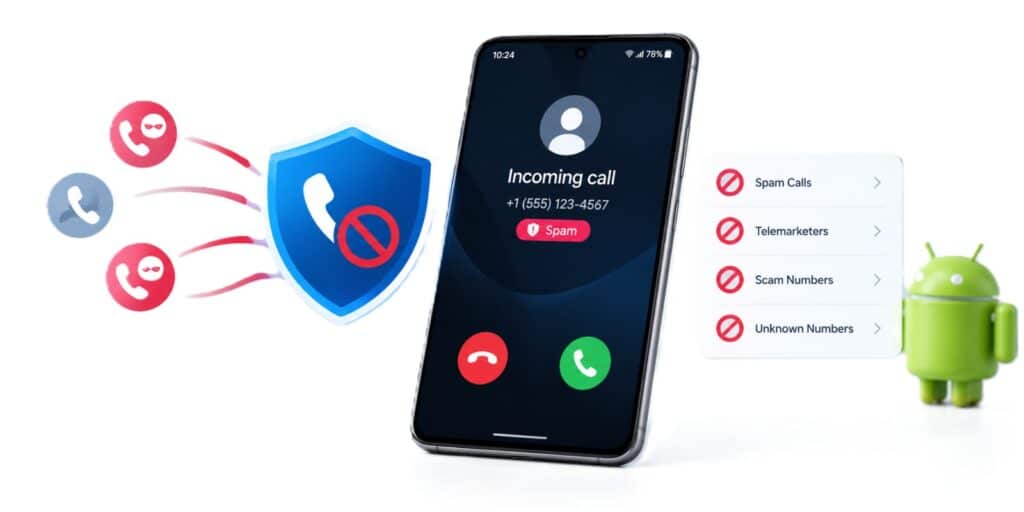
A call blocker app for Android phone matters because unwanted calls are a daily nuisance. Robocalls, scam calls and pushy telemarketers keep interrupting meals, meetings and sleep. Some of these calls are scams that try to pull out personal or money details.
It is among the best fixes for this problem. A good one flags likely spam before you answer and keeps a block list. Many apps also silence known scam numbers on their own.
Not every app is equally safe to install or useful. These apps often ask for access to your call log and contacts. A careless choice can add privacy risks of its own.
This guide explains how these apps work and how Android’s built-in tools compare. It covers the permissions to expect and how to check an app first. You will also get setup steps and tips for spam that still gets through.
A call blocker app for Android phone filters unwanted calls before you ever answer them. It checks each incoming number against spam reports and your own block list. Android has basic blocking built in, but an app adds spam labels and filtering.
Quick Answer
Start with your phone’s built-in blocking and spam warnings. Add a call blocker app only if you need stronger filtering. Check its permissions and Google Play data safety details before installing.
Key Takeaways
- The FTC calls call blocking and call labeling the best defense against unwanted calls.
- No blocker stops every call, and some may block calls you want.
- The Google Phone app can block numbers and warn about suspected spam.
- Google Play’s Data safety section shows what an app collects before you install it.
- Hang up on robocalls, and never press numbers or call back.
Why Unwanted Calls Make a Call Blocker App for Android Phone Worth It
Most spam calls follow a few simple patterns. Knowing them helps you pick the right tool. It also helps you decide which calls to ignore.
Robocalls and Telemarketing Calls a Call Blocker App Can Stop
Robocalls play a recorded message to many phones at once. The FTC says recorded sales messages are probably not legal calls. Some groups can still call you after you join a do not call list.
Scam Calls and Spoofed Numbers on Your Android Phone
Scam calls try to rush you into sharing money or personal details. The Better Business Bureau says callers can change what shows on your caller ID. A call that looks local may come from overseas.
The FTC advice is simple. Do not press any numbers and do not call back. Hang up and report the call.
The FTC is a United States agency, but the habit of hanging up applies anywhere. A do not call list may trim sales calls, not scam calls, says the FTC. That gap is why a call blocker app for Android phone helps.
How a Call Blocker App for Android Phone Works
A call blocker app sits between the network and your ringing phone. It checks the incoming number before the call rings through. Then it decides to allow, label or stop the call.
A call blocker is a utility app, as our application vs software guide explains. It runs on your phone like any other app. The difference is the access it asks for.
According to the FTC, the company behind an app uses call data and reports. These come from users, the FTC and other sources. The app uses them to predict which calls are illegal or likely scams.
The FTC adds that calls might be stopped, ring silently or go to voicemail. That means blocked does not always mean the phone stays quiet. The result depends on the app and its settings.
Google’s Phone app uses spam reports in a similar way. Google says user spam reports help it judge whether a call is likely spam. Likely spam calls get a warning on the incoming call screen.
Call Blocking vs Call Labeling in a Call Blocker App
The FTC describes two tools, call blocking and call labeling. Blocking stops a call before it reaches you. Labeling lets the call ring and shows a warning about the caller.
A labeled call leaves the decision to you. Google can label a call as suspected spam, and you can answer or block it. The FTC warns that call blocking might stop some calls you want.
Main Ways to Block Calls on Your Android Phone
Android users have four main options. Each one has its own strengths and limits. The table below compares them.
| Option | How it works | Main limit |
| Manual block list in the Phone app | Blocks numbers you pick from your call history | Works only after a call has reached you |
| Caller ID and spam in the Google Phone app | Warns about suspected spam and can filter calls | Sends numbers from outside your contacts to Google |
| Carrier blocking or labeling | Network service from your phone company | Features depend on your carrier |
| Third-party call blocker app | Uses its own spam data and your block list | Needs permissions and may charge a fee |
Built-In Android Blocking vs a Call Blocker App for Android Phone
Your phone may already block calls well enough for your needs. Many Android phones use the Google Phone app. Some brands ship their own dialer, so menu names can differ.
How to Block a Number on Your Android Phone Without an App
Google says some of these steps need Android 6.0 or newer. Open the Phone app and follow the steps below. Your menu names may vary by brand.
- Open the Phone app.
- Tap More, then Call history.
- Tap a call from the number you want to block.
- Tap Block or report spam.
Google says your phone then declines calls from that number automatically. If visual voicemail is on, blocked callers cannot leave voicemails. Calls from a blocked number will not show in your call history.
You can undo this at any time. Go to Settings, then Blocked numbers. Tap Clear next to the number and choose Unblock.
How to Block Unknown Numbers on Your Android Phone
Open the Phone app and tap More. Then tap Settings, then Blocked numbers, and turn on Unknown. Google says this blocks private or unidentified numbers.
This does not block every number outside your contacts. Google states that you will still get calls from unsaved numbers. That is why spam filtering matters too.
How to Turn On Spam Filtering on Your Android Phone
Google says caller ID and spam protection is on by default. Open the Phone app, tap More, then Settings and Caller ID and spam. Turn on See caller ID and spam, then turn on Filter spam calls.
Filtered calls trigger no missed call or voicemail notifications, says Google. They still appear in your call history. You can also check your voicemail.
What Google Does With Call Data on Your Android Phone
Google says caller ID and spam protection may need to send call information to Google. Numbers from callers outside your contacts are sent to help spot spam. Google says it does not get phone numbers from your contact list.
Google also says it does not share this data with business partners. You can opt out at any time. Opting out means no spam warnings and no caller ID names.
Where Built-In Tools Fall Short of a Call Blocker App for Android Phone
Built-in blocking works one number at a time. Spam callers can change numbers, so a manual list gets stale. The Better Business Bureau says there is no way to fully prevent robocalls.
A third-party app adds shared spam data and extra filters. It may also offer features your phone lacks. The trade is more permissions and more data sharing.
Permissions a Call Blocker App for Android Phone May Ask For
A call blocker must see who is calling to work. That is why it asks for access to phone features. The FTC notes that some apps will access your contacts.
Google treats call log access as sensitive. Google Play policy says call log permissions are personal and sensitive user data. Apps need a valid reason to request them.
Google Play policy lists caller ID, spam detection and spam blocking as permitted uses. A real call blocker can have a valid reason to ask. That does not mean every request is fine.
| Permission | Why a call blocker may ask | What to check |
| Phone access | To see incoming numbers and reject calls | Does the app explain this before it asks |
| Contacts | To avoid blocking people you know | Whether the data safety section lists contacts |
| Call log | To label past callers and show history | Google Play treats this as sensitive data |
| Anything else | No clear link to calling | Treat it as a red flag |
Google Play policy asks developers to accommodate users who deny sensitive permissions. For example, an app can let you type a number by hand. A well built app should still work in a limited way when you say no.
Permission Red Flags in a Call Blocker App for Android Phone
Be careful if a call blocker wants access with no link to calls. Camera access is one example that rarely fits a call blocker. Deny the request and see whether the app still works.
Read what the app asks for at install and at first launch. Deny anything you cannot link to a calling feature. You can change permissions later in your phone settings.
How to Choose a Safe Call Blocker App for Android Phone
Choosing well matters because the app sees who calls you. The FTC suggests researching apps before you download one. It points to ratings and reviews in your app store and independent expert views.
The FTC also notes that some apps are free and others charge. Check the price before you install. Read the plan details so a trial does not turn into a surprise fee.
Our types of software programs article shows where utility apps like this fit. Knowing the type helps you judge what access it should need. A call blocker should need calling features, not your camera.
Check the Data Safety Section of a Call Blocker App
Google says you can check an app’s Data safety section before you install it. Developers use it to describe how the app handles your data. It covers what data is collected and what is shared.
Google says the section only applies to apps distributed on Google Play. You will only find it on Android 5 and up. Look at whether contacts and call data are collected or shared.
Google says developers are responsible for the information in their section. It also says a policy requires that information to be accurate. Still, compare it with the app’s privacy policy.
Checklist Before You Install a Call Blocker App for Android Phone
- Read the Data safety section for contacts and call data.
- Open the privacy policy and look for data sharing details.
- Check ratings and reviews for complaints about missed calls.
- Look at the price and any monthly fee.
- See how recently the developer updated the app.
- Compare the permission requests with what the app does.
Install apps from Google Play and avoid links sent in messages. Use the same checks for any app you add. A few minutes here can save you a lot of trouble.
How to Set Up a Call Blocker App for Android Phone Correctly
The steps below fit most call blocker apps, though screens differ. Follow them in order. Take your time at the permission prompts.
- Install the app from Google Play only.
- Open it and read the permission requests before you tap allow.
- Set it as your default caller ID and spam app if it asks.
- Turn on spam detection and any filter for unknown callers.
- Add numbers you want to block.
- Add trusted numbers to an allow list if the app offers one.
The default caller ID and spam app setting sits in your default apps menu. The name and place can vary by brand. Search your Settings for caller ID if you cannot find it.
After setup, review your call history once or twice. The FTC warns that call blocking can stop calls you want. Move any wrongly blocked number off the block list.
Keep Your Android Phone Fast With a Call Blocker App
A call blocker watches for calls, so it may run in the background. Many background apps together can slow a phone down. Our guide on why an Android phone is slow shows how to check.
Pick one main call blocker app and avoid stacking several. Remove any app you stop using. A lean phone handles calls faster.
What to Do When Spam Gets Past Your Call Blocker App for Android Phone
No blocker catches every call. The FTC says call blocking will not catch every unwanted call. Report what slips through.
The FTC says to report unwanted calls at DoNotCall.gov. If you lost money, report the scam at ReportFraud.ftc.gov. These are United States sites.
Reporting Spam Calls on Your Android Phone in Pakistan
Readers in Pakistan have local options. The Pakistan Telecommunication Authority runs a toll free helpline, 0800-55055, according to ProPakistani. That line handles telecom services, device blocking and unlawful content issues.
Pakistani media reported a PTA notice about the Do Not Call Register. It says to send the word reg by SMS to 3627. Confirm the current code with your network before you send it.
The same notice says to contact your service provider if the problem continues. An earlier Associated Press of Pakistan report also shows PTA warning about money calls. Do not act on any call that asks for money or contact details.
If You Already Shared Details
If you shared a password or code, change it at once on the real site. Contact your bank through a number printed on your card. Then check your devices for anything you installed.
If the caller made you install something on a PC, check it. Our guide on how to check Windows 11 for malware walks through it. Do this before you log in to any account.
FAQ About a Call Blocker App for Android Phone
Is there a built-in call blocker on Android?
Yes, the Google Phone app can block numbers and warn about spam. Google says caller ID and spam protection is on by default. Some brands use their own dialer, so menus differ.
Is a call blocker app for Android phone safe to use?
It can be, but it depends on the app. Google says the Data safety section shows what an app collects. Check permissions and reviews before installing.
Do call blocker apps block every spam call?
No. The FTC says call blocking will not catch every unwanted call. It may also block some calls you want.
Which permissions does a call blocker app need?
It usually needs phone access to see incoming numbers. Some also ask for contacts or call log access. Google Play treats call log access as sensitive.
Are call blocker apps still worth using in 2026?
Yes, if you get frequent spam calls. The FTC calls call blocking and call labeling the best defense against unwanted calls. Pick an app with clear permissions and a clear privacy policy.
Can I block unknown numbers on Android?
Yes, in the Google Phone app. Turn on Unknown under Blocked numbers. Google says this blocks private numbers, not unsaved ones.
Final Thoughts on Choosing a Call Blocker App for Android Phone
In my experience, a call blocker app for Android phone works best with good habits. I start with the built-in tools and add an app when spam keeps coming. I also read every permission before I tap allow.
Hang up on robocalls and never press numbers. Report what you can and keep your block list tidy. The right app protects both your time and your data.
Remember that no tool stops every call. A careful choice beats a quick install. For official steps, read Google’s page on caller ID and spam protection.
Pingback: How to Transfer Contacts to a New Phone: Easy Guide For iPhone, Android - Tech World Garage